 DDM Help
Finding and reading documents
Where to find documents
- Home – the start page: continue reading, the highlights, what is new and your favorites at a glance. See the start page.
- Highlights – what your organisation is especially pointing out right now.
- Newly uploaded – the last 50 documents in your categories. Filter with New documents and New versions. The red number in the navigation shows how much is new.
- Categories – everything shared with you, by topic. Clicking a tile opens sub-categories and documents.
- Recently opened – your history. At the top is CONTINUE READING with Open at page …: the app remembers where you were.
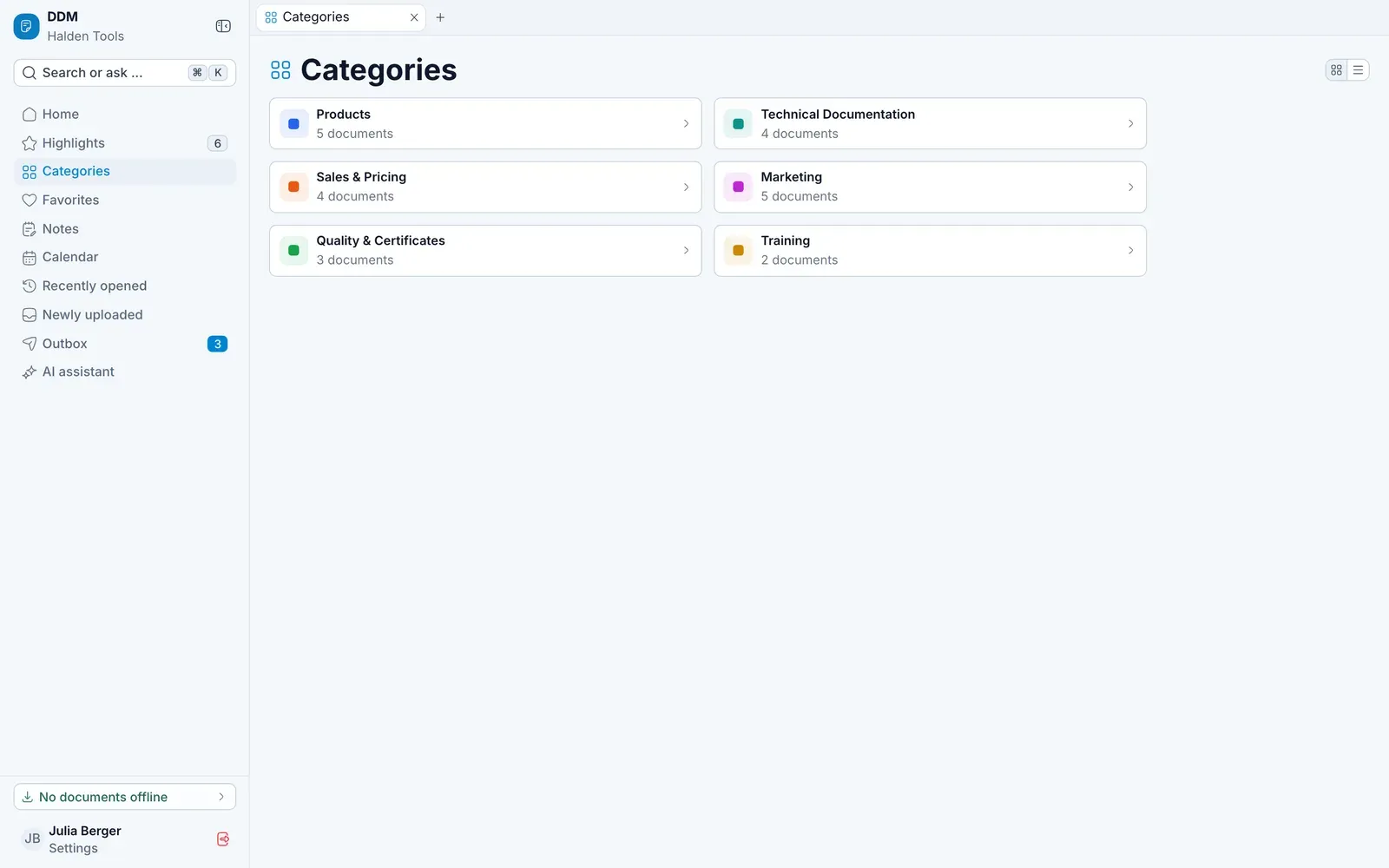
Actions on a document
Next to each document in a list or on a card, you will find its actions:
- On a computer, as small icons: Open beside, the heart, Add to the outbox and Download – in the desktop app, also Open in Word (or Excel, PowerPoint, Open in app) before it. The icons appear as soon as the pointer is on the card or row – or you move into it with the keyboard – and fade out again afterwards, so lists and cards stay calm.
- On a tablet, smartphone or touchscreen, behind ⋯: Open beside (on narrower screens Open in new tab), Add to the outbox, Add to favorites, Keep offline and Download.
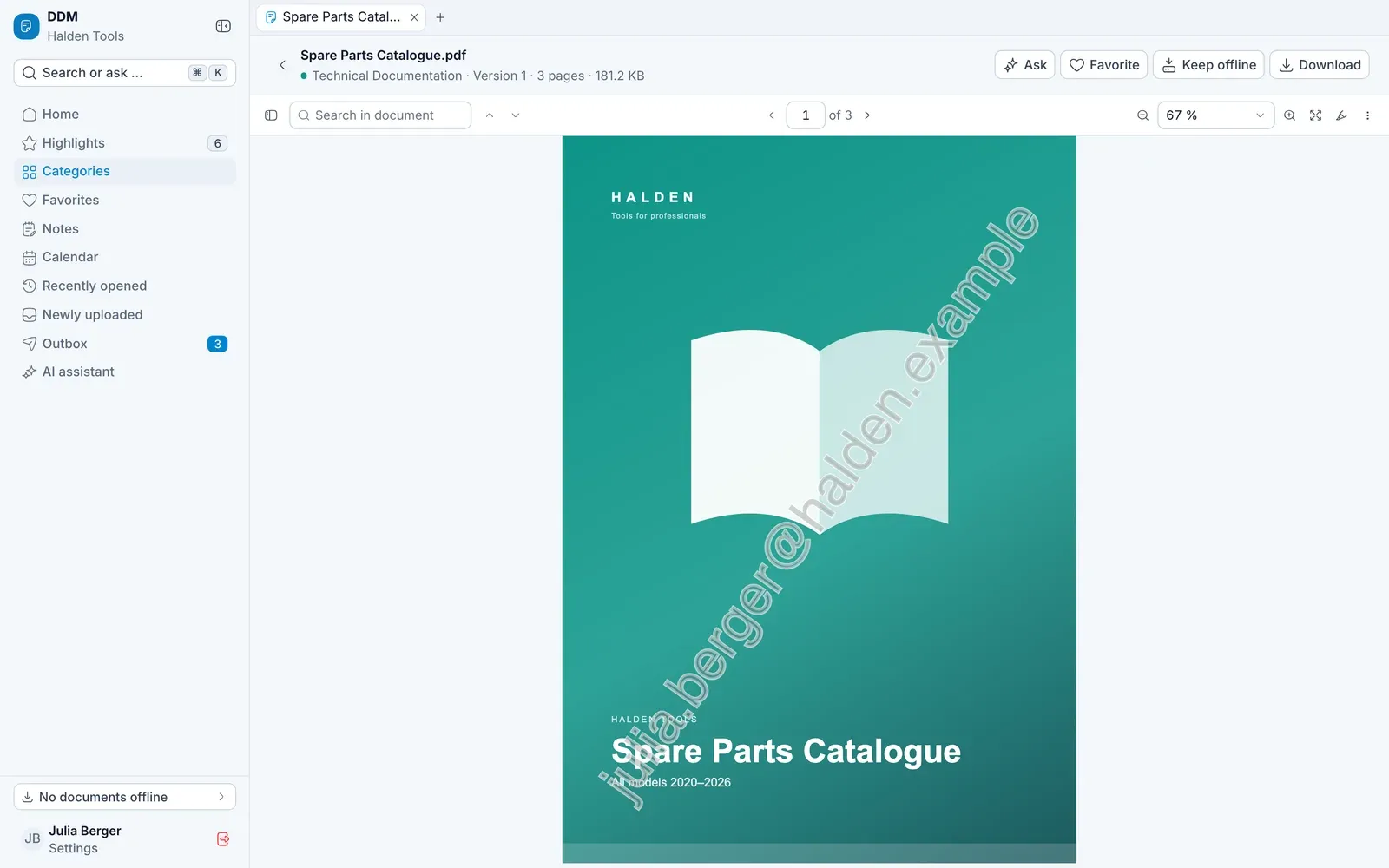
Some documents carry a watermark: your e-mail address runs across every page – when you read it, download it and offline – so it stays clear whose copy it is. A watermarked Office file downloads as a PDF. These documents cannot be sent by link.
Opening a document
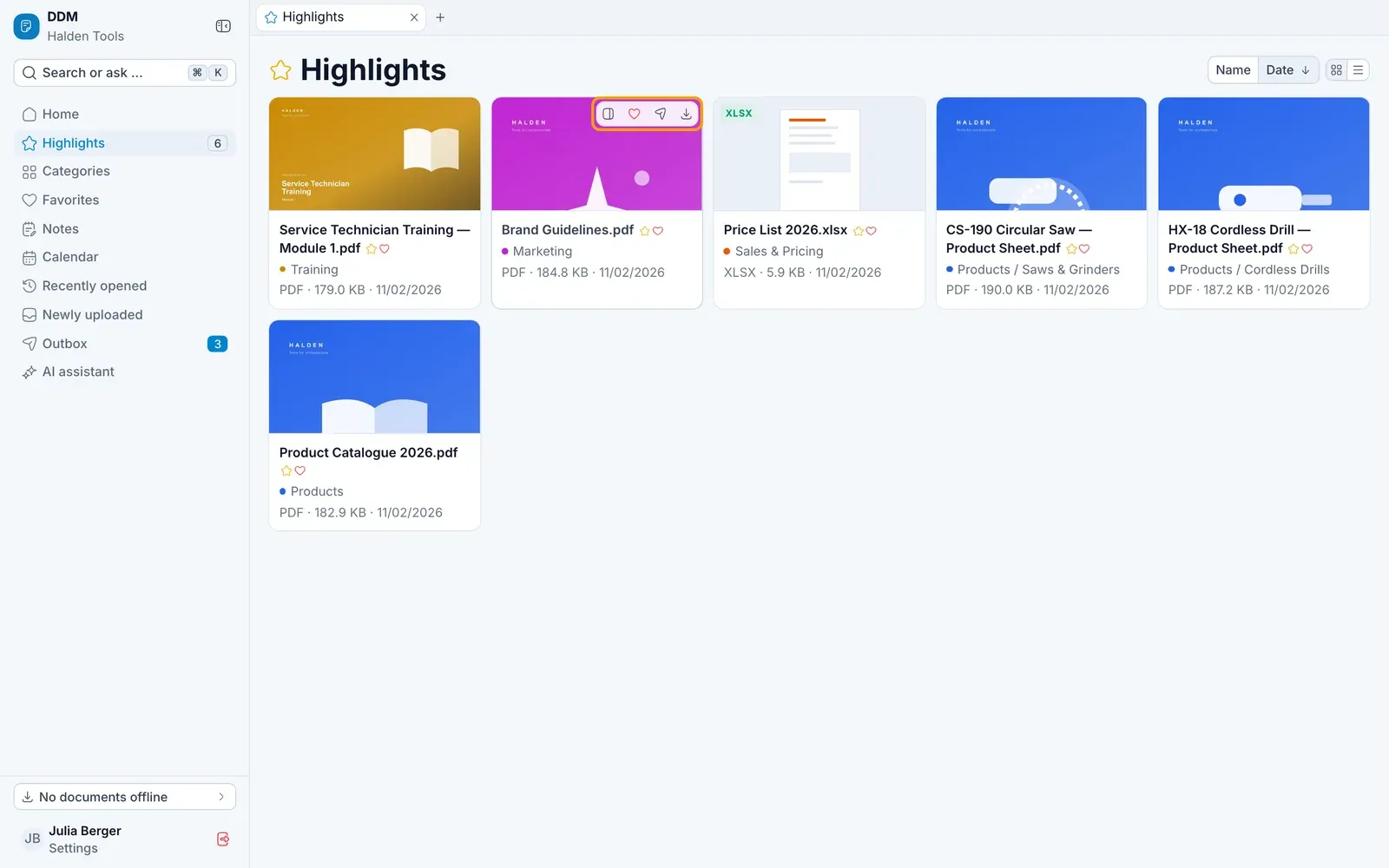
Tap or click a document.
- It opens in the same tab – on a tablet or smartphone, full screen. The arrow at the top left takes you back to the list.
- To see the list and the document at once, choose Open beside on a computer: the document opens in a tab next to the list. A document from the list beside it is marked in it.
- With ⌘Ctrl held, or with the middle mouse button, it opens in a new tab in the background.
The viewer
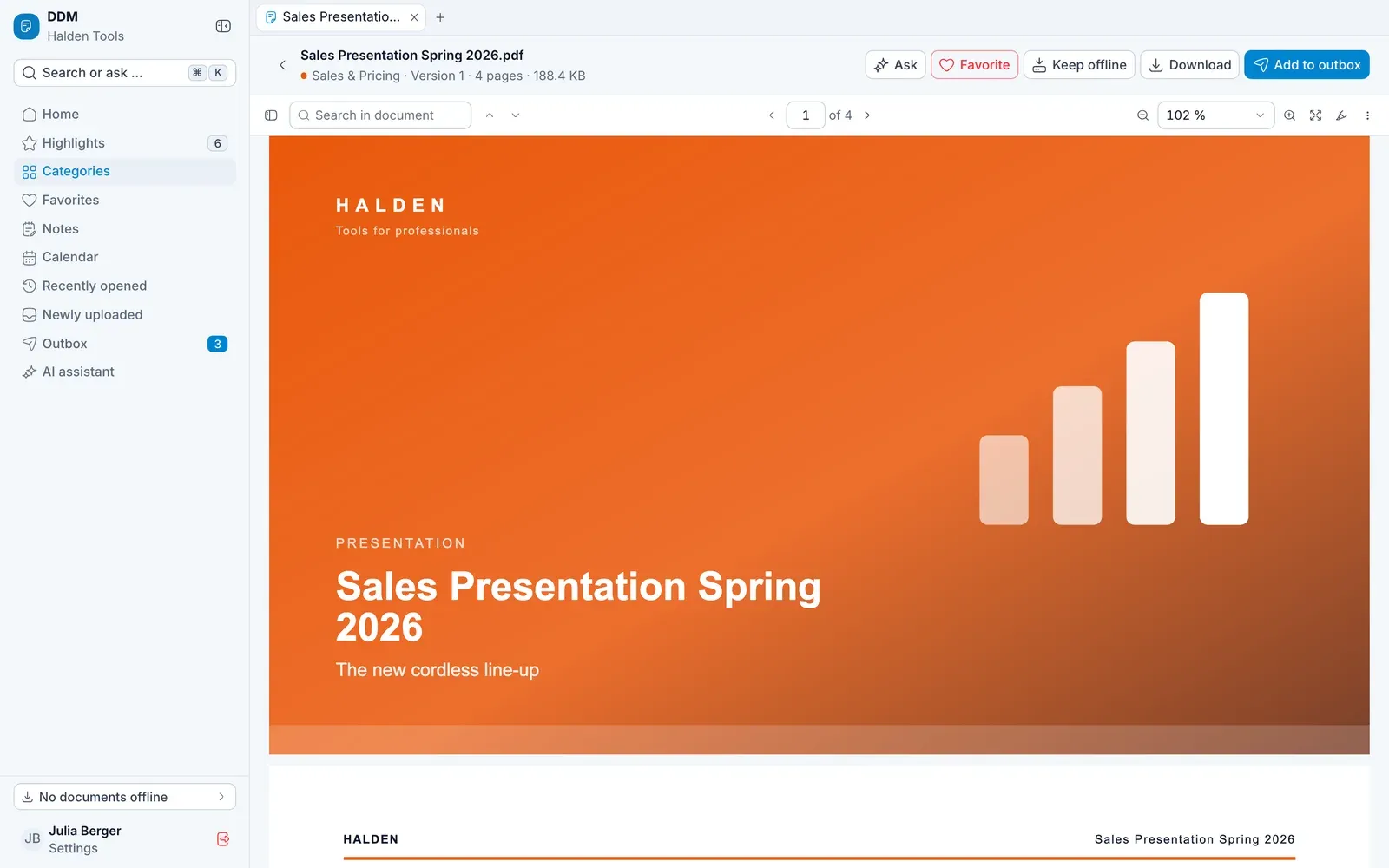
On a computer, the buttons are at the top of the viewer:
| Button | What it does |
|---|---|
| Ask | ask the AI assistant about this document |
| Favorite | add it to your favorites |
| Keep offline | save it on this device – afterwards it says Kept offline |
| Download | download the file – in the desktop app, Open in Word, Open in Excel, Open in PowerPoint or Open in app in its place |
| Add to outbox | set it aside for sending to a customer |
On a tablet or smartphone, the heart for your favorites is next to the title, and the other buttons are at the bottom: Ask, Offline (keep offline), Download and, largest, Add to outbox. A tick next to the title shows that the document is kept offline.
For PDFs there is also a toolbar:
- Sidebar with page previews, table of contents and search results,
- Search in document,
- turn pages, Zoom in / Zoom out, Fit to width, Fit page,
- Full screen,
- Annotate – highlight, draw, write text,
- under More: Print, Download with changes, rotate, Presentation, Dark pages and more.
On a smartphone, the toolbar only shows the search, the page number with the arrows to turn pages, and ⋯. Behind ⋯ you will find Sidebar, the zoom, Full screen, Annotate and everything else from More.
On a smartphone:
- Turning pages – a PDF lies page beside page: swipe left or right, and each page settles in whole. Would you rather scroll down? Choose ⋯ › Scrolling › Vertical.
- Going to a page – tap the page number, type the page you want and tap Done.
- Zooming – spread or pinch two fingers; the spot between your fingers stays where it is.
Annotated copies
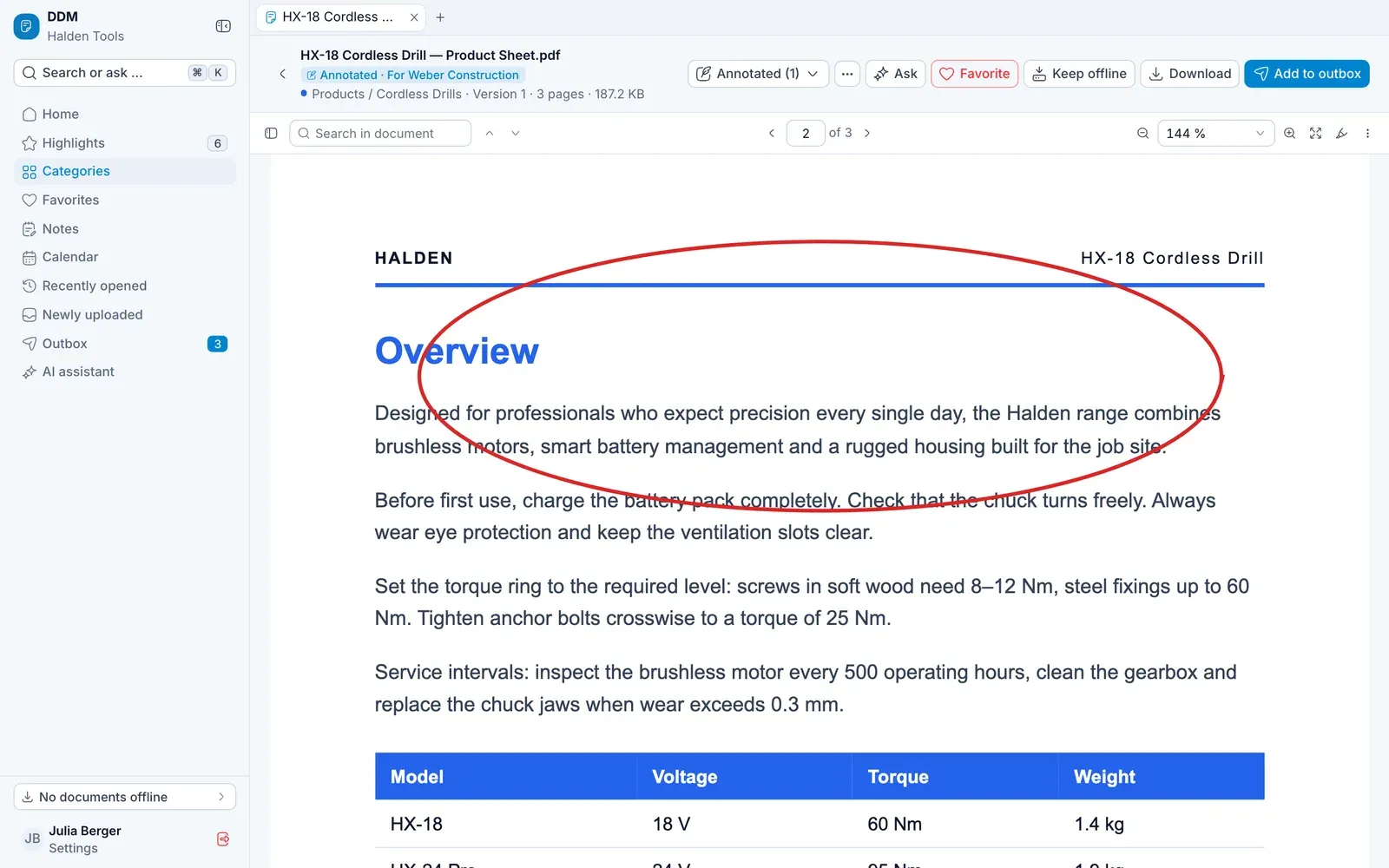
What you highlight, draw or write on a PDF can be kept as an annotated copy – under a name of your own, for you alone, on all your devices.
Annotate
Click Annotate in the toolbar and highlight, draw or write.
Save
As soon as you have marked something, Save as annotated copy appears at the top (on a smartphone, Save in the bottom bar). Enter a name, such as “For customer Miller”, and click Save.
Carry on
The annotated copy opens in place of the original – marked Annotated · … below the title. Save further marks with Save annotated copy; ⋯ › Save as a new annotated copy … makes a second one.
Annotated at the top switches between the Original and your annotated copies. The ⋯ menu of an open annotated copy has Rename, Add to favorites, Add to outbox and Delete annotated copy. If it is in Favorites, deleting names the folders it disappears from. The original always stays as it is.
Without an annotated copy, marks are lost when you close the document – the app asks first. You can also take a copy with you via More › Download with changes.
Pictures
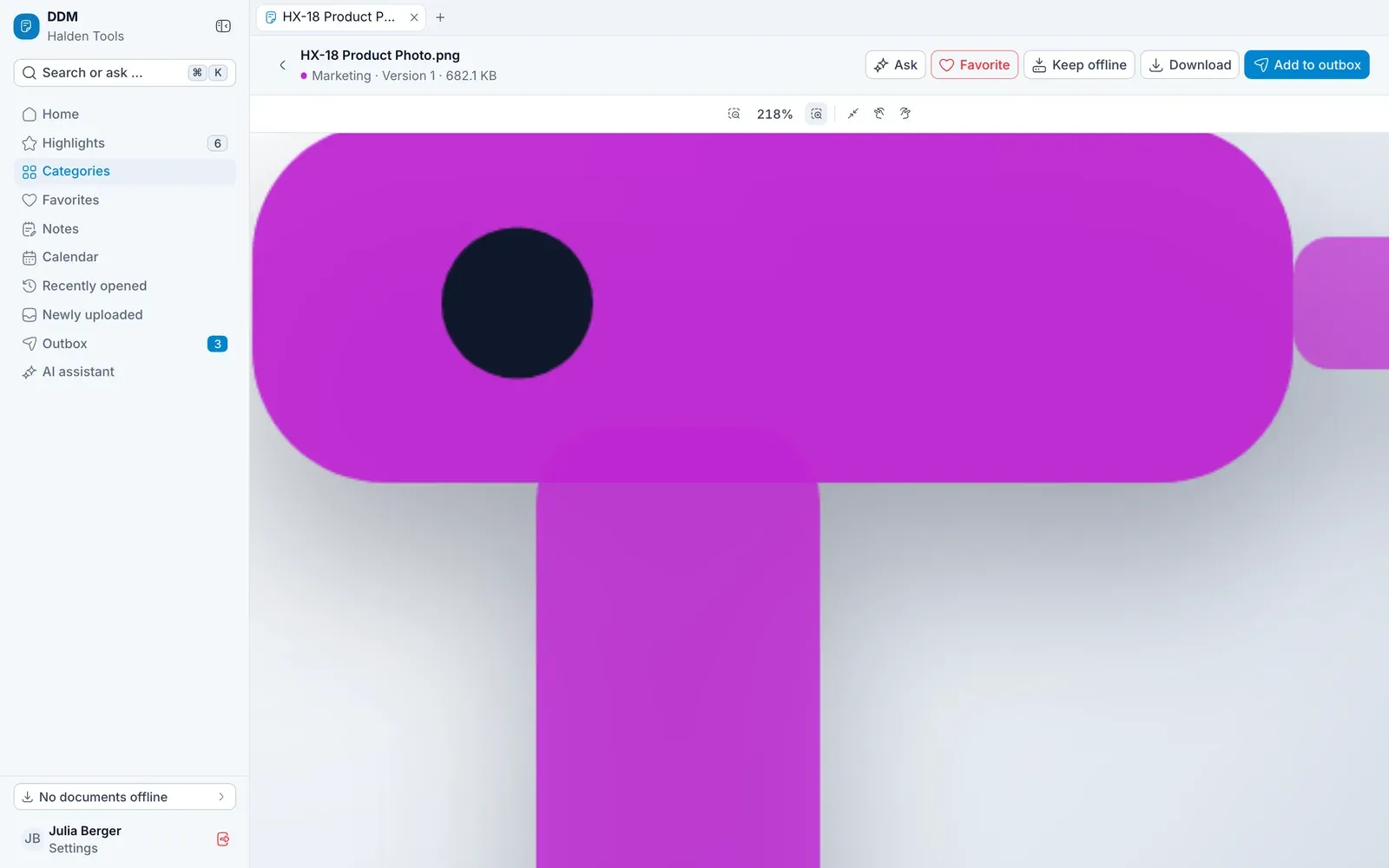
Pictures open fitted to the screen. Above them is a bar: Zoom out, the zoom level – tapping it shows the whole picture again –, Zoom in, Actual size, and turning left and right.
- Zooming – with two fingers, the mouse wheel, or by spreading and pinching two fingers on a trackpad. A double tap or double click zooms in at that spot and then back to the whole picture.
- Moving – zoomed in, drag the picture with a finger or the mouse; on a trackpad, with two fingers.
- Keyboard – + and - zoom, 0 shows the whole picture, R turns it right, with ⇧ left, and the arrow keys move it.
It cannot be zoomed out further than the whole picture. Turning only changes the view – a download is the picture as it is.