 DDM Help
Favorites
Favorites are your own collection: the documents, notes and annotated copies you need again and again, in folders, arranged the way you like. They are the same on all your devices.
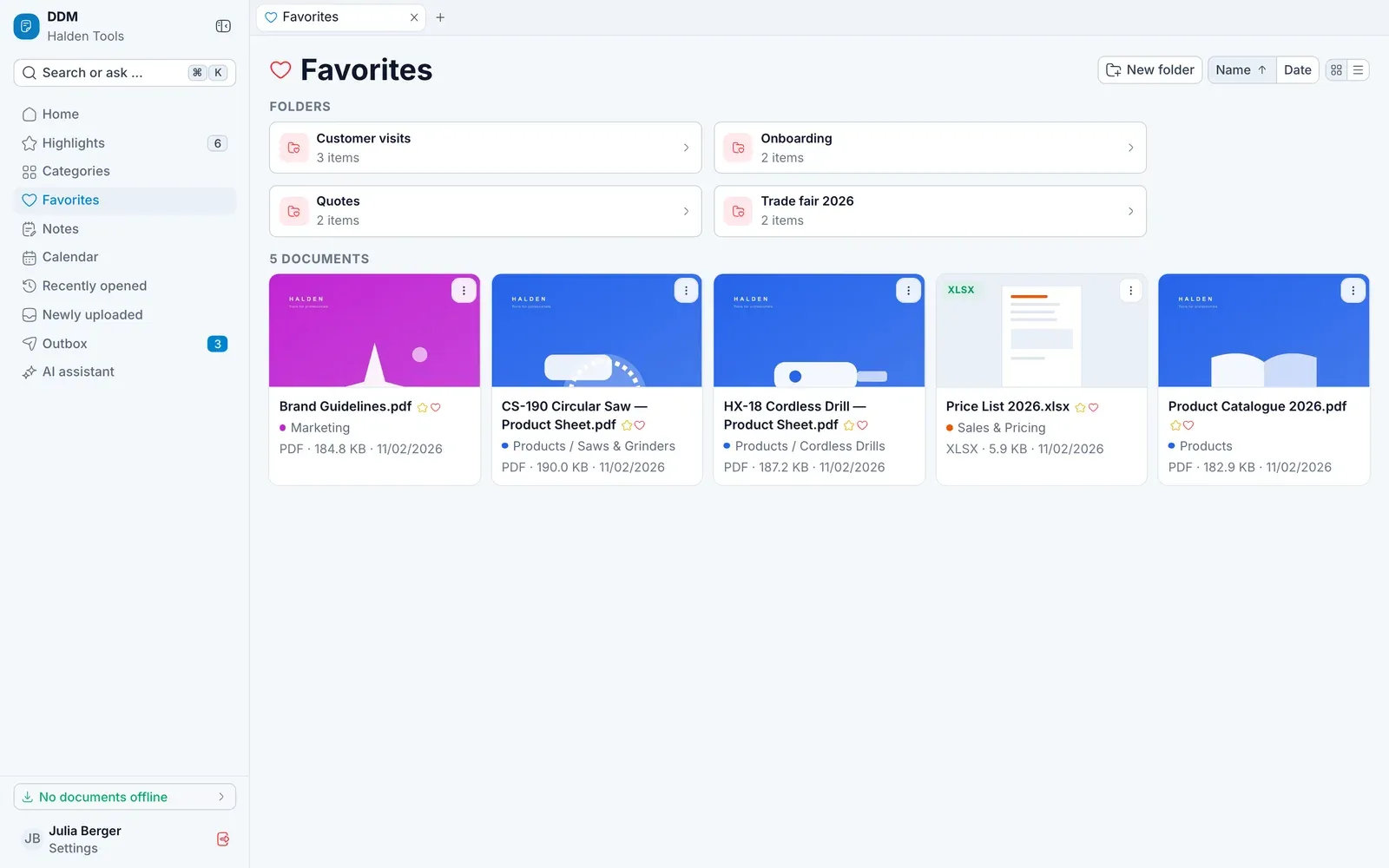
Keeping a document
Tap the Heart – in the viewer, in a list or in the search results. On a tablet or smartphone, you can also choose Add to favorites behind a card's ⋯. The app reports Added to favorites. Tapping the heart again removes it.
On a smartphone, Favorites is in the tab bar at the bottom.
Keeping a note
Open the note and choose Add to favorites in its ⋯ menu. In a folder, notes are listed under Notes, between the subfolders and the documents – filing, moving and removing work as for documents.
Keeping an annotated copy
File an annotated copy via its ⋯ menu › Add to favorites. In a folder, annotated copies are listed under Annotated copies – as the document's card with the copy's name. A click opens the copy, always on the newest version of the document.
Creating folders
- Open Favorites.
- Click New folder, enter a Name and click Save.
Via Edit folder you can Rename, Move or Delete it. When you delete a folder, the documents are kept.
You can also find your folders through the search: it looks through folder names too, and Favorites only narrows the hits to your favorites.
Putting documents into folders
- Via Actions › Put in folders … choose one or more folders and click Done.
- Or drag a document onto a folder. If you hold down Alt, it is added there as well instead of being moved. On a touchscreen, press and hold first, then drag.