DDM Help
Editing documents
Click a document in Documents. The document panel opens on the right.
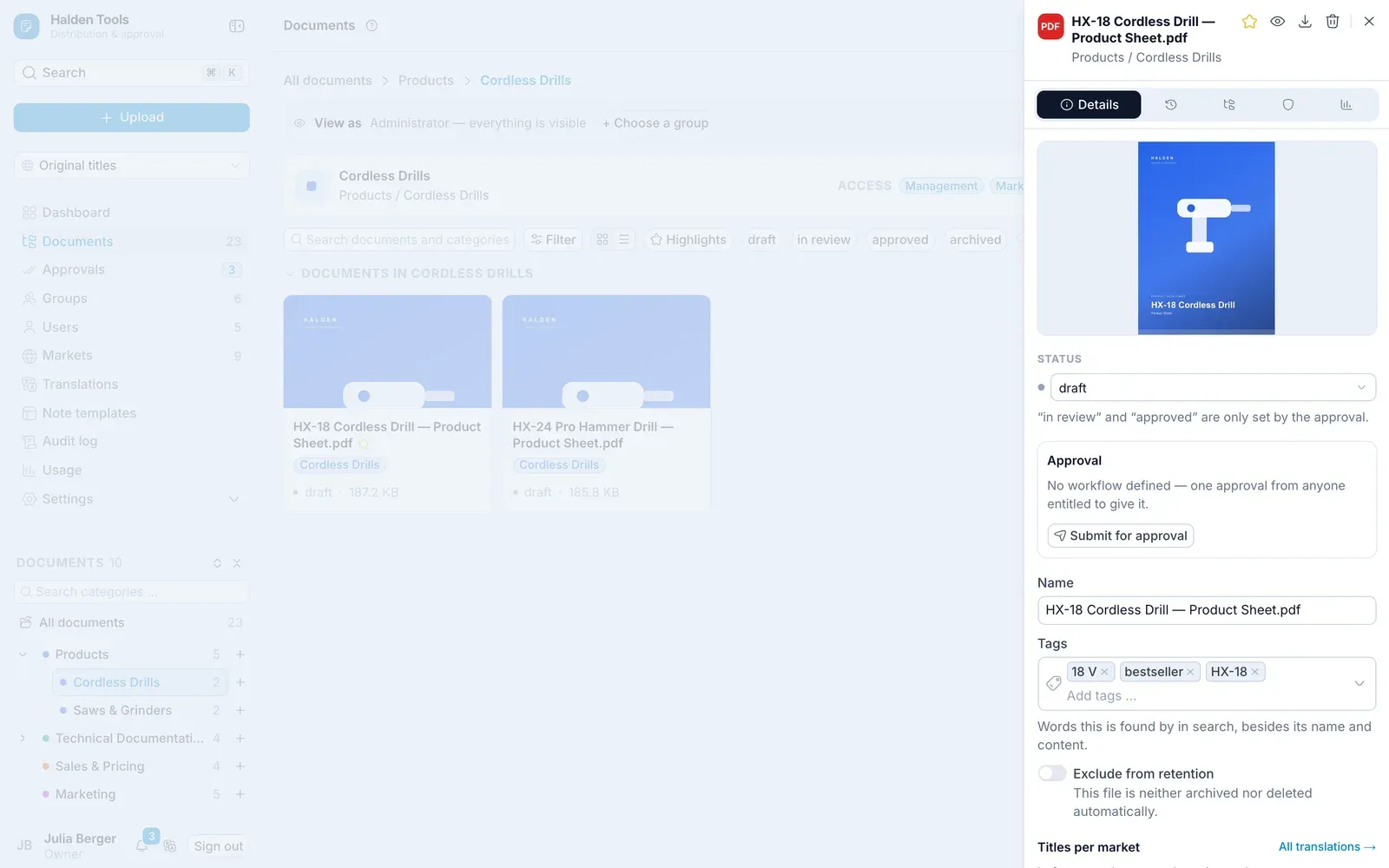
At the top of the panel:
- Star – Add to Highlights: the document appears in the app under Highlights, on its start page Home too.
- View – opens the document in the viewer. Pictures can be zoomed, moved and turned there – as in the app, see Pictures.
- Download
- Remove document
On a phone, Download and Remove document are in the ⋯ menu (More actions).
Below are the tabs Details, Versions, Categories, Access and – if your organisation counts usage – Usage.
Details
- Status – draft or archived. in review and approved are only set by the approval.
- Approval – submit, approve or reject.
- Name – what the document is called everywhere.
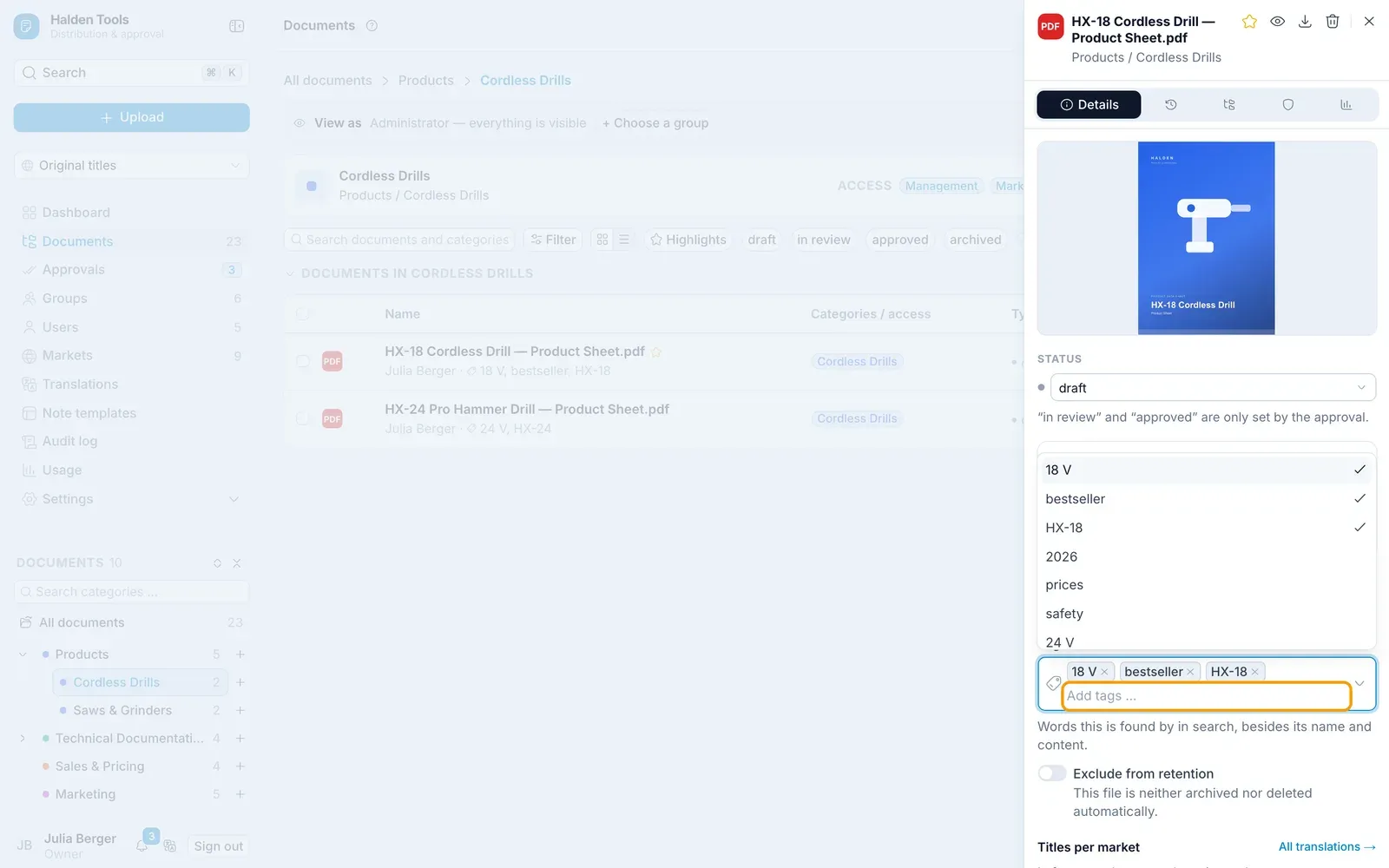
- Tags – words search finds the document by, besides its name and content. See Tags.
- Exclude from retention – the document is never archived or deleted automatically.
- Titles per market – what the document is called in other markets. If left empty, the name applies. Apply with Save titles.
Below that you will find the owner, file type, size, version, dates and the Origin – Manual for uploaded documents, External source for documents from an external source, Migrated from the old system for documents that came along in the move from the previous DDM. After a change, Save appears at the bottom.
Tags
Tags help people find things. The search in Documents, the command palette (⌘Ctrl K) and the search in the app also find a document by its tags – "Price list", say, for a file called PL_2026_v3.pdf. In the table they follow the owner.
- On the Details tab, under Tags, choose a tag from the list – it suggests the ones your organisation already uses – or type a new one. Case does not matter: whoever types "price list" gets the existing "Price list". Apply with Save.
- Categories have tags too, in the category panel. Search in the CMS finds the category by them.
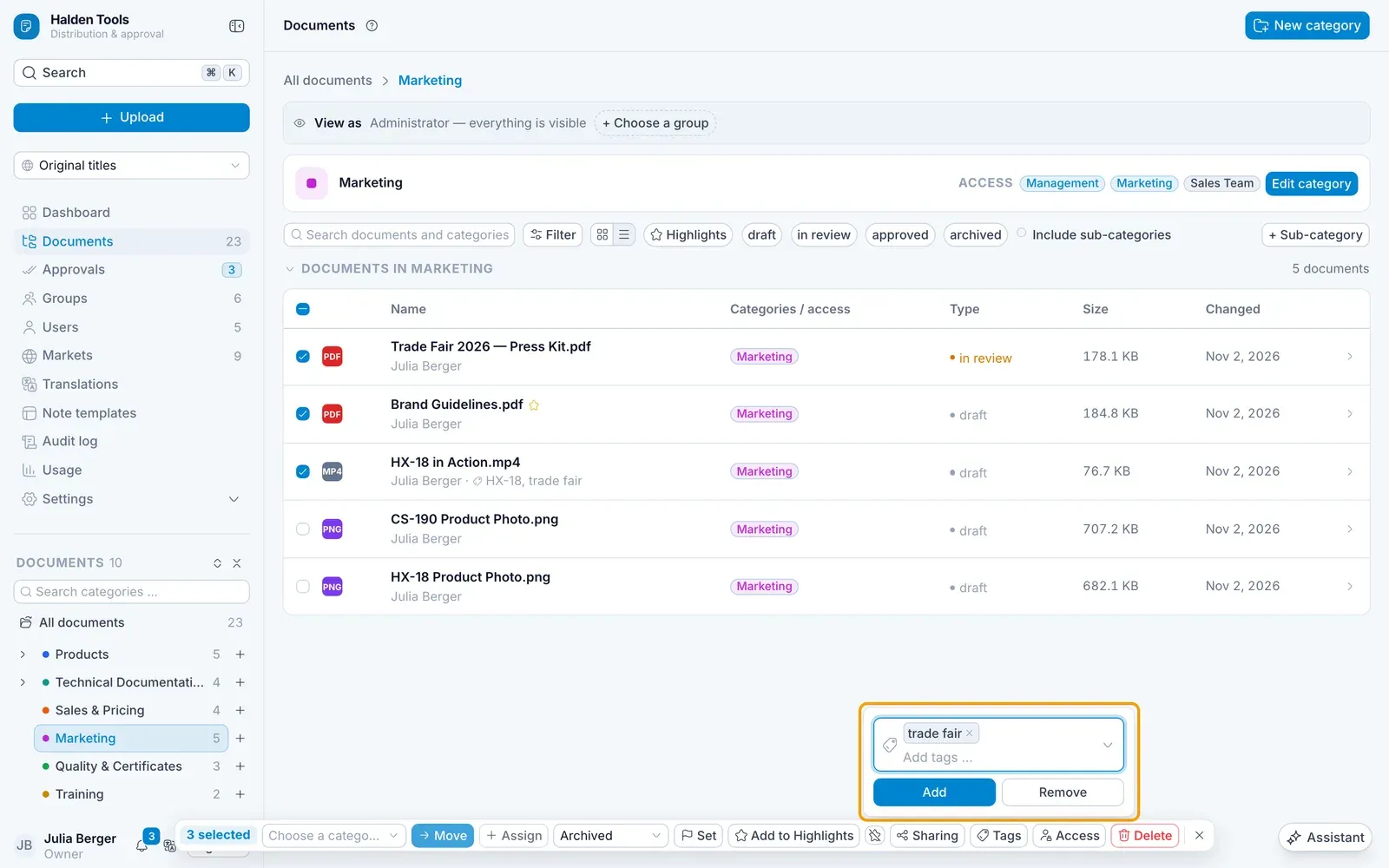
- For many documents at once, add or remove tags in the bar under Several documents at once.
A document or category carries up to 50 tags, each at most 64 characters long and without a comma. A tag that nothing carries any more disappears by itself and is no longer suggested.
The filter with the Tag field shows which documents carry a tag – or none at all.
Uploading a new version
Versions tab
In the document panel, open the Versions tab.
New version
Click New version, choose the File and write what has changed under Change note.
Upload
Click Upload. The new file is immediately the current version; anyone who has saved the document offline gets it in the app.
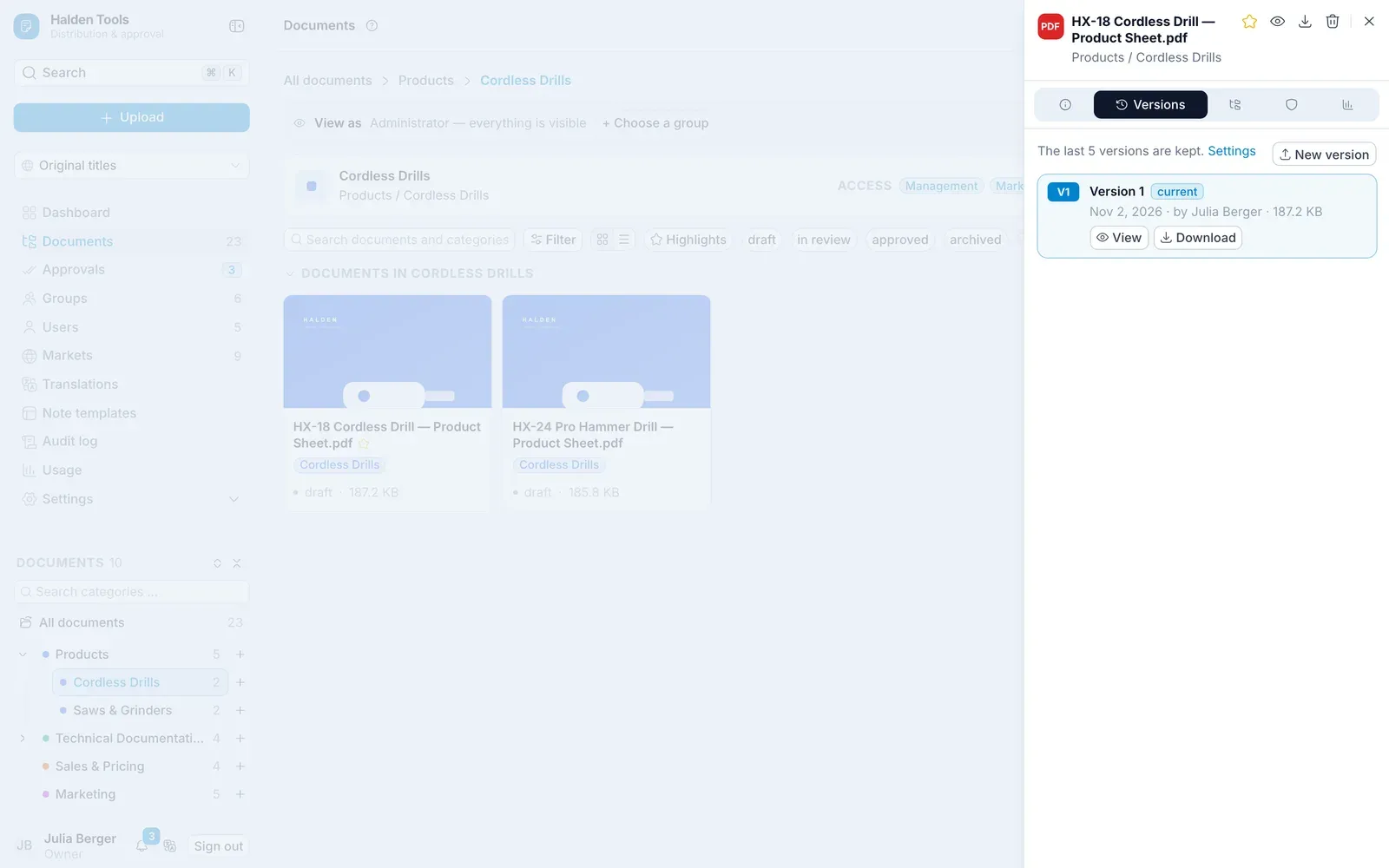
You bring back an older version with Restore. It is saved as a new version – nothing is lost.
A document's categories
A document is in at least one category, and can happily be in several. In the Categories tab you add more or remove one. Below, Resulting access shows who may see the document as a result.
Access for individual files
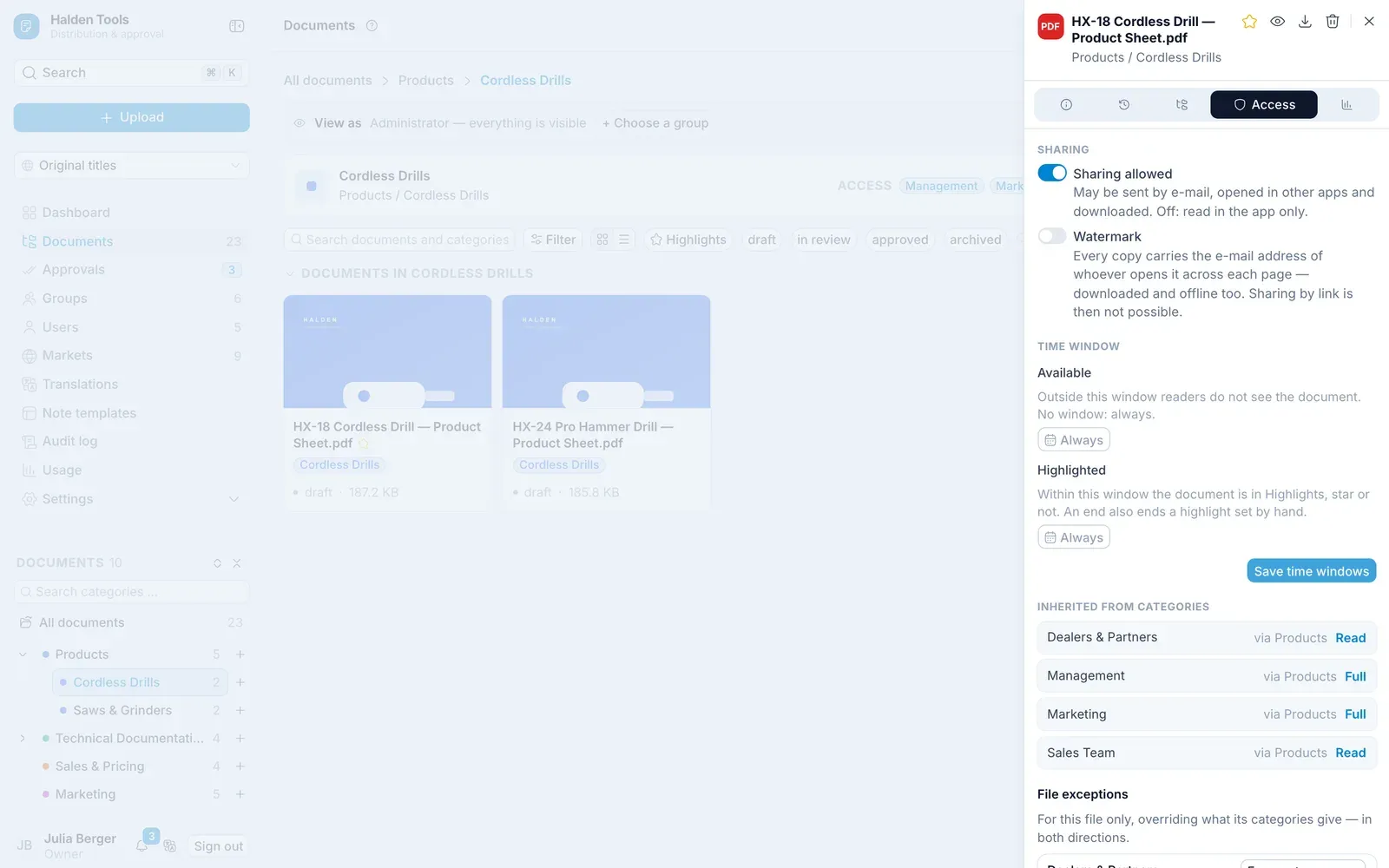
Normally the categories' permissions apply. In the Access tab you can make exceptions for a single file – for example exclude a group (None) or give a person Read.
Sharing
Sharing is part of access control, so it sits on the Access tab, above the group rights. The Sharing allowed switch takes effect at once, without saving. Switched on, it lets readers send the document to customers via the outbox, open it in other programs and apps, and download it. That is the default.
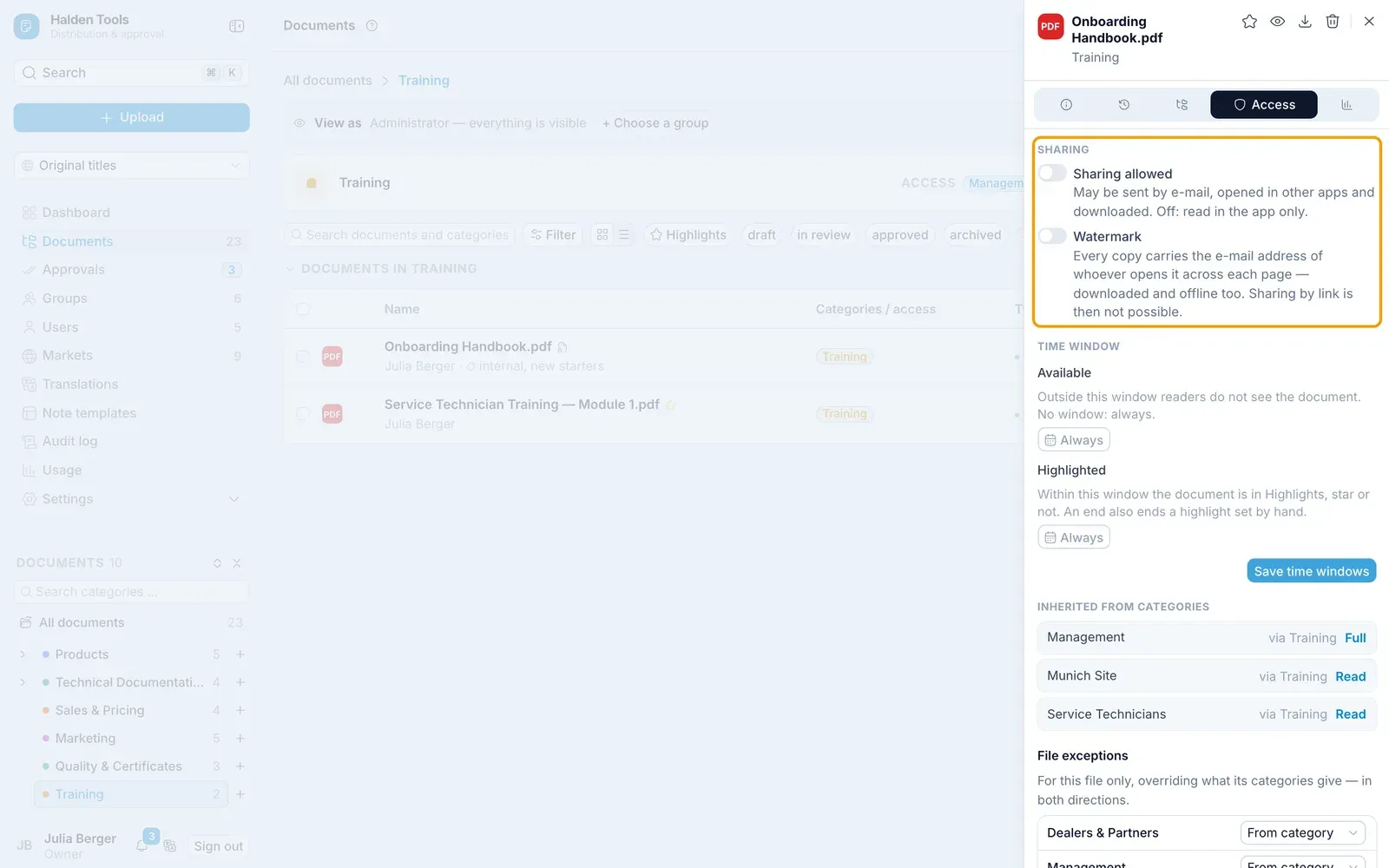
Switch it off and the document can only be read in the app:
- Readers still open and read it in the app – in the browser, the desktop app and the mobile app – and can keep it offline.
- Add to outbox, Download, Open in Word and the like, and Open in… are not offered. DDM also refuses sending and downloading by any other route.
- If the document has already been sent, the link no longer offers it. A sent note that refers to it shows the reference as unavailable.
In the CMS, you can still download the document.
The filter with Sharing allowed = No shows which documents can only be read in the app. For many documents at once, change it in the bar under Several documents at once. Whether new documents may be shared is set by administrators under Settings › Approval & retention.
Watermark
Below the Sharing allowed switch is the Watermark switch. Switched on, every copy of the document carries the e-mail address of whoever opens it across each page – grey, see-through and outlined in white, so it reads on light and dark pages alike. A document that turns up somewhere says whose copy it was.
- It applies to everything that leaves: read in the app, downloaded, kept offline, fetched through the external API – and in the CMS too. The thumbnails carry the address as well.
- PDFs and Office files can carry a watermark. An Office file then downloads as a PDF, not as a Word, Excel or PowerPoint file. For pictures and videos the switch is not available.
- A watermarked document cannot be sent by link: whoever opens a link is not signed in, and the copy would have no name. Add to outbox is not offered, and a link already sent no longer offers it.
- If a file cannot be watermarked – an encrypted PDF, say – DDM does not hand it out, rather than handing it out unmarked.
The watermark comes with the Professional plan and above. Switching it off always works. For many documents at once, switch it on or off in the Sharing menu of the bar under Several documents at once. The filter Watermarked = Yes shows which documents carry one.
Time window
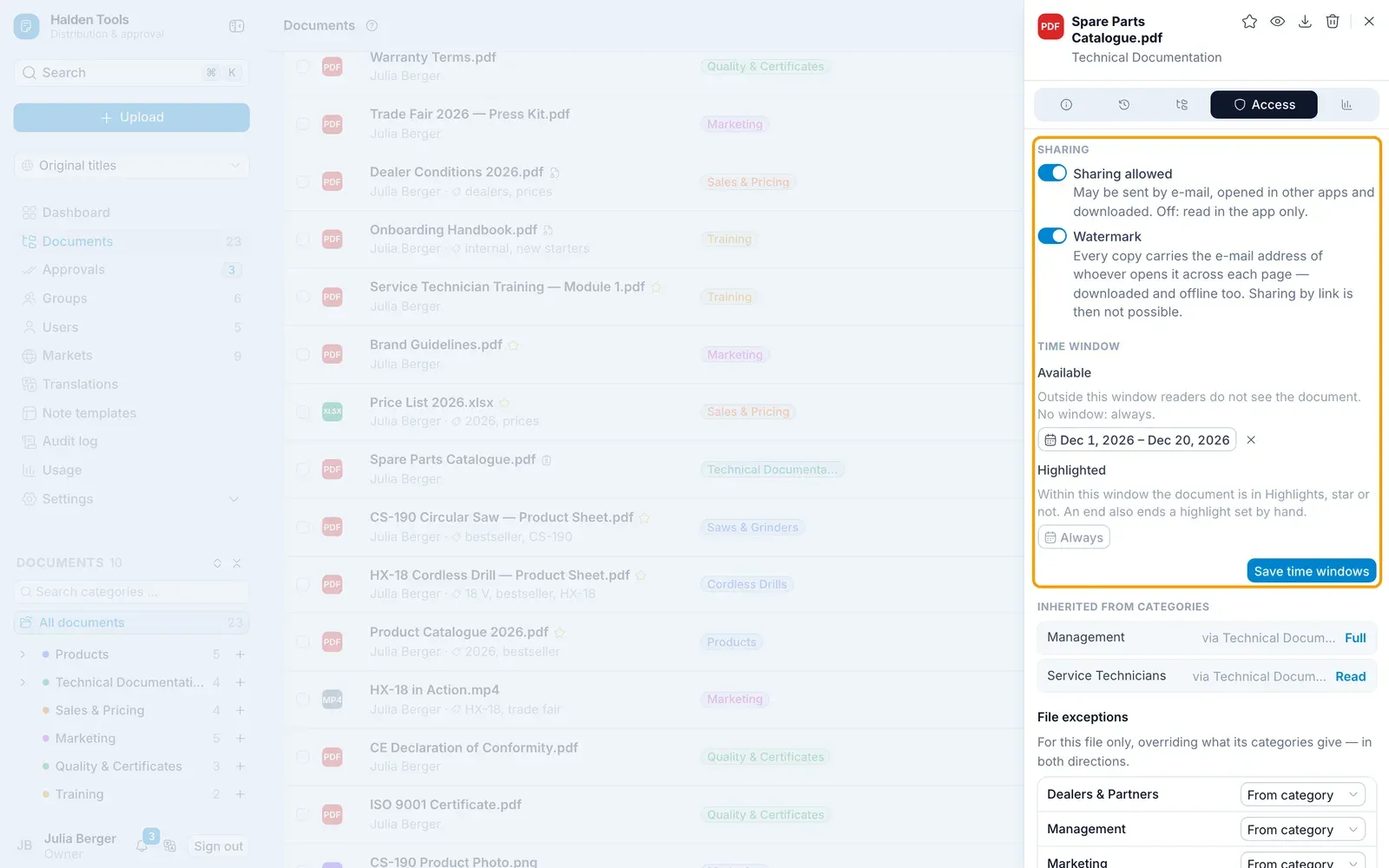
Also on the Access tab, Time window sets when a document can be seen:
- Available: outside this window readers do not see the document – in no list, not in search, not offline. Put next year's price list in place now, or let a campaign end by itself.
- Highlighted: within this window the document is in Highlights, star or not. An end also ends a highlight set by hand.
Clicking the window – without one it says Always – opens a calendar: click the first and the last day, both are included. The window starts at midnight on the first day and ends with the last, in your time zone. The × beside it removes it. Save with Save time windows. Through the integration API a window can also be set to the minute, or with only a start or an end; it then reads from … or until …. In the list, Scheduled from … or Expired since … marks documents readers cannot see right now.
Moving
Drag a document from the list onto a category in the category tree.
Deleting
Click Remove document in the panel and confirm with Remove permanently. All versions are removed with it – this cannot be undone.
If a document should simply no longer be distributed, it is better to set its status to archived.
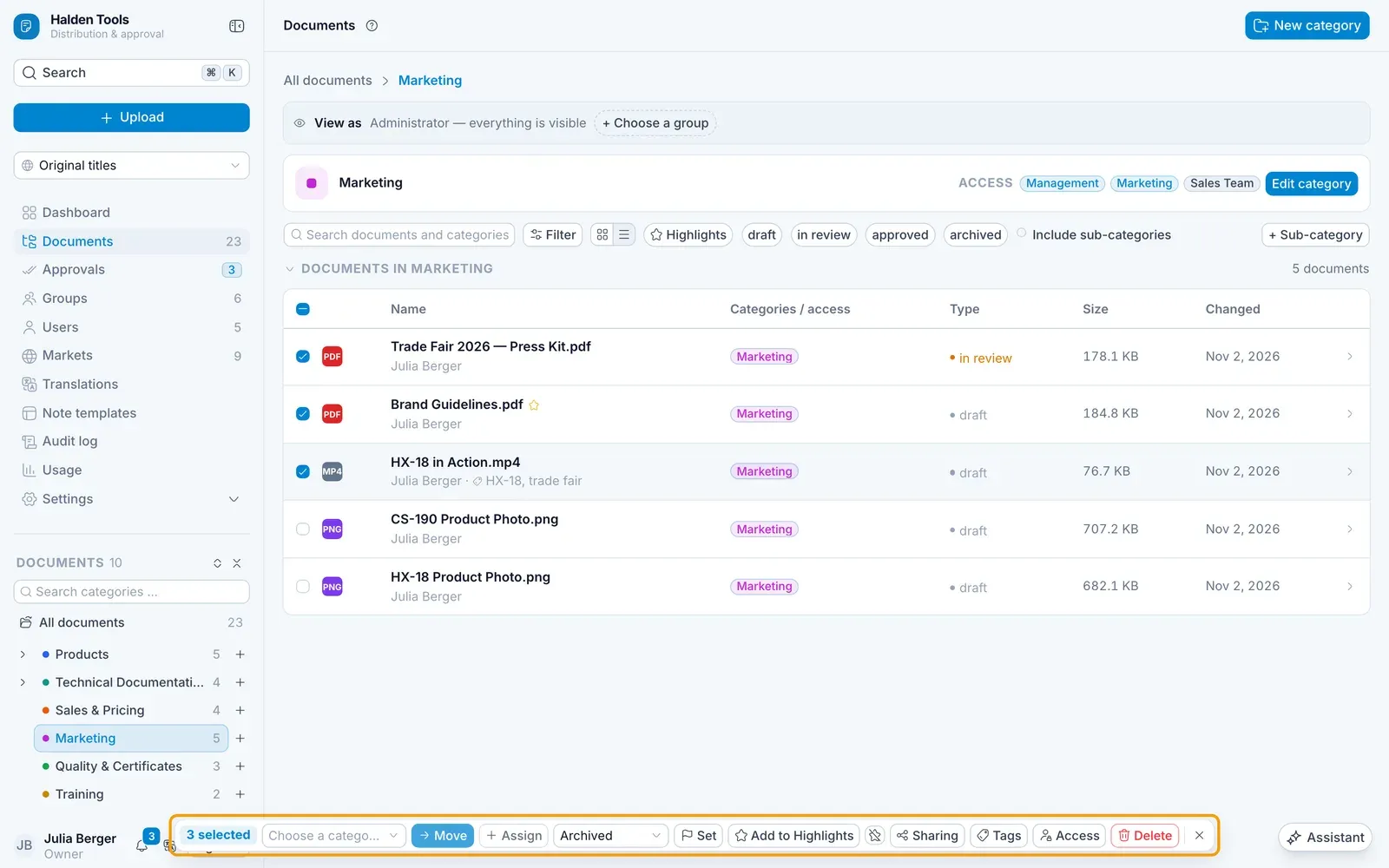
Several documents at once
- Tick the documents – in the Table at the start of the row, in the Grid at the top right of the card, once the mouse is over it. In the table, the box at the top (Select all loaded) takes everything loaded so far.
- As in Finder or Explorer, the keyboard works too:
- ⌘Ctrl + click adds a document or takes it out again,
- ⇧ + click selects everything from the one clicked last to this one,
- ⌘Ctrl A selects everything loaded, Esc clears the selection.
A click without a key opens the document as before. Categories are selected the same way. - A bar appears at the bottom with:
- choose a Target, then Move or Assign,
- set the Status (Archived / Draft),
- Add to Highlights / Remove from Highlights,
- Sharing: allow it, or restrict the documents to reading in the app – see Sharing – and switch the watermark on or off – see Watermark,
- Tags: choose or type tags, then Add or Remove. The documents' other tags stay – see Tags,
- Access: choose a group and give it Full, Read or No access – or Inherit, so what the parent category grants applies again. It works on ticked categories and documents alike; every other group keeps its rights,
- Delete.