 DDM Help
The CMS at a glance
After signing in, you see the Dashboard. The navigation is on the left, with the category tree of Documents below it.
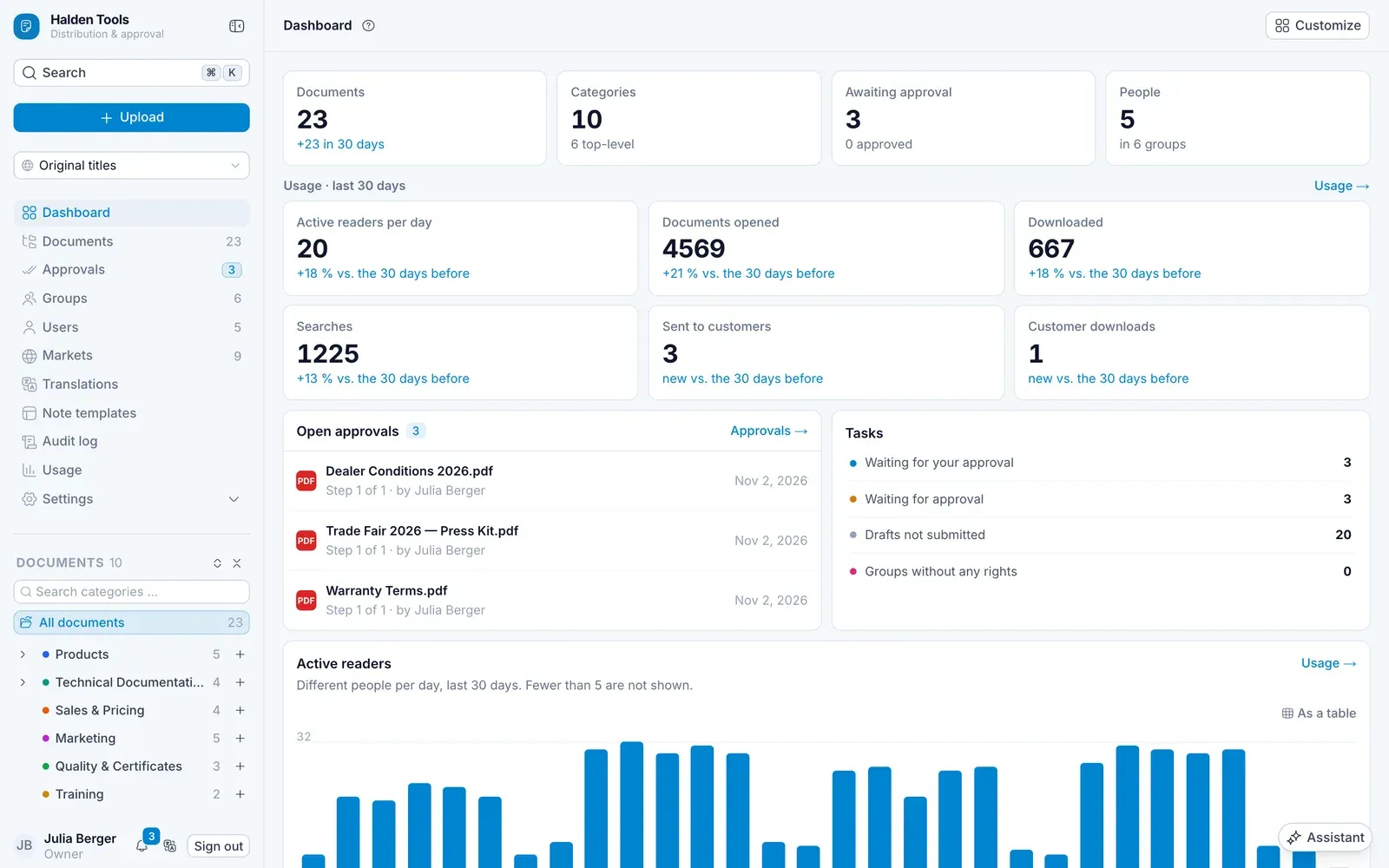
Navigation
| Entry | What for | Who |
|---|---|---|
| Dashboard | Key figures, open approvals, recent activity | everyone |
| Documents | Categories and documents | everyone |
| Approvals | Documents waiting for your approval | everyone |
| Groups | Groups, members and their permissions | everyone (changes: administrators) |
| Users | Invite and manage people | everyone (changes: administrators) |
| Markets | Countries, languages and imprint | everyone (changes: administrators) |
| Translations | Titles per market | administrators |
| Note templates | Templates for notes in the app | administrators |
| Audit log | Who did what and when | administrators |
| Usage | What is being read and searched for | administrators |
| Settings | Organisation, approval, sources, AI … | administrators |
At the top of the navigation:
- Search opens the command palette (⌘Ctrl K). Use it to find documents and categories – by their tags too –, jump to any area or start actions such as Upload documents and New category.
- Upload starts an upload – see Uploading documents.
- Display language / country shows the titles as a market sees them. Original titles shows the names as they were uploaded.
At the bottom left are your name with your role (leading to My account), the bell with notifications – approvals waiting for you, documents about to be deleted and the DDM team's answers to your feature requests –, the language of the CMS and Sign out.
Lists and details
Groups, Markets, Note templates and, under Settings, Approval workflows, Directory services, Single sign-on, External sources and System e-mails all work the same way:
- The list is on the left, with a search, sort or filter above it where the screen has one. Click an entry to open it on the right.
- At the top of the open entry is its name. For groups, directories, identity providers and sources you change it right there: type, then click or tab elsewhere – it is saved as soon as you leave the field.
- Beside the name are the entry's own controls – a switch such as Directory active, tabs, or the priority arrows – and, where the entry can be removed, last the bin. It always asks first; confirm with Remove permanently.
- Each screen has exactly one button for something new, at the top right – New group, New market, New template, New workflow, New directory, New identity provider, New source. Documents has New category, Users has Invite user.
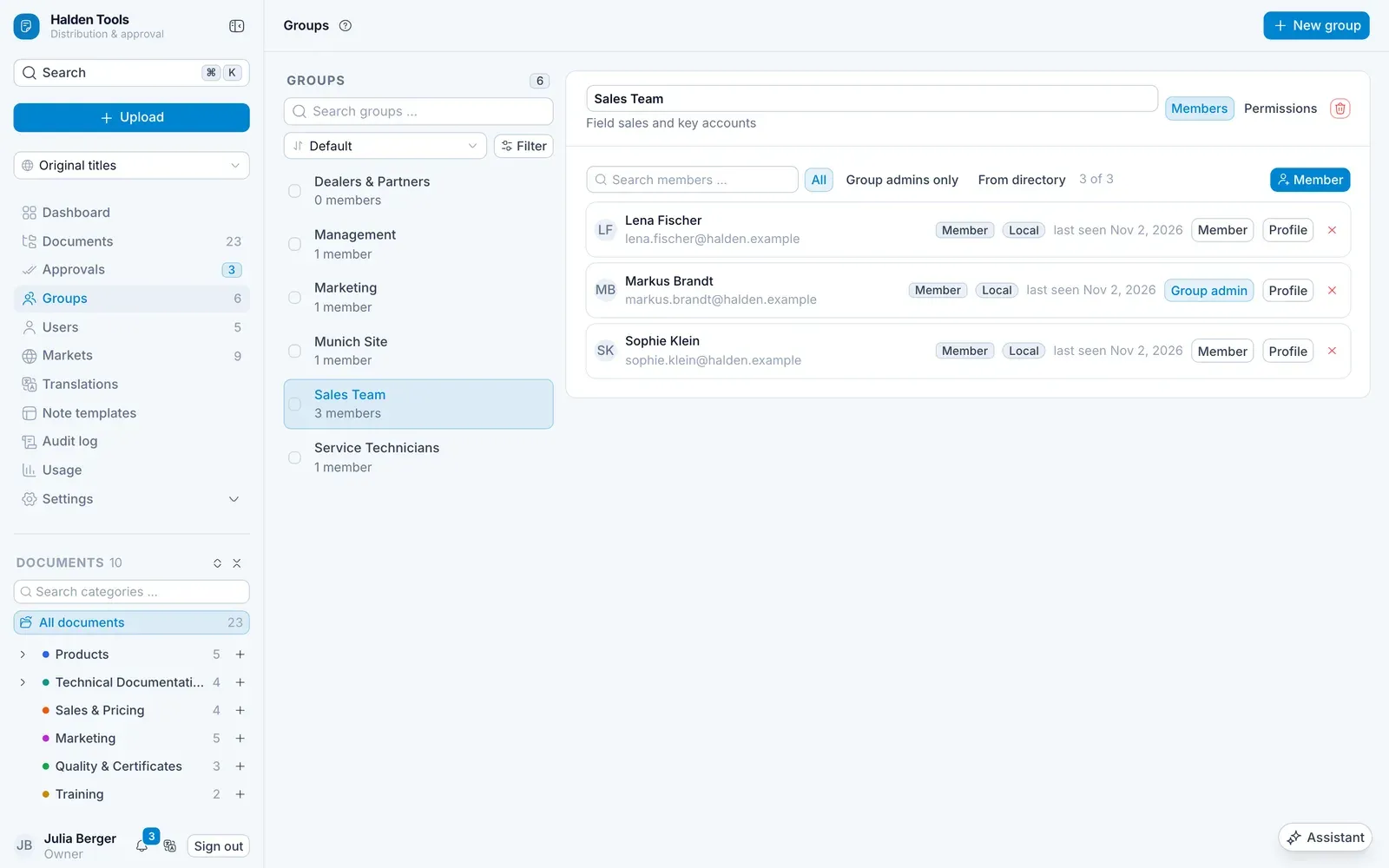
Wherever an entry names another – a person's groups, a group's members, a document's categories and owner, the groups with access to a folder, who did what in the Audit log and to what – clicking the name opens that entry. With Ctrl or Cmd held, it opens in a new tab.
If there is nothing in a list yet, the screen says what it is for and offers the first step – for example Create the first group.
Long lists – Documents, Users, Translations, the Audit log and the full lists under Usage – have no pages to click through: they load more as you scroll. At the end is Load more, for the keyboard or to try again after an error.
On a phone, there is room for only one of the two halves: you see the list, and tapping an entry opens it full-screen. The link at the top of the entry – for example ← Groups – takes you back to the list.
Customising the dashboard
On the dashboard, click Customize to move tiles, or to show or hide them. Done applies your changes, and Reset brings back the standard view.