 DDM Help
Directory services (LDAP)
A directory service connects DDM to your company's user directory – usually Active Directory, but any LDAP directory works (OpenLDAP, FreeIPA, Samba, the LDAP interface of Okta or JumpCloud …). Once it is set up:
- DDM creates accounts for your people – you do not invite them one by one,
- sorts them into groups according to your rules, so they see the right categories straight away,
- keeps names, addresses and group memberships up to date, and blocks people who have left,
- and your people sign in with their company password – DDM never stores it.
You find it in the CMS under Settings › Directory services. Only administrators see it.
Before you start
Have these ready – your IT department will know them:
The address of the directory
Host name and port of a domain controller or LDAP server, e.g. dc01.company.local. The DDM server must be able to reach it: on-premise that is usually the case, with a hosted DDM the directory has to be reachable from outside (e.g. through a firewall rule for DDM's address).
A service account
A user that may read the directory – nothing more. DDM uses it to search for people. Its full name (the Bind DN) looks like CN=svc-ddm,OU=Service Accounts,DC=company,DC=local; in Active Directory svc-ddm@company.local also works.
Where your people are
The Base DN – the part of the directory under which your users are, e.g. OU=Staff,DC=company,DC=local or simply DC=company,DC=local.
Your e-mail domain is confirmed
Under Settings › Organisation › E-mail domains your company's domain must be listed and confirmed – DDM only creates accounts for addresses on a confirmed domain. See Sign-in methods.
The groups exist
Create the DDM groups the people are to land in beforehand, under Groups – see Groups and permissions.
1. Add the directory
Click New directory at the top right. A new directory called „Directory" appears in the list and opens. Its name is at the top: type one your colleagues will recognise – e.g. „Head office AD" – and click elsewhere; it is saved as soon as you leave the field. The name later appears in the Users list as the person's sign-in method.
| Field | What to enter |
|---|---|
| Host | Name or IP address of the server, without ldap:// – e.g. dc01.company.local |
| Port | 636 with TLS (recommended), 389 without |
| Base DN | Where the search starts, e.g. DC=company,DC=local |
| Bind DN | The service account. Empty = anonymous – most directories do not allow that |
| Password | The service account's password. It is stored encrypted and never shown again |
| Timeout (s) | How long DDM waits for an answer. 10 seconds is usually right |
| Fallback system | Another directory that takes over if this one cannot be reached – see Several directories |
| Require TLS | Encrypted connection (LDAPS). Leave it on – otherwise passwords travel unencrypted |
| Create accounts on first sign-in | Whether somebody the directory knows but DDM does not yet gets an account the first time they sign in |
Under Sync (Manual, Hourly …) you decide how often DDM synchronises – see Synchronisation and sign-in.
2. Test the connection
Click Test the connection. A new directory stays switched off until the test has succeeded – then switch on Directory active at the top, beside the name.
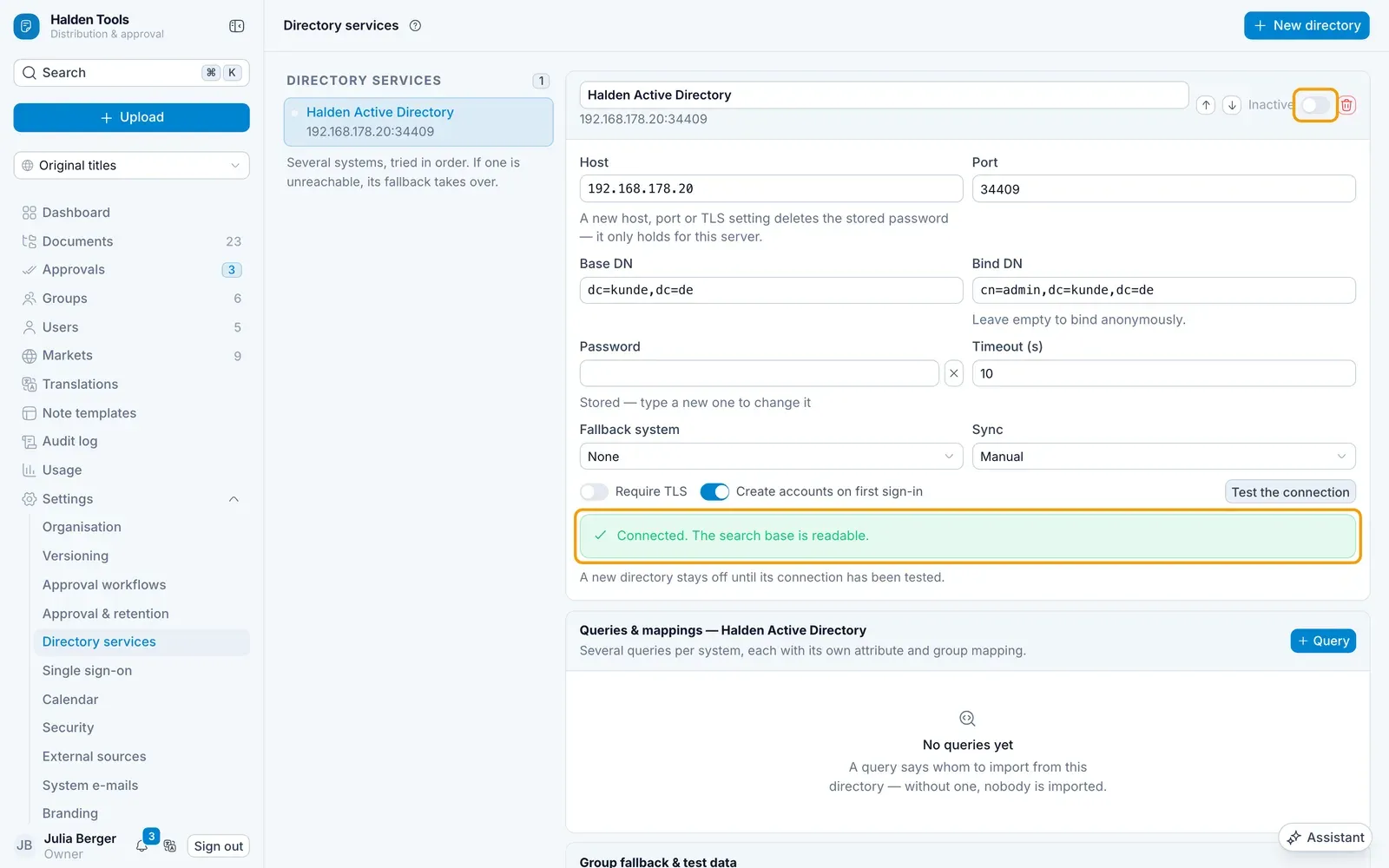
| Message | What to do |
|---|---|
| Connected. The search base is readable. | All good. |
| The host does not answer | Check the host name and port, and whether a firewall is in the way. With TLS the port is usually 636. |
| The directory rejected the credentials | The Bind DN or the password is wrong – or the service account is locked or its password has expired. |
| The search base cannot be read | The Base DN is misspelt, or the service account may not read there. A directory reports both the same way. |
| This address may not be contacted | The address is a local one (e.g. 127.0.0.1), or – on a hosted DDM – a private network address. Use an address that is reachable from outside. |
| The stored password can no longer be decrypted | Enter the password again. |
3. Create a query
A query says which entries of the directory become DDM users. A directory can have several queries – e.g. one for staff and one for external staff, each with its own groups.
Under Queries & mappings, click Query and fill in:
- Name – for you, e.g. „Staff".
- Search base DN – where this query looks. Empty = the directory's Base DN.
- Search filter – which entries count. A new query starts with
(objectClass=person). - Search scope – Whole subtree (usually right), One level down or This entry only.
- Query active – only active queries take part in the regular synchronisation.
Filters that work
For Active Directory – all real, enabled users with an e-mail address:
(&(objectCategory=person)(objectClass=user)(mail=*)(!(userAccountControl:1.2.840.113556.1.4.803:=2)))
The last part leaves out disabled accounts. That matters: a person whose account IT disables when they leave then drops out of the result, and DDM blocks them at the next synchronisation. Without it, they stay active in DDM.
Only the members of one AD group – including members of groups nested inside it:
(&(objectCategory=person)(objectClass=user)(memberOf:1.2.840.113556.1.4.1941:=CN=DDM-Users,OU=Groups,DC=company,DC=local))
For OpenLDAP and most other directories:
(&(objectClass=inetOrgPerson)(mail=*))
4. Map the attributes
Under Attribute mapping you decide which directory attribute fills which DDM field. There are three fields:
| Field | Usually | Note |
|---|---|---|
mail | Required. It identifies the person – entries without an e-mail are skipped. | |
| Name | cn or displayName | If it is empty, DDM shows the e-mail address. |
| Picture | – | Only a web address (URL) to an image. Photos stored in the directory itself (jpegPhoto, thumbnailPhoto) cannot be used. |
For each field choose the source – Attribute (pick from the attributes of the loaded record) or Fixed value – and if needed a Transformation:
- Lowercase, Uppercase, Trim whitespace
- Add prefix, Add suffix – e.g. build
https://intranet.company.com/photos/+uidinto a picture URL - Replace – Search for / Replace with, e.g. replace
@company.localwith@company.com - Cut at separator – keeps what is before the separator
5. Check with the preview
Click Load preview. DDM fetches up to five entries of the query – nothing is imported. With the arrows you leaf through them:
- on the left the LDAP record as the directory delivers it,
- on the right the Resulting user as DDM would create it,
- beside each mapping its Result, beside each group rule matches or no match.
This is the quickest way to find the right attribute names – everything the directory delivers is on the left.
6. Map groups
Under Group mapping you decide which directory people land in which DDM group. Click Rule, choose a condition, enter a value and select the → Application group:
| Condition | Matches when | Example value |
|---|---|---|
| memberOf contains | one of the person's groups contains the text | CN=DMS-Sales |
| DN contains | the person's own DN contains the text | OU=Field Service |
| Attribute equals | an attribute has exactly this value – written as attribute=value | department=Sales |
Upper and lower case do not matter. A person can match several rules and is then in several groups.
Under Group fallback & test data you set the Fallback group: everybody who matches no rule lands there. Somebody who matches a rule does not additionally land in the fallback group. Without a fallback group, these people are imported without a group and see nothing until you add them to one.
Ignore unmapped LDAP groups – when it is off, the import result lists directory groups that no rule covers. Useful while setting up, to see what you have overlooked.
7. Import
Import now imports a single query – also one that is not yet active, to try it out. Import all now imports all active queries of the directory. Afterwards you see what happened:
| Result | Meaning |
|---|---|
| … created | new accounts |
| … changed | name, e-mail, picture or groups updated |
| … blocked | people who are no longer in the directory – see Leavers |
| … without an e-mail address | entries skipped because E-mail is empty |
| … not created – domain is not verified for this organisation | the address is not on one of your confirmed domains |
| … not created | Create accounts on first sign-in is off |
| … not taken in – account does not belong to this organisation | the address already has a DDM account in another organisation and is not on one of your confirmed domains – invite the person by hand |
| … also in another organisation | the person also works for another organisation in DDM – that is fine |
| Partly imported – at least one query failed. Nobody was blocked. | check the query that failed |
Imported people are Members. If somebody is to administer DDM, change their role under Users. Name and e-mail of imported people are marked as coming from the directory and are maintained there.
Calendars
If your Active Directory's mailboxes live in Microsoft 365 or Google Workspace, calendar access connects the calendars for everybody who signs in through the directory service too. If the calendar runs on a CalDAV server of your own with the same credentials, DDM can connect it at sign-in – see Company CalDAV.
Several directories
You can add several directories – e.g. one per country or per subsidiary. With the arrows Higher priority / Lower priority beside the directory's name you set the order in which DDM asks them when somebody signs in.
The Fallback system is for a second server of the same directory – e.g. a second domain controller. If the first one does not answer, DDM asks the fallback. It is only used when the server cannot be reached, not when a password is wrong.
Removing a directory
Click the bin beside the directory's name (Remove directory) and confirm with Remove permanently. This also removes its queries, mappings and rules. The accounts stay – they are just no longer tied to the directory. People who signed in with their company password then need a DDM password: they can set one under Forgotten your password? on the sign-in page.
Single sign-on
Connect your organisation's own identity provider – Entra ID, Okta, Google Workspace or any OpenID Connect or SAML provider – so your people sign in with the account they already have.
Synchronisation and sign-in
When DDM synchronises with the directory, what it changes and what it never does, how the company password works – and what to do when something goes wrong.