DDM Help
Searching and filtering
Searching
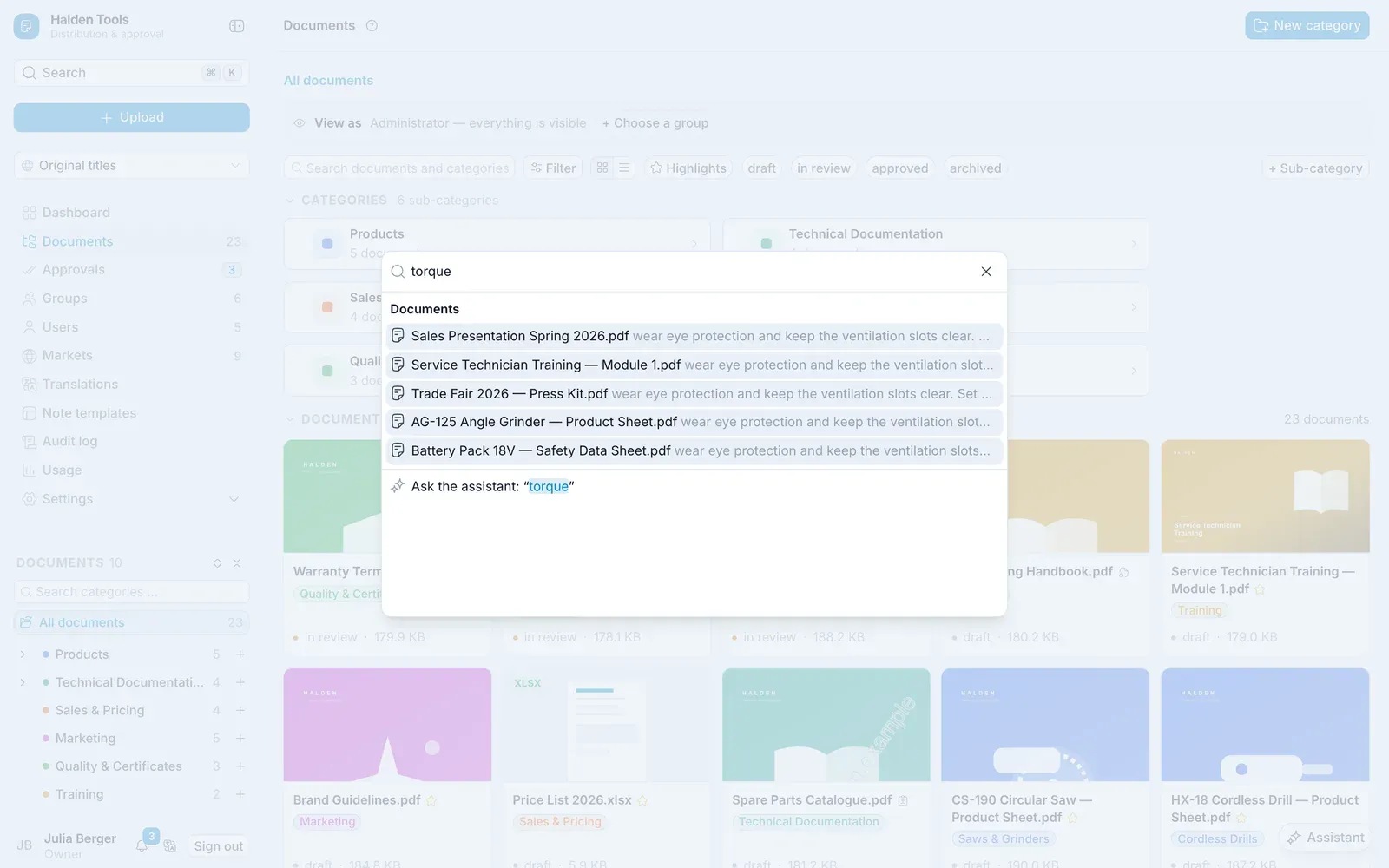
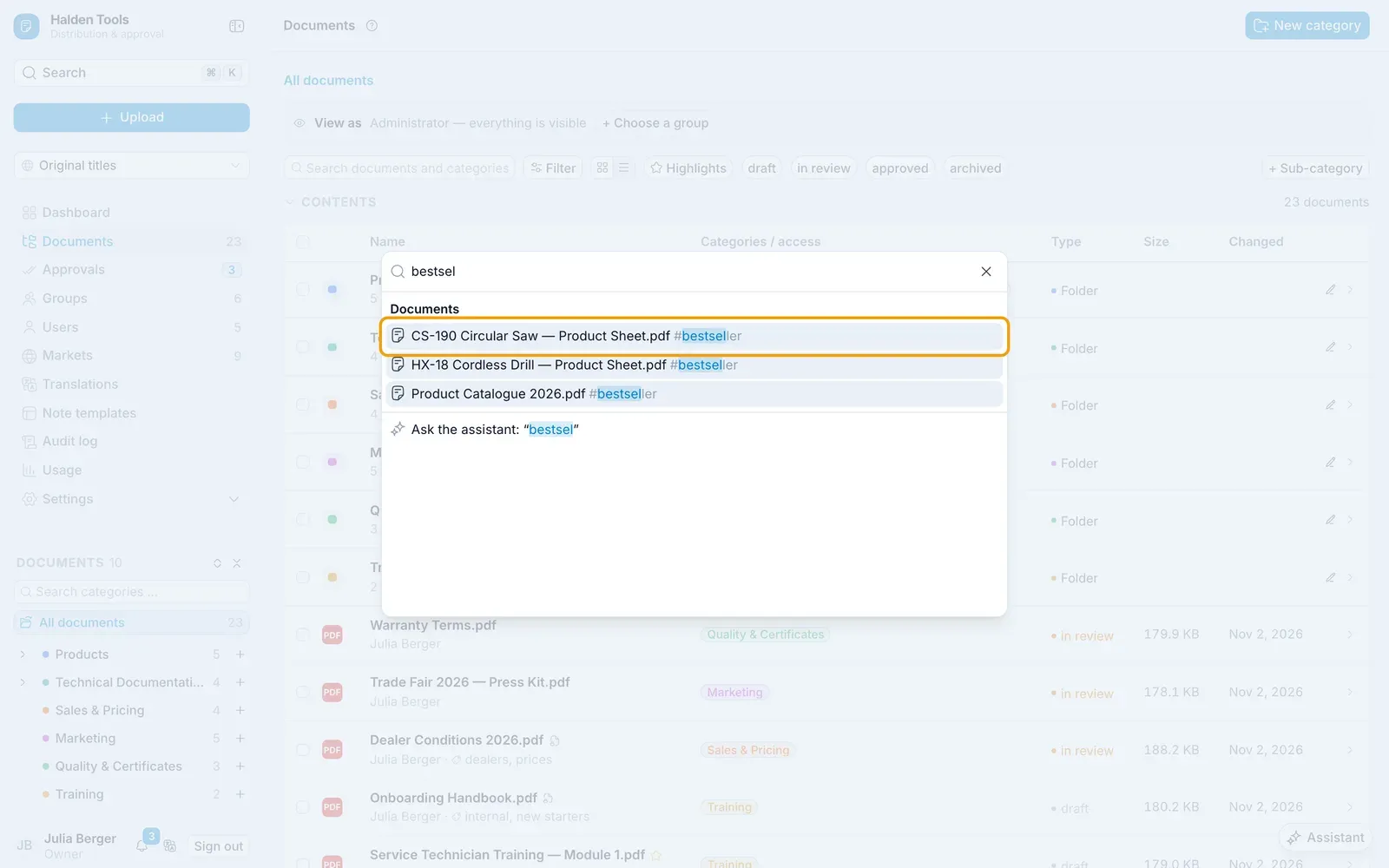
In Documents, search by name and tags – and in the text of the documents – in the Search documents and categories … field at the top. With ⌘Ctrl K you search the whole CMS from anywhere; a hit found by a tag names it.
With Include sub-categories you also see the documents from all the categories below.
View and sorting
- Table or Grid – your choice is remembered. On a phone, the list always starts as Grid; switching there applies to this visit only, so your computer keeps its table.
- Sort – or click a column heading. With ⇧ you sort by several columns.
- Highlights – highlighted documents only.
The list loads more as you scroll; at the end is Load more.
Filters
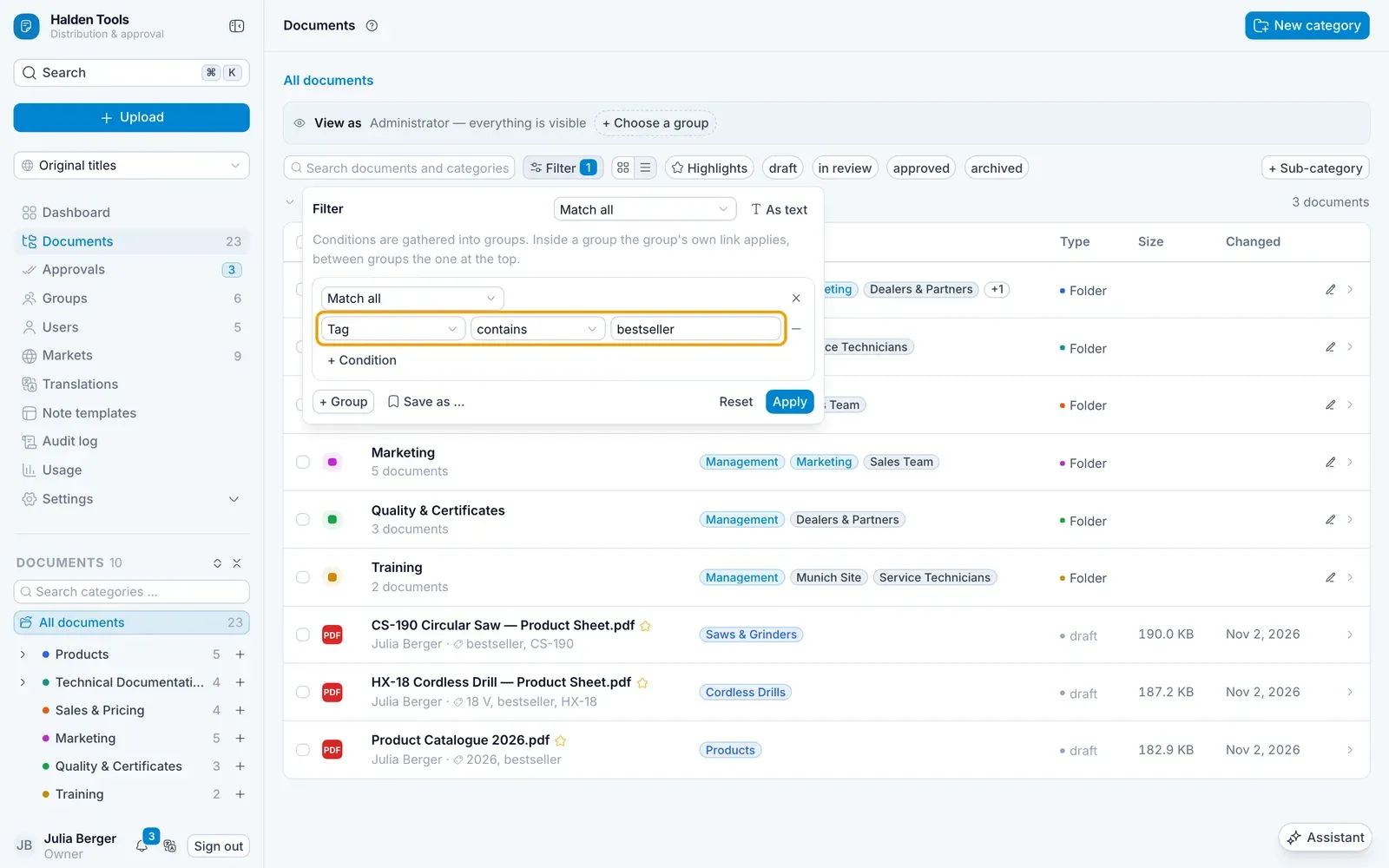
Click Filter to combine conditions – for example "all PDFs in draft that have not been changed for more than three months".
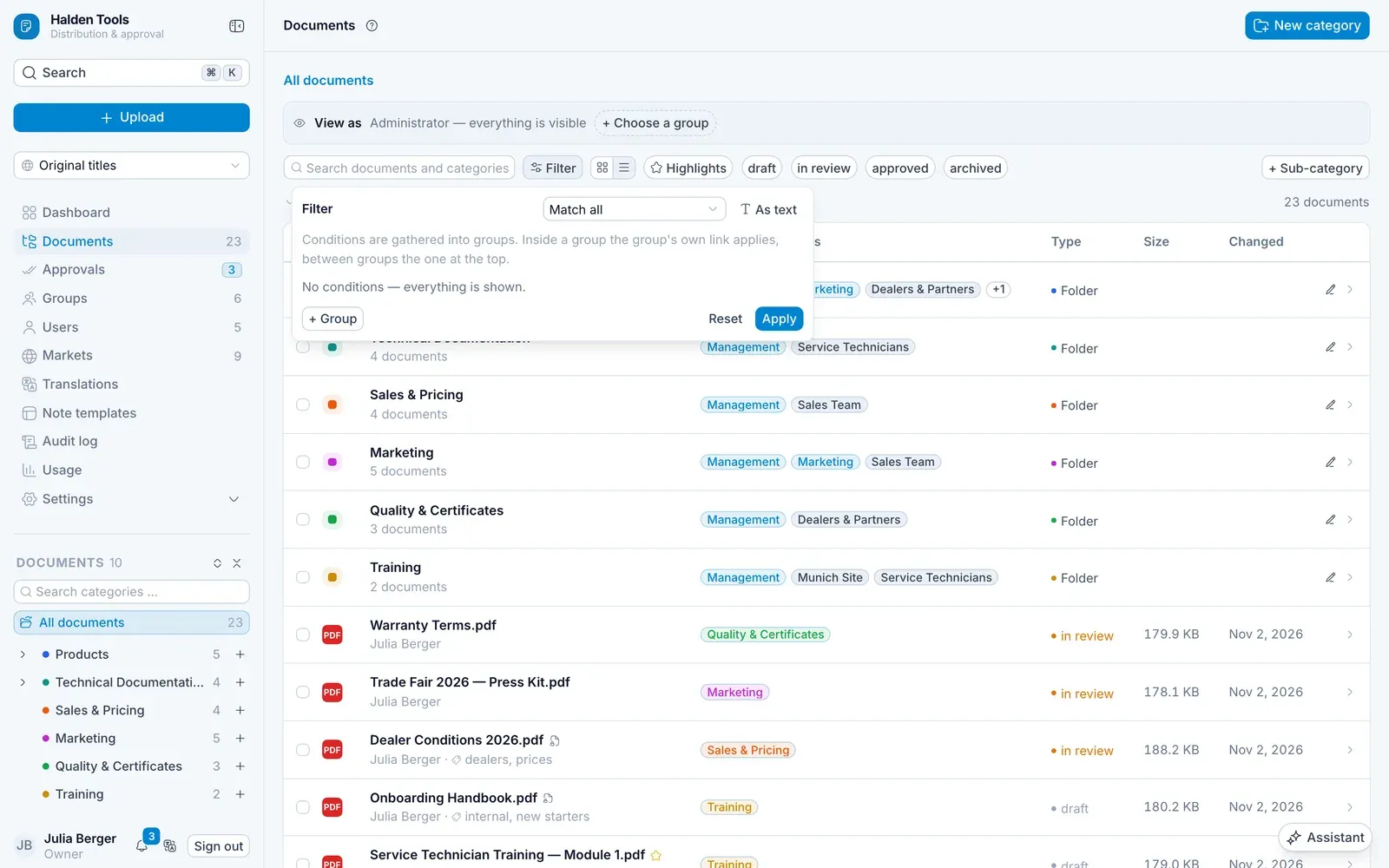
- Choose Match all or Match at least one.
- Add conditions with + Condition: Field, Comparison, Value. With + Group you nest conditions.
- Click Apply.
Fields include Name, File type, Status, Changed, Uploaded, Size, Category, Owner, Highlights, Sharing allowed, Tag and Content – which searches the text of the documents.
Tag asks whether the document carries a matching tag: is Price list finds exactly that one, contains price also "Price list 2026". is not and does not contain keep the documents without tags as well. is empty finds the documents that have none yet.
Status = Draft AND "File type" = pdf. Explain the format shows what is possible.Saving and sharing filters
- In the filter, click Save as ….
- Enter a Name and click Save.
The filter is then listed under Saved. There you can share it with the organisation – then everyone sees it – or remove it.
View as …
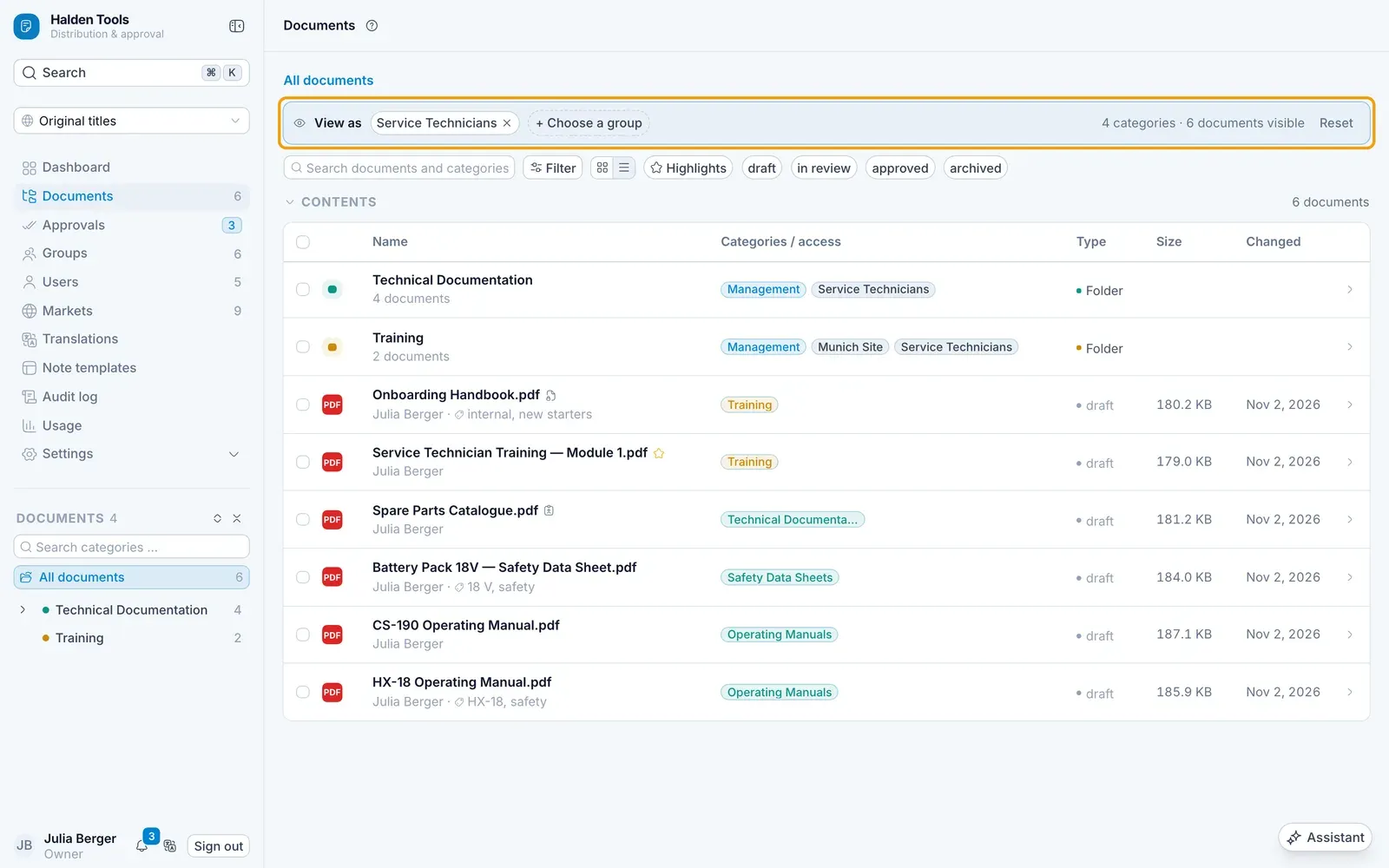
Administrators see everything. View as shows what the document store looks like for a group or a person: choose + Choose a group or a person – their groups are taken over. With Reset you see everything again. On a phone, View as is the eye button beside the filter.