 DDM Help
Mobile app
The mobile app is DDM as an app of its own on your iPhone, iPad or Android device – with everything the app in the browser can do. It starts from the home screen, keeps what you save for offline use on the device, and hands documents to the apps on it.
Installing
Search for DDM in the App Store (iPhone and iPad) or on Google Play (Android) and install it.
Connecting and signing in
The app is connected to DDM as soon as you open it. Sign in as you do in the browser – with your e-mail and password or with Continue with …. Your company's sign-in page opens in the browser on your device; once you have signed in there, it takes you back to the app.
Another server
If you open DDM in the browser at an address of your company's own, tap Choose another server under Connected to … on the sign-in page. Enter the address – for example ddm.your-company.com – and tap Connect. The address must start with https://; if you leave that out, the app adds it. Use the default server takes you back to the server the app comes with.
Customizing the tab bar
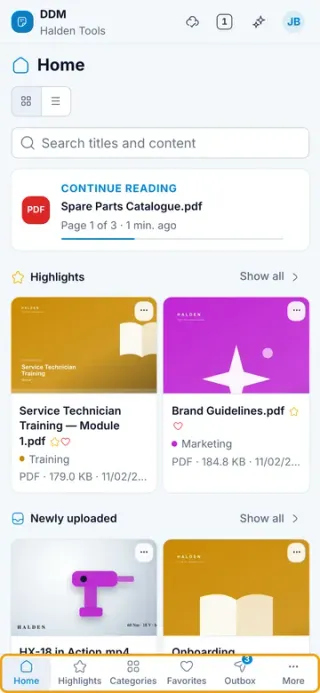
On a smartphone – in the mobile app as in the browser – you choose which screens are in the bar at the bottom and in what order – everything else is under More.
Open Edit
Tap More at the bottom and Edit at the top of the sheet. You see two lists: In the tab bar – with how many places are taken, for example 4/5 – and Under More.
Move entries
Hold an entry and drag it where you want it: within the bar to change the order, down under More to take it out of the bar, or up from More into the bar. The order under More is set the same way. Hold the entry near the top or bottom edge and the list scrolls along.
Without dragging, a tap does it: ⊖ takes an entry out of the bar, ⊕ adds it at the end.
Besides the screens it comes with, Search, Notes, Calendar, Recently opened, Newly uploaded and – if it is available to you – the AI assistant can go in the bar. Settings and Sign out always stay under More.
Done
Tap Done. The bar already changes while you edit.
Up to five screens fit in the bar; More always sits on its right. When the bar is full, the app says so in red – take an entry out first. At least one screen stays in the bar.
Reset brings back the bar as it comes: Home, Highlights, Categories, Favorites and Outbox. Your choice is kept on this device; after signing out it starts over.
Offline
What you keep offline is stored on the device – the documents, every thumbnail and the pictures in your notes. There is no size limit; if the device runs out of space, Offline & sync says so. Free up some storage, and the app fetches what is missing at the next sync.
Films play straight away, without being downloaded first.
Opening documents in other apps
In place of Download, the mobile app has Open in…:
- On an iPhone or iPad, the share sheet opens – choose Save to Files, Mail, Word or another app.
- On Android, the document opens in the app that handles the file. If there is none, the app tells you.
What you keep offline opens without a connection, too. Documents that can only be read in the app have no Open in….
Calendar
When you connect a calendar account, the provider's sign-in opens in the browser on your device. Once you have agreed there, it takes you back to the calendar in the app.