 DDM Help
Account and sign-in
Registering an organisation
Whoever sets up DDM for their company creates the organisation and so becomes its administrator.
Open registration
On the CMS sign-in page, click Register an organisation at the bottom – or, on the app's sign-in page, register your organisation for free.
Fill in the form
Enter the Company name, Your name, your E-mail and a Password (at least 8 characters), and repeat the password. Confirm that you are registering DDM for a business – DDM is for businesses only.
Set up the account
Click Set up account.
Confirm your e-mail address
You will receive an e-mail with a confirmation link. Once you confirm, the domain of your address (e.g. @company.com) is assigned to your organisation.
You then invite your colleagues under Users – see Inviting users.
Accepting an invitation
If you have been invited, you will receive an e-mail with a link.
- Open the link. The Accept invitation page appears.
- Enter your name and choose a password.
- Click Create account and join.
If you already have a DDM account and are signed in, Join is all you need.
Signing in
- Enter your E-mail and Password. With an LDAP account, use your company password.
- Click Sign in.
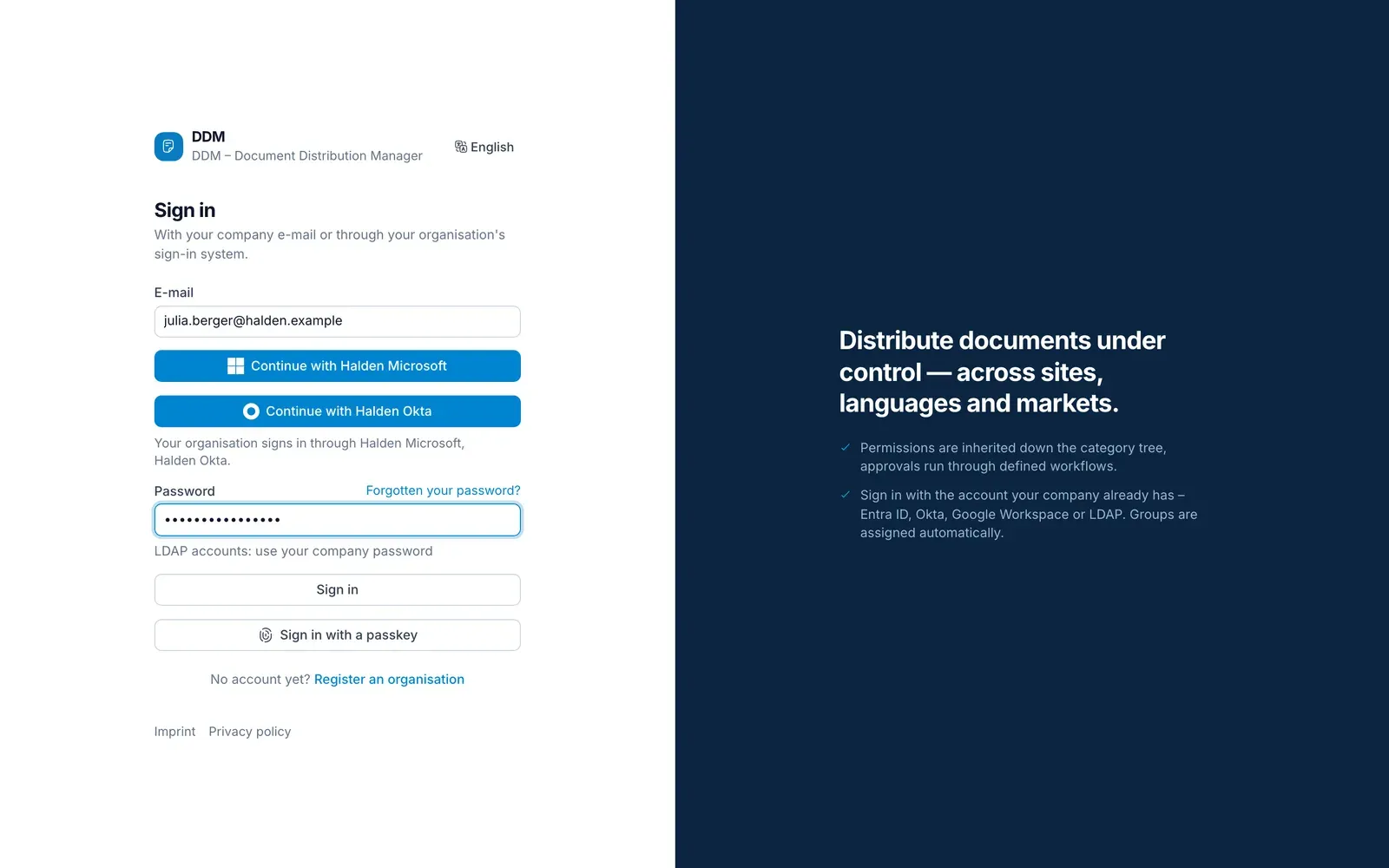
If your organisation uses single sign-on, the button Continue with … appears as soon as you have typed your e-mail address. Click it and sign in at your company's sign-in page – with Microsoft, Okta, Google or whatever your company uses. You do not need a DDM password then. How administrators set this up is explained under Sign-in & directories.
If you have set up two-factor authentication, DDM asks for the code from your authenticator app after the password. If your organisation requires it and you have not set it up yet, you set it up first after signing in.
With a passkey there is no password and no code: click Sign in with a passkey and confirm with your fingerprint, Face ID or device PIN. If your organisation requires passkeys, you set one up first after signing in.
If your organisation moves over from the previous DDM, sign in with the password you had there. On your first sign-in, DDM stores it anew and more securely – the password itself stays as it is. If you had no password there that DDM could take over, set a new one via Forgotten your password.
No organisation yet
If you sign in with Microsoft or Google without an invitation, you don't belong to an organisation yet. Set up your organisation then appears:
- Enter the Company name.
- Confirm that you are registering DDM for a business.
- Click Set up organisation. You become its administrator.
In the app, No organisation yet appears instead: Set up organisation opens the same page in the browser; afterwards tap Continue in the app.
If your company uses DDM already – its e-mail domain belongs to an organisation –, don't create a second one: ask its administrators for an invitation. If you were invited, open the link in the invitation. If you'd rather not use DDM after all, delete the account on the same page under Delete account.
The introduction
The first time you sign in, the CMS greets you with a few slides on the most important screens. On the last one, Short tour shows you the navigation, Search, Upload, the help for every page and your account right on the screen. Skip or esc closes it – it does not come back, on another device either. To see it again, use Show the introduction under My account or in the search (⌘Ctrl K).
Forgotten your password
Request a link
On the sign-in page, click Forgotten your password?, enter your e-mail and click Request link.
Open the e-mail
You will receive an e-mail with a link. It is only valid for a limited time – if it has expired, request a new one with Request a new link.
Choose a new password
Enter a new password of at least 8 characters twice and click Save password.
Administrators can also send you the link: under Users › your name › Reset password.
My account
At the bottom left of the CMS, your name takes you to My account. There you can change your name, e-mail address, password and language, set up two-factor authentication and passkeys – and delete your account under Delete account, as in the app under Settings.
You also find What's new there – with a dot while a new version is unread –, Show the introduction and Suggest a feature and My reports.