 DDM Help
Settings
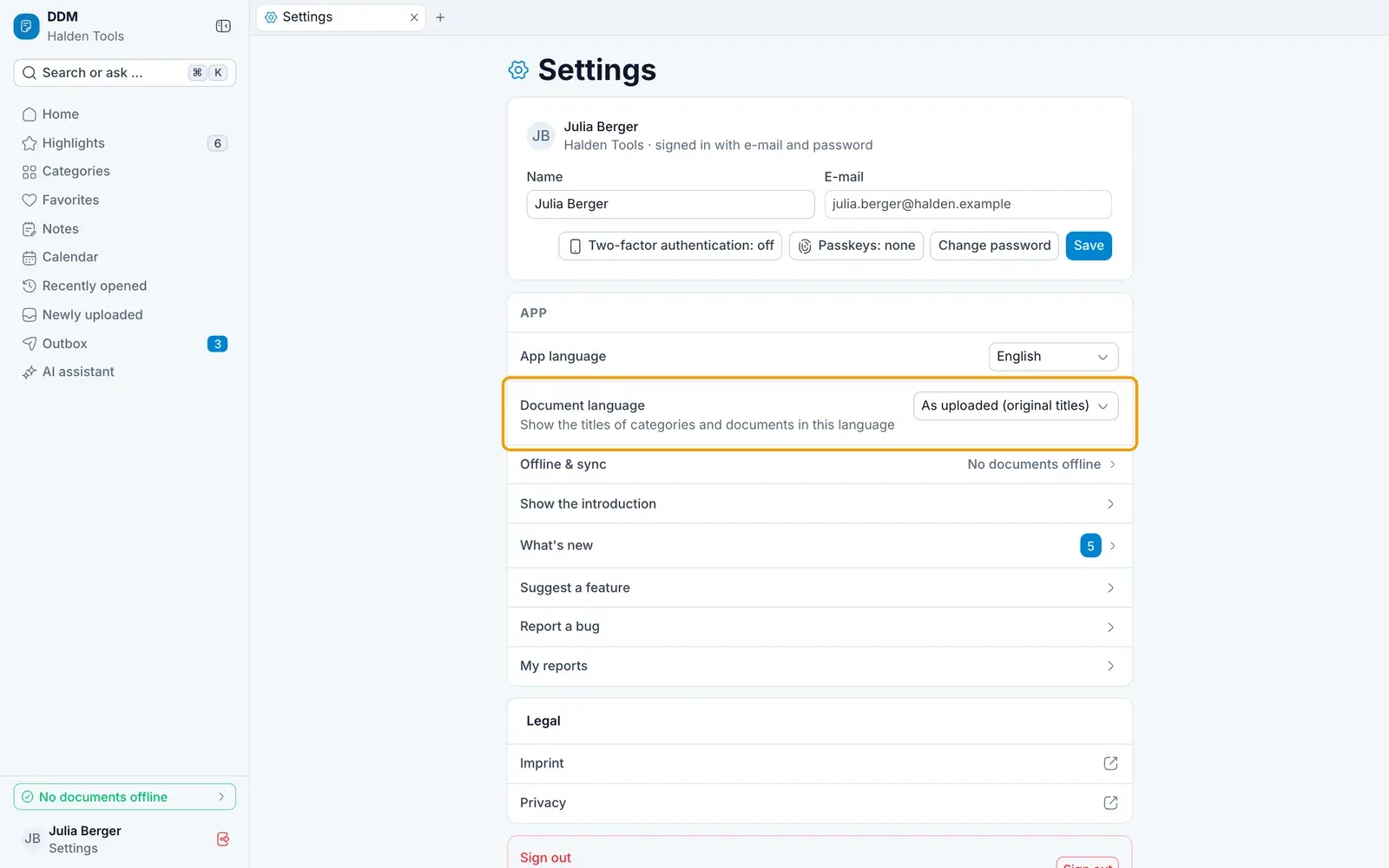
On a computer, you open the Settings via your name at the bottom of the navigation; on a tablet or smartphone, via your picture at the top right. On a smartphone, they are also under More › Settings.
Account
- Change your Name and E-mail and Save. If your company manages these details centrally, it says Managed by … there.
- Change password – enter your current and your new password.
- Passkeys – signing in with a fingerprint, Face ID or the device PIN; the button shows how many you have and opens their management in the browser. If it is missing, your organisation does not allow passkeys. See Passkeys.
App
- App language – Deutsch or English.
- Document language – the language in which you see the titles of categories and documents. As uploaded (original titles) shows them as they were uploaded.
- Unlock with Face ID / Unlock with fingerprint – in the app on a phone only: when opened and after 5 minutes in the background, the app asks for Face ID, your fingerprint or the device passcode before it shows anything. The setting is for this device only and goes when you sign out. If you cannot unlock, tap Sign out and sign in again. If your organisation does not allow passkeys, unlocking is not offered.
- Offline & sync – see Working offline.
- Switch organisation – if you belong to several organisations.
Feature requests and bugs
Suggest a feature sends the DDM team what you are missing, Report a bug what does not work – with the area, how important it is and, if you like, a screenshot; a bug report with technical details, too. Under My reports you see where your reports have got to, read our answers and answer yourself; on a smartphone it is also under More. See Feature requests and Report a bug.
Signing out
Sign out is at the bottom of the navigation on a computer, at the bottom of the icon bar on a tablet and under More on a smartphone. It deletes the offline copies and the history from this device. Your favorites and notes remain in your account.
If documents are kept offline on this device, the app first asks Sign out? and says how many offline copies will be deleted. Click Sign out to confirm or Cancel.
Legal
Under Legal you find the Imprint and the Privacy notice for DDM. Both are also at the bottom of the sign-in page.
Deleting your account
At the very bottom of the settings, Delete account deletes your account for good.
- Tap Delete account. The app shows what is deleted and what stays.
- Type your e-mail address to confirm and tap Delete for good.
Your account, notes, favourites, outbox and sent links, calendars and appointments, saved filters and own templates are deleted – in every organisation you are in. What you uploaded for your organisation stays there, without your name. Your organisation's audit log keeps your name, not your e-mail address.