 DDM Help
Note templates
Readers write Notes themselves in the app – meeting notes, visit reports, checklists (see Notes in the app). In the CMS, administrators create the Templates for them: that way every visit report looks the same and automatically contains the date, the customer and the attendees.
Creating a template
Open Note templates
Click Note templates in the navigation and then New template.
Details
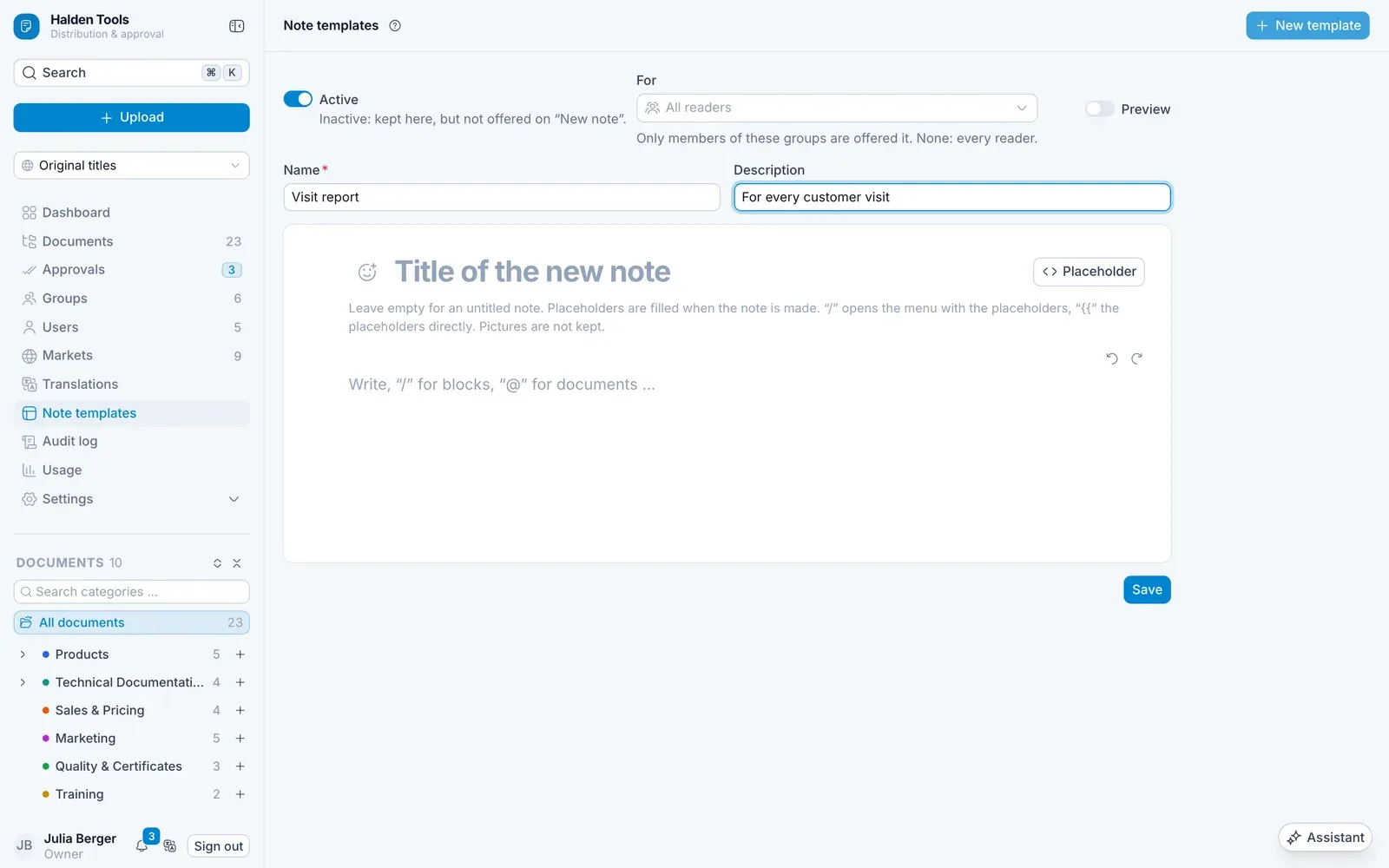
- Name and Description – this is how the template appears in the app when someone chooses New note.
- Icon – an emoji or icon.
- Title of the new note – e.g. "Visit report" plus a placeholder for the appointment.
Write the content
Write the content in the editor. With / you insert headings, lists, task lists, tables and images; with @ you refer to documents or categories.
Insert placeholders
With Placeholder – or {{ in the text – you insert values that are filled in when the note is created: Today, Time now, My name and, from the appointment, Title, Date, Time, Place, Organizer, Attendees and Links.
Check and save
Preview shows the template with sample data. Leave Active switched on and click Save.
Changing and switching off templates
- Changes only affect new notes; existing notes stay as they are.
- When switched off (Inactive), the template is no longer offered in the app.
- Delete template removes it; notes created from it are kept.