 DDM Help
Single sign-on
With single sign-on, your people sign in to the CMS and the app with the account your company already manages – in Microsoft Entra ID, Okta, Google Workspace, Keycloak, Auth0, OneLogin, JumpCloud, ADFS, Shibboleth or any other provider that speaks OpenID Connect or SAML 2.0. Your provider's multi-factor authentication and access policies apply. DDM never sees their password.
You set it up yourself, for your organisation only, in the CMS under Settings › Single sign-on. Only owners see it: whoever sets up the provider decides who signs in as whom – owners included.
How it works
- Somebody types their e-mail address on the sign-in page. DDM recognises your domain and shows Continue with … – one button for each of your providers that is responsible for the domain.
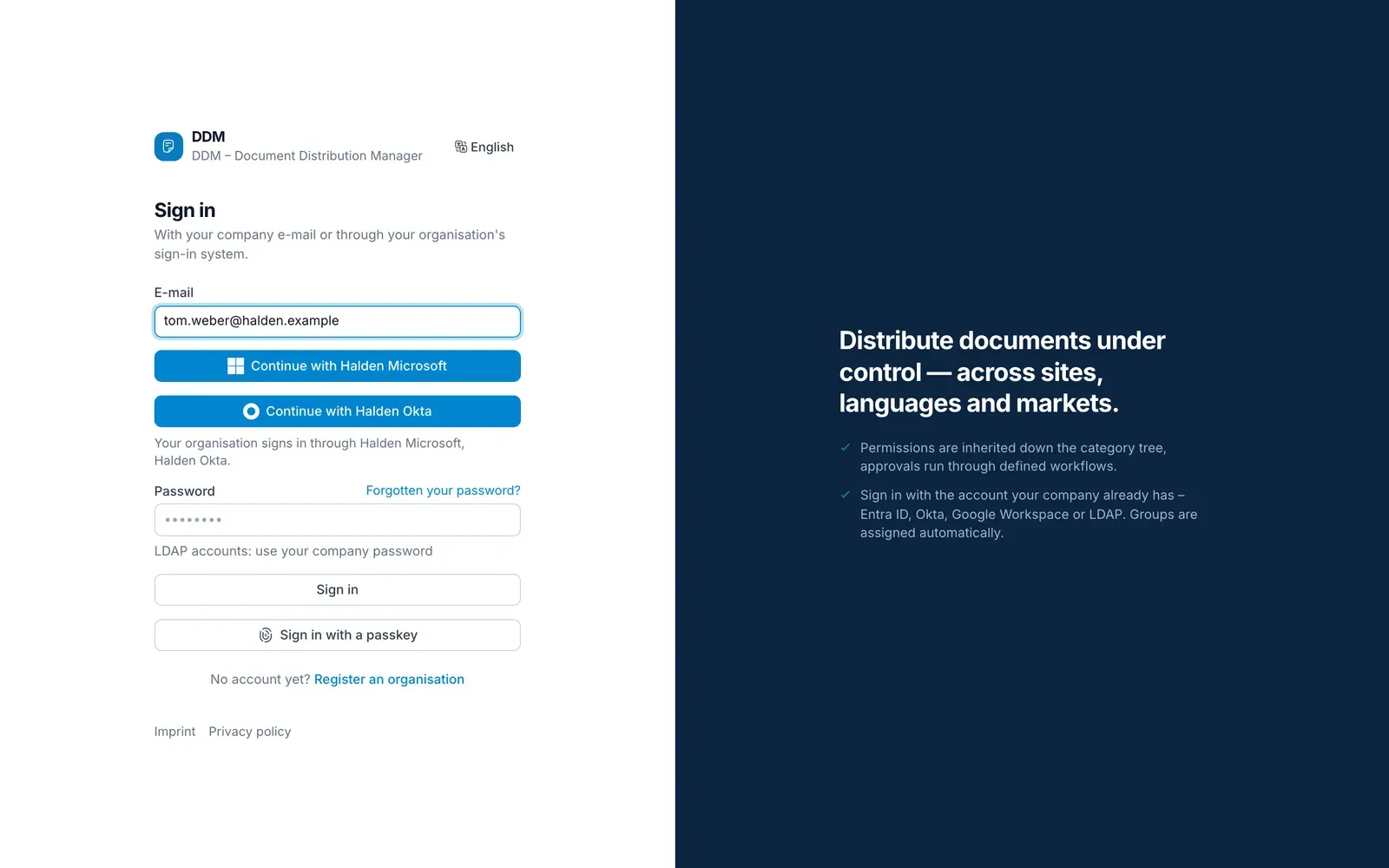
- A click takes them to your provider, where they sign in as usual – with MFA, if your provider asks for it.
- Your provider sends them back. DDM checks the answer, signs them in – into your organisation – and, if you map groups, puts them into the right groups.
DDM only lets in people whose address is on one of your confirmed domains. Somebody who is not yet in DDM gets an account on their first sign-in – unless you switch that off.
What you need
- An administrator of your identity provider who can register an application there.
- A confirmed e-mail domain in DDM, under Settings › Organisation › E-mail domains.
1. Add your provider
Open Settings › Single sign-on and click New identity provider at the top right. In Add identity provider, choose:
| Field | What to choose |
|---|---|
| Provider | Microsoft Entra ID, Okta, Google Workspace or Other. It decides the icon on the button and the hints on the page – nothing else. |
| Protocol | OpenID Connect or SAML 2.0. If your provider can do both, OpenID Connect is quicker to set up. Choose SAML if your security team prefers it, if your provider only speaks SAML (ADFS, Shibboleth) – or for Google Workspace, if you want to map groups. |
| Button label | What the button on the sign-in page says: „Continue with Company sign-in". Use a name your people recognise, e.g. „Halden Microsoft". |
Click Add. The provider is created switched off – you can set it up at your leisure. Its button label is at the top of the provider; to change it later, type there and click elsewhere – it is saved as soon as you leave the field.
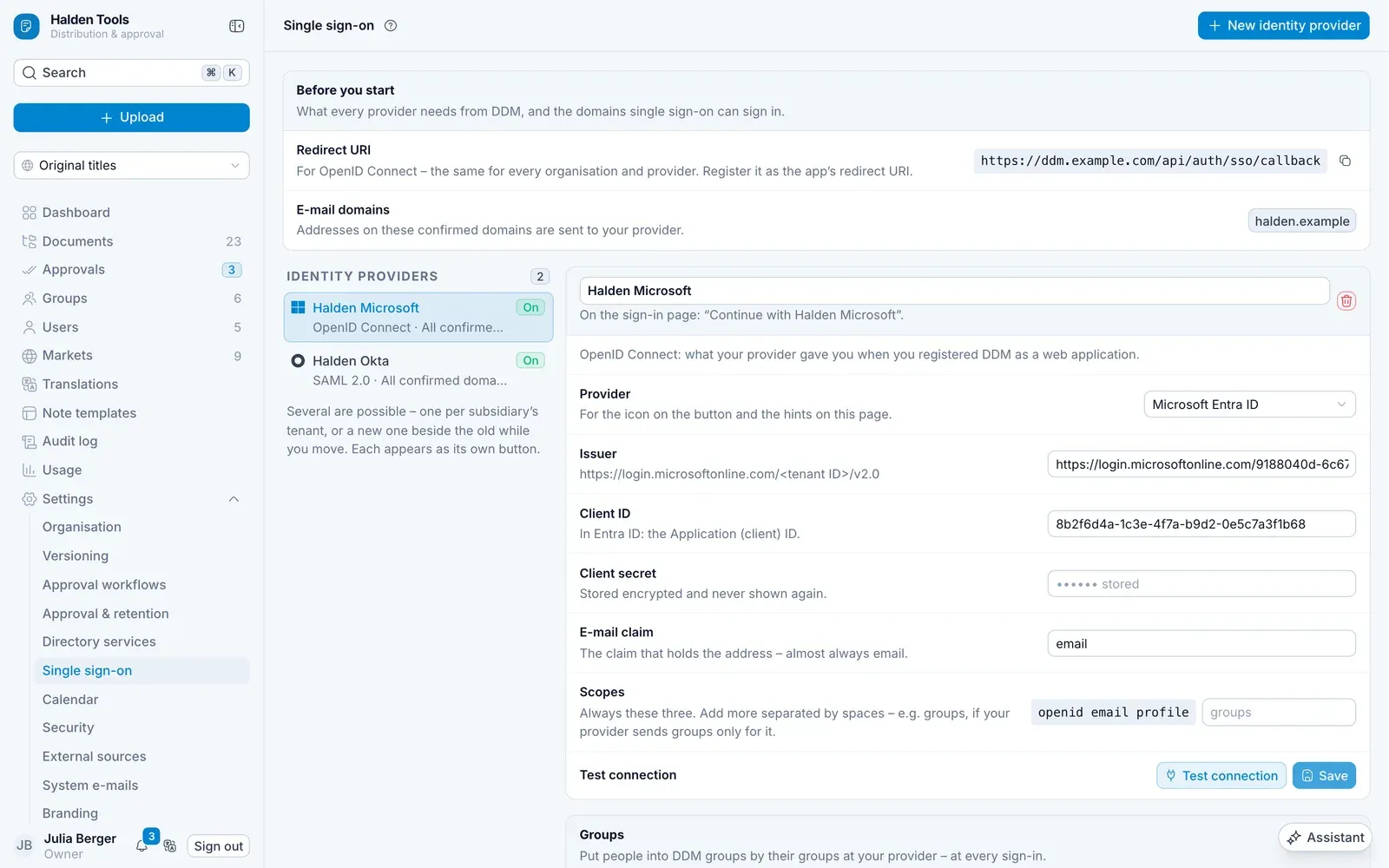
2. Register DDM with your provider
What your provider needs from DDM depends on the protocol.
OpenID Connect
In your provider, create an application of the type OpenID Connect / Web application with the Authorization Code flow and a client secret, and register as its redirect URI (also called callback URL or sign-in redirect URI) the Redirect URI from the card Before you start. It is the same for every organisation and every provider:
https://cms.documentdistributionmanager.com/api/auth/sso/callback
DDM asks for the scopes openid email profile; most providers grant them by default. Your provider then gives you three things: the issuer, a client ID and a client secret.
SAML 2.0
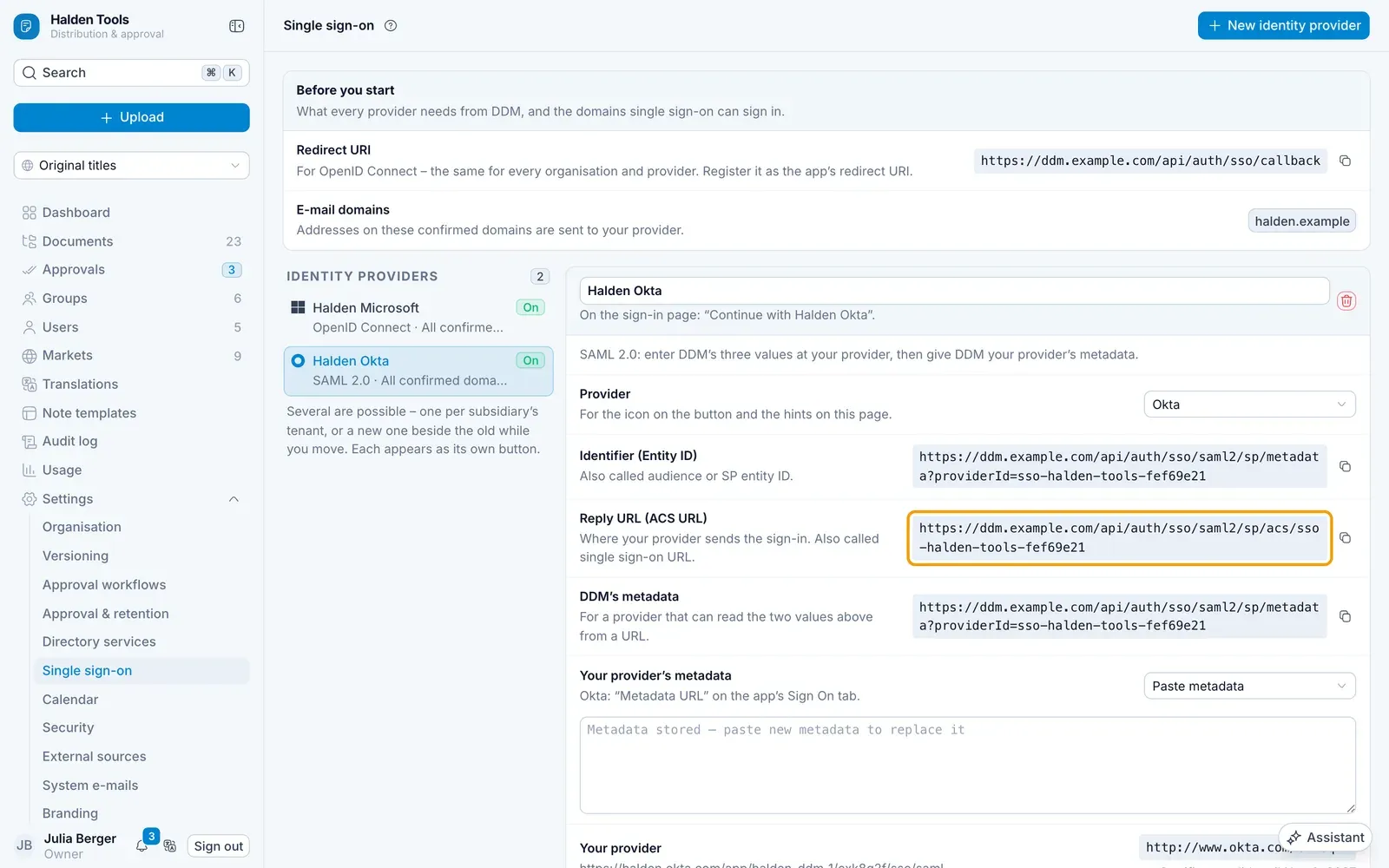
In your provider, create a SAML application and enter the three values DDM shows for this provider – each has a copy button:
| DDM shows | Your provider calls it |
|---|---|
| Identifier (Entity ID) | Identifier, Entity ID, Audience URI, SP Entity ID |
| Reply URL (ACS URL) | Reply URL, Assertion Consumer Service URL, Single sign-on URL |
| DDM's metadata | Some providers read the two values above from this address instead. |
Unlike the redirect URI, these are different for every provider – they contain its ID. Have your provider send the e-mail address as an attribute (or as the Name ID) and, if you want to map groups, the groups. Your provider then gives you its metadata – usually as a URL.
Step-by-step guides for both protocols:
3. Enter your provider in DDM
OpenID Connect
| Field | What to enter |
|---|---|
| Issuer | The provider's address – see the table below. |
| Client ID | From your provider. |
| Client secret | From your provider. It is stored encrypted and never shown again. |
| E-mail claim | Where the provider puts the e-mail address. Leave it at email unless your provider's guide says otherwise. |
| Scopes | openid email profile are always requested. Add more separated by spaces – e.g. groups, if your provider sends groups only for it. |
Click Save. DDM reads your provider's configuration straight away – if the issuer is wrong, you get an error here, not when the first person signs in.
| Provider | Issuer |
|---|---|
| Microsoft Entra ID | https://login.microsoftonline.com/<tenant ID>/v2.0 |
| Okta | https://<your org>.okta.com – or with a custom authorisation server https://<your org>.okta.com/oauth2/default |
| Google Workspace | https://accounts.google.com |
| Keycloak | https://<server>/realms/<realm> |
| Auth0 | https://<your tenant>.auth0.com/ |
| ADFS | https://<server>/adfs |
/.well-known/openid-configuration. If you are unsure, open that address in a browser – the value of issuer in it is exactly what DDM needs.SAML 2.0
Under Your provider's metadata, choose how DDM gets it:
| Choice | When |
|---|---|
| Metadata URL | Your provider publishes its metadata at an address – Entra ID's App Federation Metadata Url, Okta's Metadata URL. The best choice: DDM can reload it when your provider changes its certificate. |
| Paste metadata | You downloaded the metadata as an XML file – e.g. from Google. Paste its content. |
| Enter by hand | Your provider shows the values individually: its Entity ID, its sign-in URL (SSO URL) and its signing certificate (PEM, -----BEGIN CERTIFICATE-----). |
Also check the E-mail attribute: the name of the attribute that holds the address. DDM suggests what your provider usually sends; if the attribute is missing, the Name ID is used as the address.
Click Save. DDM reads the metadata straight away and shows your provider's Entity ID and how long its certificate is valid. Metadata without a usable sign-in URL or with an expired certificate is refused here.
Test connection
Click Test connection:
| Message | Meaning |
|---|---|
| The provider answers and accepted the client ID and secret. | All good. |
| The provider answers. Whether the client secret is right shows at the first sign-in | Many providers do not let DDM check the secret in advance. Sign in once yourself to be sure – see below. |
| The provider rejected the client ID or the secret. | Copy both again – in Entra ID the secret's Value, not its ID. |
| The provider does not answer | Check the issuer. A provider on your own network has to be allowed by whoever runs DDM. |
| There is no discovery document under this issuer | The issuer is not quite right – see the table above. |
| The document belongs to another issuer | Almost always Entra ID with common instead of your tenant ID. |
| The metadata holds up. Certificate valid until … | SAML: all good – try a sign-in. |
| Your provider's metadata has changed | SAML: usually a new certificate. Click Reload metadata. |
| The signing certificate expired on … | SAML: create a new certificate at your provider, then reload or paste the metadata again. |
4. Switch it on
In the card Access:
- Single sign-on active – from now on the button appears for your domains.
- Domains – leave it empty and the provider is responsible for all your confirmed domains. Choose some if it should only sign in those – see Several providers.
- Create accounts on first sign-in – somebody your provider knows, with an address on your domain, gets an account and a membership the first time they sign in. Switch it off if only people you invited or imported are to get in.
- Group for new people – whoever joins through this provider and is placed in no group by a mapping lands in this group, so they see something straight away.
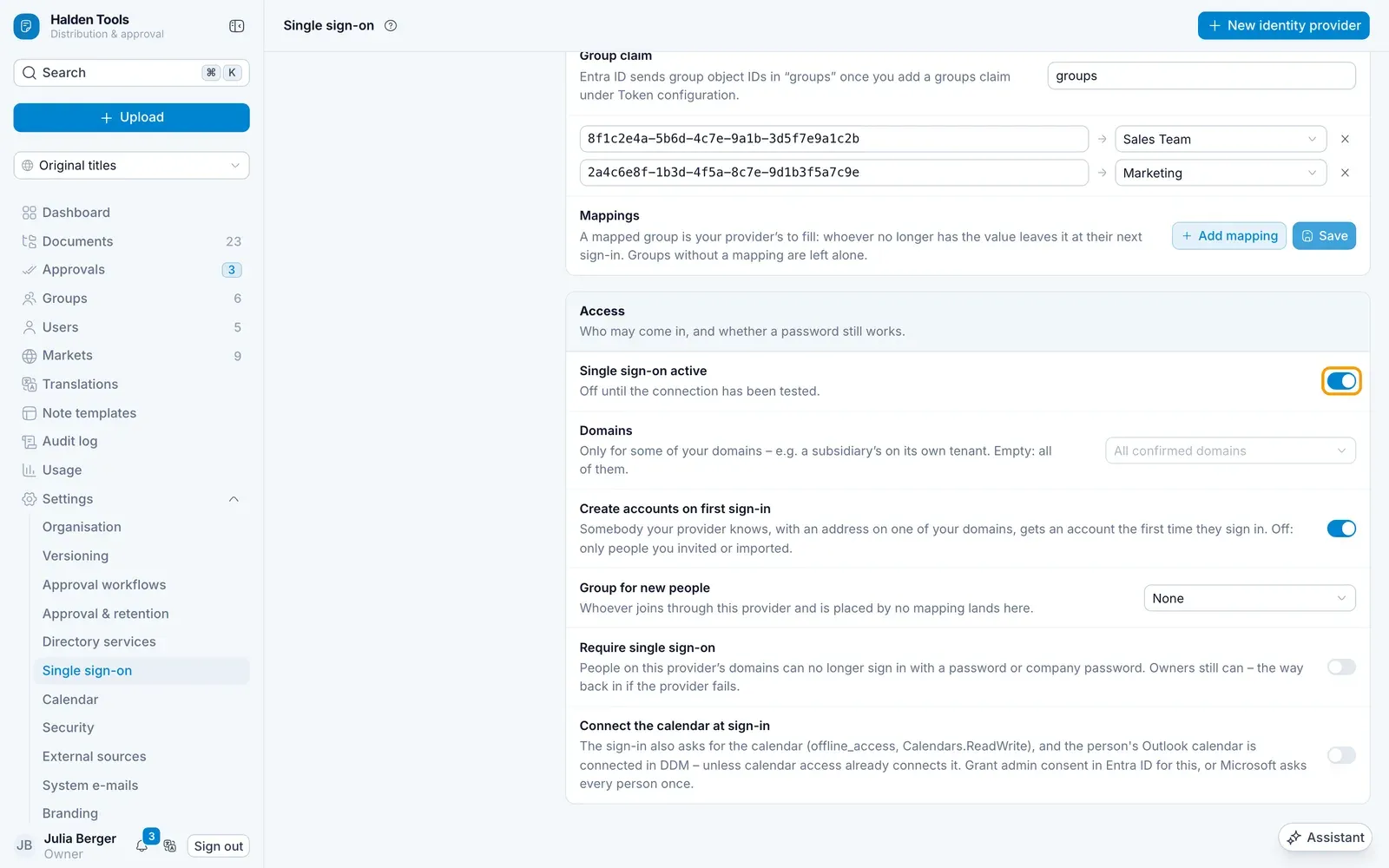
Then try it: open a private browser window, go to the sign-in page, type your address and click Continue with ….
Map groups
Your provider knows who is in sales and who is in marketing. With a group mapping, DDM takes that over: at every sign-in, people are put into the DDM groups that match their groups at your provider.
- In the card Groups, enter the Group claim – the claim (OpenID Connect) or attribute (SAML) in which your provider lists somebody's groups. Mostly
groups. - Click Add mapping for each group: on the left the value as your provider sends it, on the right the DDM group.
- Click Save.
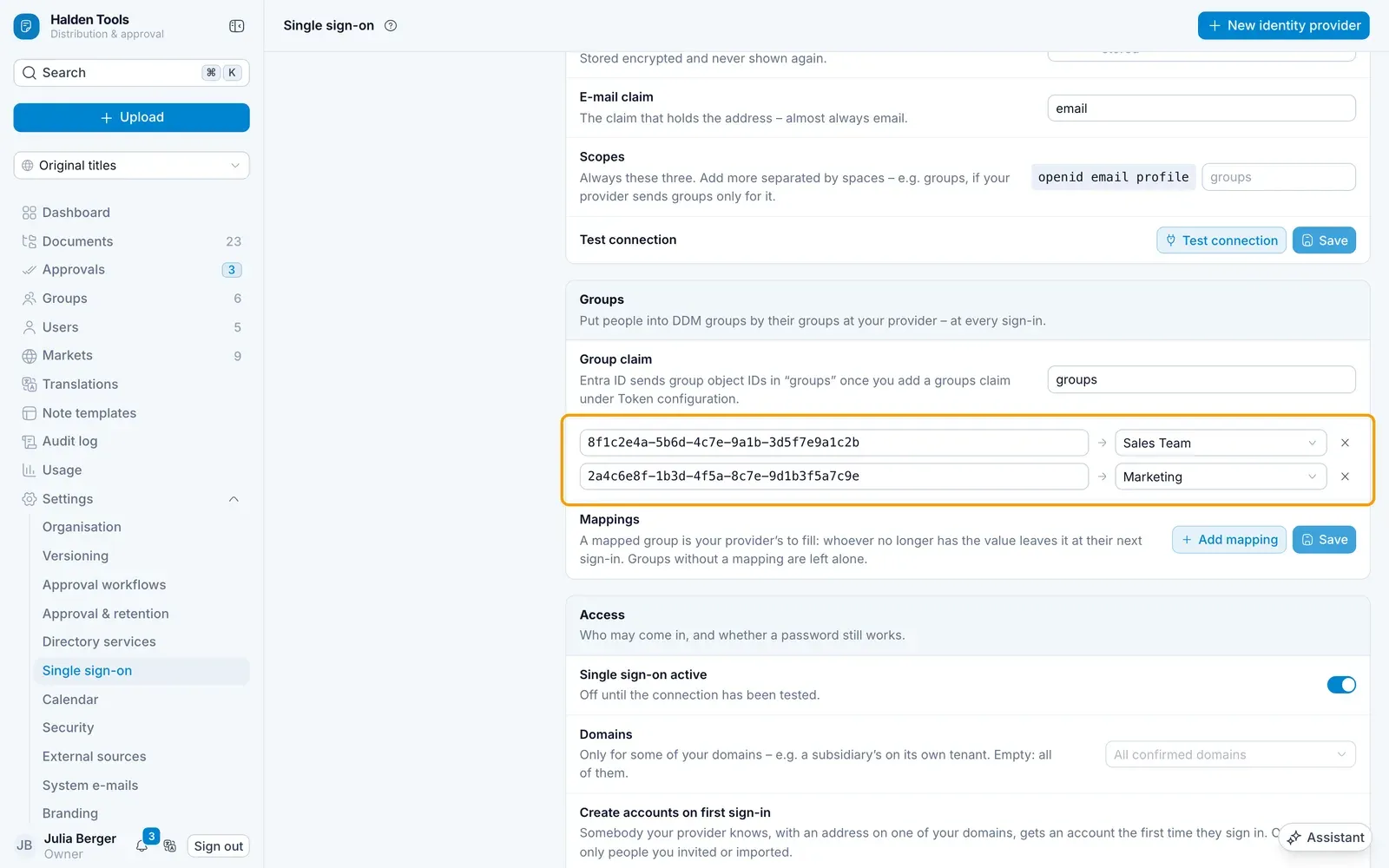
What the value looks like depends on the provider:
| Provider | The claim contains | Set up at the provider |
|---|---|---|
| Microsoft Entra ID | the groups' Object IDs, e.g. 5f3c2a… | Token configuration › Add groups claim – see Entra ID |
| Okta | the group names | a Groups claim filter on the app – see Okta |
| Google Workspace | only with SAML: the group names or addresses | Group membership in the SAML app – see Google Workspace |
The rules:
- A mapped group is your provider's to fill. Whoever has a mapped value is put into the group; whoever no longer has it leaves the group at their next sign-in. Values are compared without regard to upper and lower case.
- Groups without a mapping are left alone – whoever put somebody into them, by hand or by a directory.
- If somebody is in none of the mapped groups, their group claim may be missing altogether – that counts as „no groups", and they leave the mapped groups.
- Exception: Entra ID sends no group list for somebody in more than 200 groups, only a reference. DDM then leaves their groups as they are.
- Group for new people applies only when no mapping placed a newcomer.
Several providers
An organisation can connect several identity providers – click New identity provider again. Typical cases:
- A subsidiary with its own tenant: Provider Kunde Entra for
company.com, provider Tochter Okta forsubsidiary.com– under Access › Domains, limit each to its domain. - A move: the new provider next to the old one, both active, until everybody has signed in once with the new one. Then switch the old one off.
On the sign-in page, somebody sees one button for each active provider that is responsible for their domain. A provider limited to some domains has no say over addresses on the others – even if it reported one, DDM would refuse the sign-in.
People are linked to each provider separately. Somebody who already signed in through the old provider is recognised by their e-mail address the first time they use the new one.
Require single sign-on
Require single sign-on switches off the password for the provider's domains: people can no longer sign in with a DDM password or a company password, only through your provider. That includes the installation's Microsoft, Google and Okta buttons, and nobody can register with a password under these domains any more. The sign-in page then shows only the button.
Owners of the organisation can still sign in with their password – via Sign in with a password instead. That is the way back in if your provider fails or its configuration breaks; nobody can fix the configuration through a provider that does not work. Make sure at least one owner has a DDM password.
Who gets in
DDM decides itself who your provider may sign in:
| Situation | What happens |
|---|---|
| Address on your confirmed domain, already a member | signed in |
| Address on your domain, has a DDM account but is not a member yet | becomes a member – if Create accounts on first sign-in is on |
| Address on your domain, not in DDM yet | gets an account and a membership – if Create accounts on first sign-in is on |
| Address not on one of your confirmed domains – or not on one of the provider's domains | refused, whatever your provider says |
| Blocked in your organisation | refused |
| Platform operators | refused – they always sign in with their own password |
Every single sign-on that reaches DDM – successful or refused – is recorded in the Audit log, refusals with the reason, successful ones with the groups that were added or removed.
Messages your people may see
| Message | Cause |
|---|---|
| You were signed in, but there is no account for you here yet | Create accounts on first sign-in is off – invite the person or switch it on. |
| You were signed in, but your e-mail address is not on one of your organisation's confirmed domains | The provider reported an address on another domain – check the person's e-mail address in your provider, or confirm the domain. |
| Your account is blocked in this organisation | Unblock under Users. |
| Single sign-on is not switched on for your organisation | Single sign-on active is off. |
| Your organisation signs in through its own sign-in system | Single sign-on is required, and the person tried a password. |
| Single sign-on did not work | Your provider refused, or its answer did not fit the configuration – check with Test connection, and look at the error your provider showed; for Entra ID see Common errors. |
Changing or removing a provider
Change a field and click Save – a new client secret, for example, when the old one expires. If you change the Issuer, DDM reads the new provider's configuration again. For SAML, Reload metadata takes over a new certificate from the metadata URL.
The bin beside the provider's name (Remove provider) asks first – confirm with Remove permanently. It deletes its configuration and the links between your people and that provider. Whoever is signed in through it is signed out – as when you switch it off. The people stay, with their groups. Whoever has no DDM password and no other provider sets a password with Forgotten your password? on the sign-in page.
For whoever runs DDM
- Nothing to configure for providers on the internet – Entra ID, Okta, Google and other cloud providers work straight away, with both protocols.
- A provider on the customer's own network (Keycloak, ADFS on the LAN) has to be allowed: put its address in
SSO_TRUSTED_ORIGINS, several separated by commas, e.g.SSO_TRUSTED_ORIGINS="https://sso.company.local". That applies to SAML metadata URLs too. - The app on its own address (e.g.
app.company.comnext toddm.company.com): both must be on the same parent domain, withAUTH_COOKIE_DOMAIN="company.com"– otherwise the app does not notice the sign-in. - SAML providers post the sign-in back to
<BETTER_AUTH_URL>/api/auth/sso/saml2/sp/acs/…from their own address; a reverse proxy or web application firewall in front of DDM must let that through.