 DDM Help
Signing in and finding your way
The app is for everyone who works with the documents: reading, searching, having them with you offline and sending them to customers. It runs in the browser on computers, tablets and smartphones and can be installed like an app.
Signing in
Open the app
Open the app address you were given by your organisation. If you are not signed in, you automatically land on Sign in.
Enter your e-mail and password
Enter your company e-mail and your password. With an LDAP account, use your company password.
Stay signed in
Tick Stay signed in if you want to start the app on the move without a connection, too.
Sign in
Click Sign in. You now see the start page, Home.
Forgotten your password? Click Forgot password? – you will receive an e-mail with a link to reset it.
The introduction
The first time you open it, the app shows a few slides: what you find on Home, under Categories, in Favorites and in the Outbox. Short tour on the last slide shows you the navigation and the search right on the screen. Once closed, the introduction does not come back – on your other devices either. To see it again, go to Settings › Show the introduction.
The start page
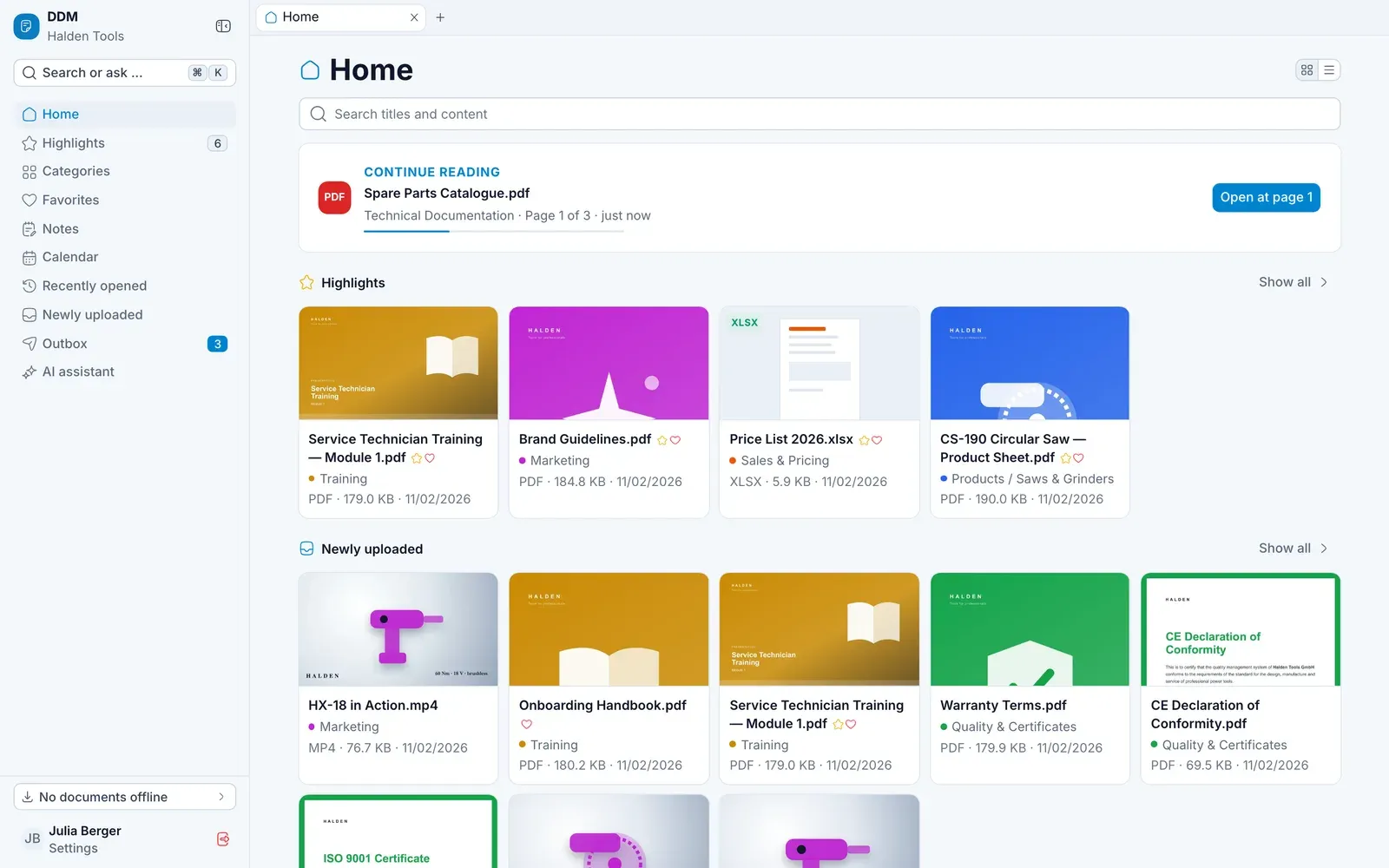
Home is where you start your day. From top to bottom:
- Search titles and content – type a word and press ↵ to open the search.
- CONTINUE READING – the document you opened last, how far you have read it and, on a computer, Open at page … to go straight back to that page.
- Highlights – what your organisation especially wants to point out. This section only appears when there are highlights.
- Newly uploaded – the latest documents and versions in your categories.
- Favorites – your favorite folders and documents.
Show all next to a heading opens the full list. The two icons at the top switch between cards and list – as in the app's other lists. Your choice applies to every list on this device.
Installing as an app
Once installed, DDM starts from the home screen or the dock – even without a connection.
Click Install as an app on the sign-in page – or open Settings › Offline & sync and, in the Install the app card, click Install. Your browser then asks whether to install DDM.
Once DDM is installed – or in the desktop app and the mobile app – the sign-in page only shows the version.
Navigation
The navigation adapts to your device:
- On a computer, it is on the left, with every entry written out. The button next to the app name folds it into a narrow bar of icons – hover over one to see its name; the button at the bottom of the bar opens it out again. The app remembers which way you left it.
- On a tablet, a narrow bar of icons runs down the left – the same entries, without their names. At the top right are the search (Search or ask …) and your picture for the Settings.
- On a smartphone, a tab bar runs along the bottom: Home, Highlights, Categories, Favorites, Outbox and More. The number on Outbox shows how many documents are waiting to be sent. To search, use the search field on the start page. More opens everything else – Search, Notes, Calendar, Recently opened, Newly uploaded, the AI assistant, the offline documents, Settings and Sign out. Which screens are in the bar is up to you – see Customizing the tab bar.
| Entry | What you will find there |
|---|---|
| Search or ask … | Search across everything, jump to any area (⌘Ctrl K) |
| Home | The start page |
| Highlights | Documents your organisation especially wants to point out |
| Categories | All documents shared with you, by topic |
| Favorites | Your personal collection, in folders |
| Notes | Your own notes and visit reports |
| Calendar | Your appointments with the right material |
| Recently opened | Continue reading where you left off |
| Newly uploaded | The latest documents and versions |
| Outbox | Collect material and send it to customers |
| AI assistant | Ask your documents questions |
On a computer, the bottom of the navigation shows how many documents are saved offline, and your name takes you to the Settings. On a tablet or smartphone, the cloud icon at the top shows whether you are online; without a connection it says Offline. Tapping it opens Offline & sync.
Tabs and split view
As in a browser, you can have several documents, notes and screens open at once, each in a tab of its own – and on a computer, two side by side. How that works is under Tabs and split view.