 DDM Help
Tabs and split view
As in a browser, you can have several things open at once, each in a tab of its own – a document, a note, a category, the calendar. The app remembers your tabs and opens them again the next time it starts. Go back to a tab and it is where you left it – scrolled to the same place, a document at the same spot on its page.
Opening and switching tabs
- On a computer, the tabs are above the screen. Click one to go there; × or the middle mouse button closes it, and + opens a New tab – choose a note, a screen, a category or a document there. Drag a tab to move it.
- On a tablet or smartphone, the box with the number at the top right shows how many tabs are open. Tap it to see all of them as cards: tap one to go there, or close it with ×. At the bottom are New tab and Close all tabs.
- A link clicked with ⌘Ctrl held, or with the middle mouse button, opens in a new tab in the background. If what it leads to is already open in a tab, no second one is added.
- The search (⌘Ctrl K) has New tab, and every open tab under Tabs.
Each tab has its own history: the arrow at the top left of a document or of the search takes you back to where you were before in that tab.
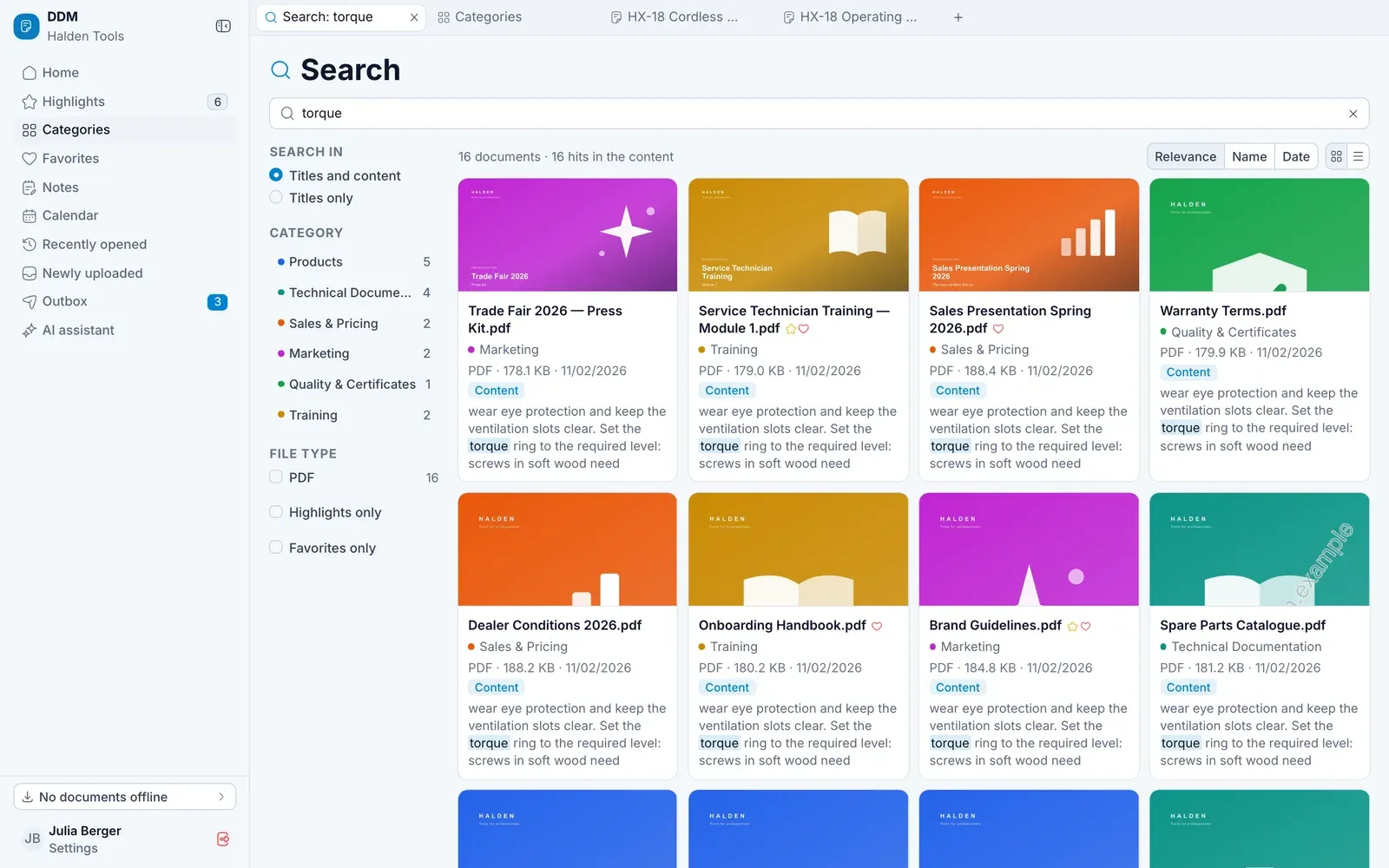
A tab's menu
Right-click a tab for more:
- New tab to the right – a new tab right next to it.
- Duplicate – the same thing once more, in a second tab. Notes and the calendar exist only once; for them, Duplicate is greyed out.
- Close other tabs – every tab but this one.
- Close tab.
Close the last tab and the app shows Home again.
What the app remembers
Your tabs are kept on this device, for you alone. After you sign out they are gone – whoever signs in next does not see your tabs.
Up to 24 tabs can be open at once. Open another, and the app closes the tab you have not looked at for the longest – never one that is on screen.
Keyboard shortcuts in the desktop app
In a browser, these shortcuts belong to the browser itself. In the desktop app they work on DDM's tabs – even while you are writing in a note:
| Keys | What happens |
|---|---|
| ⌘Ctrl T | New tab |
| ⌘Ctrl W | Close the tab in front |
| ⌘Ctrl ⇧ T | Reopen the tab closed last – again for the last ten |
| ⌃Ctrl Tab | Next tab |
| ⌃Ctrl ⇧ Tab | Previous tab |
| ⌘Ctrl 1 … 8 | First to eighth tab |
| ⌘Ctrl 9 | Last tab |
Two tabs side by side
On a computer – and on a tablet held sideways – you can show two tabs side by side: to write notes while you read a document, or to look something up while you write.
- Open beside in a document's actions opens it in a tab next to the one you are in.
- In a note, documents and categories you referred to with
@open beside it. Edit note › Open document beside … opens a new tab next to it to find the document in. - Right-click a tab and choose Show beside this tab and another tab, or New tab beside.
- Or drag a tab onto the left or right half of the screen.
The two tabs are drawn as one at the top. The one you last clicked in has a blue line at its top – that is where the navigation on the left and the address apply. You can move the divider between them; a double-click halves it again. The divider's menu and a tab's menu have Swap sides and Unsplit – after which both are tabs of their own again.
On a narrower screen – a smartphone, a tablet held upright – the app shows one tab at a time. There, Open beside is Open in new tab.