 DDM Help
Categories
Categories organise the documents – like folders, except that a document can be in several categories. They also determine who sees what: you grant permissions on categories, and sub-categories inherit them.
Creating a category
Open Documents
Click Documents in the navigation. For a sub-category, first open the category it should sit under.
New category
Click New category at the top right – or + Sub-category in an open category. In the category tree on the left, you can also use the + in a category's row. In a document store with no categories at all, Create the first category in the middle of the screen does the same.
Give it a name
Enter a Name and click Create.
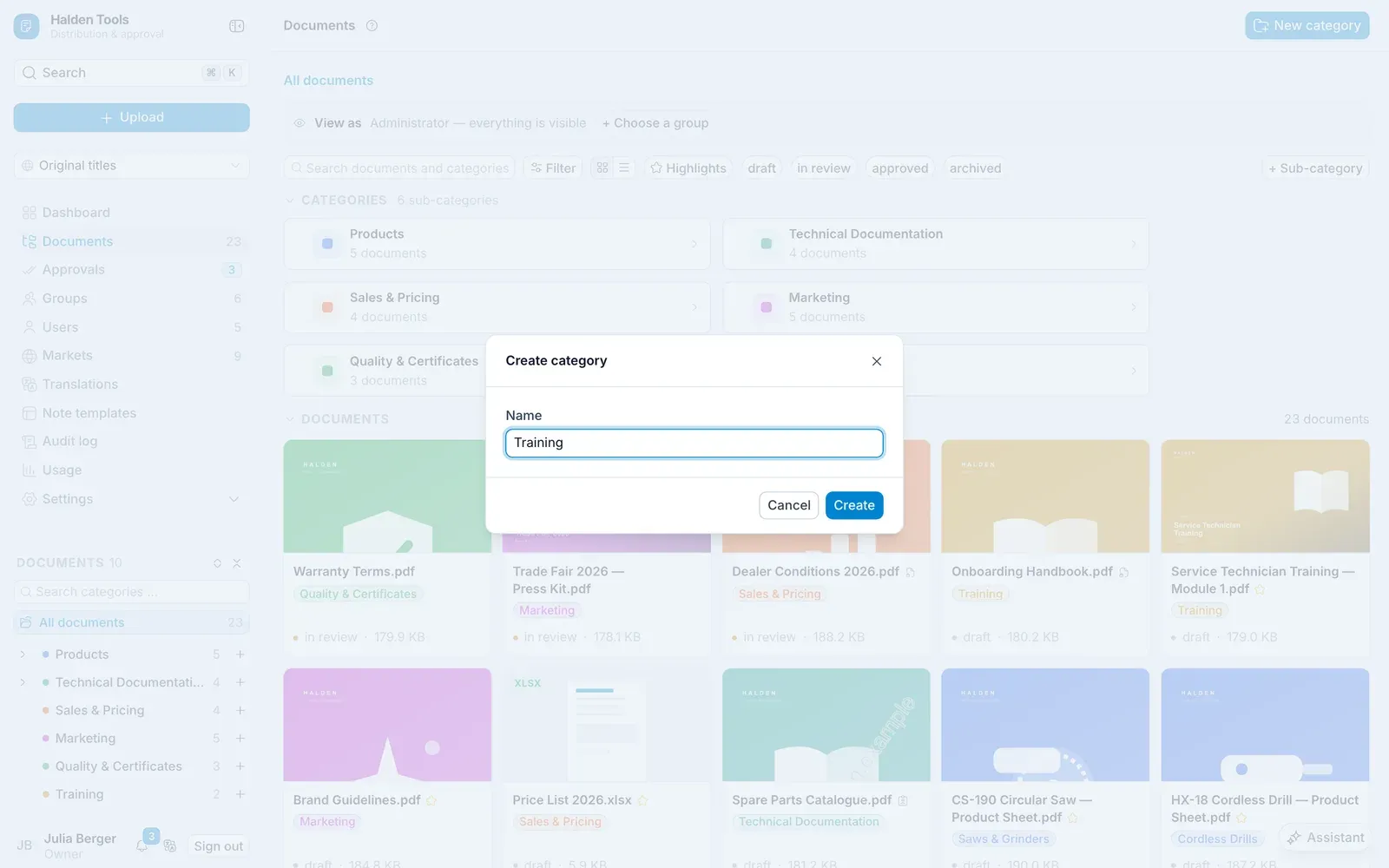
Editing a category
Open the category and click Edit category – or the pencil at the end of its row in the list. The category panel opens on the right.
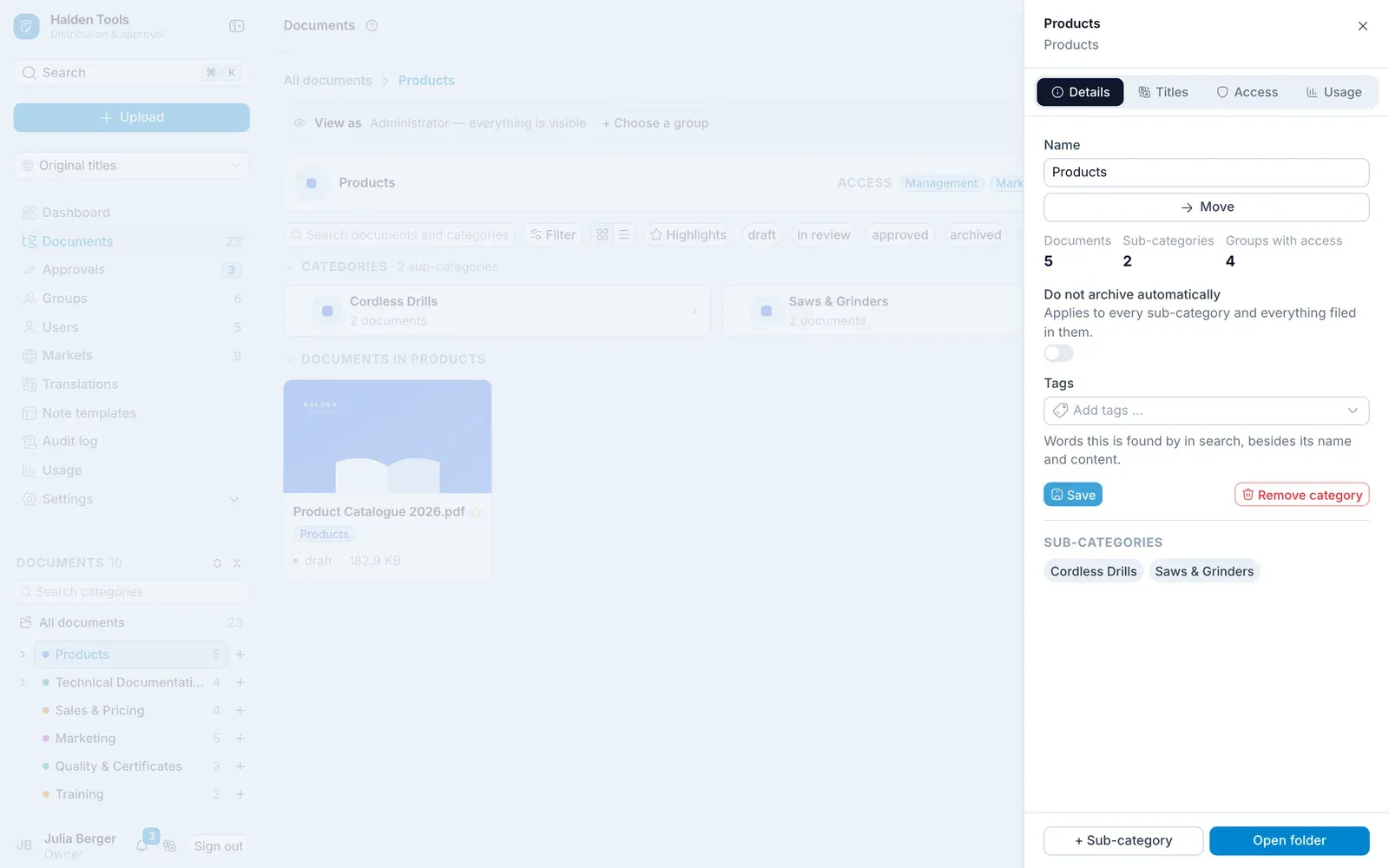
There you can:
- change the Name and apply it with Save,
- Move the category – search for the target category or choose — top level —, then Save,
- maintain Titles per market, i.e. what the category is called in other markets,
- switch on Do not archive automatically, so that documents here are never archived automatically,
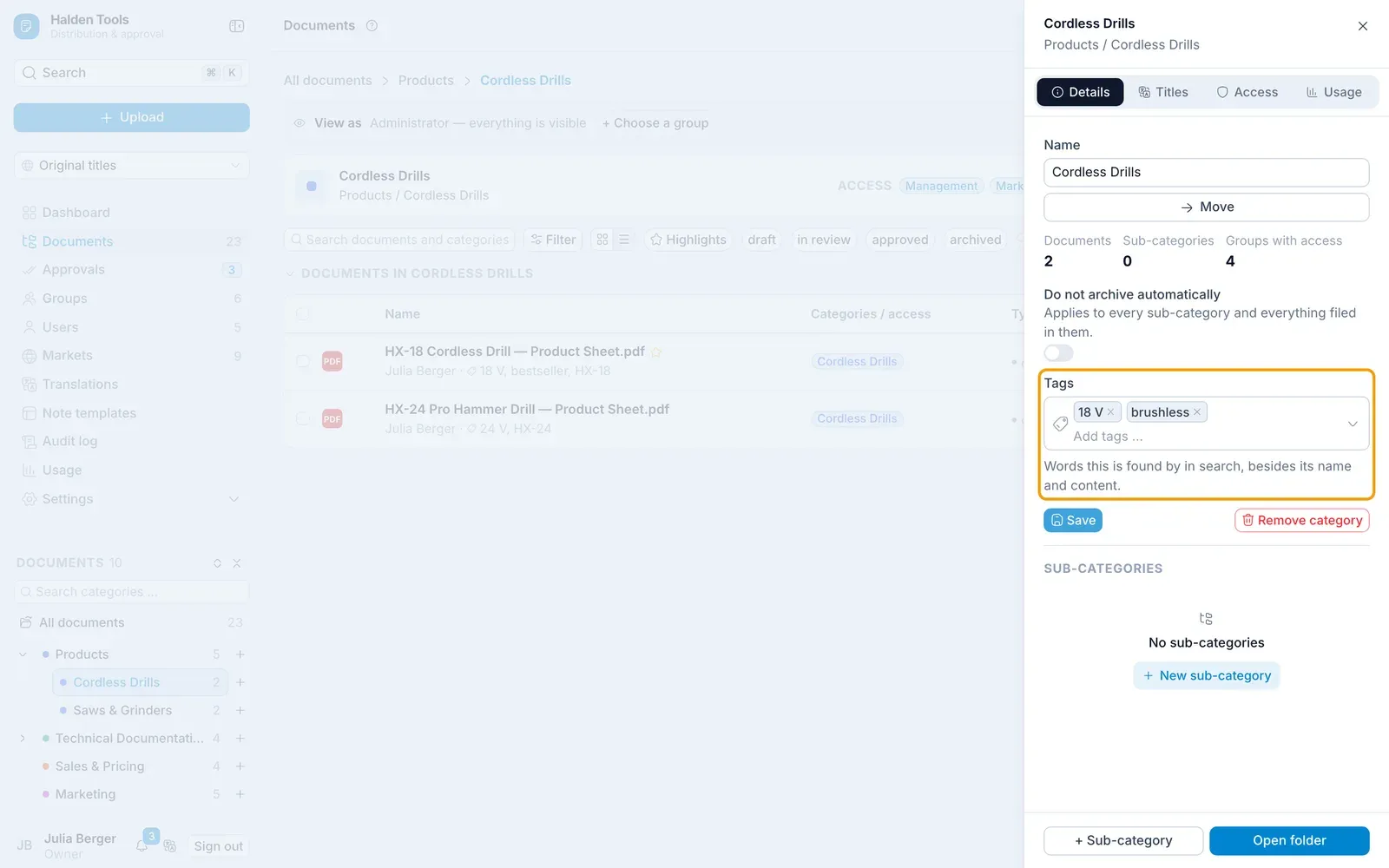
- give it Tags that search in the CMS finds the category by – as for documents; apply with Save,
- set the Permissions (see below),
- create and open sub-categories,
- Remove category.
Who may see a category
In the category panel, under Permissions:
- Click Group and pick a group from the list – typing narrows it. The group gets Read.
- Set the level in its row:
- Read – the group sees the documents in the app.
- Full – the group may also upload, make changes and create sub-categories here.
- None – locks the group out of this category, even if it has permissions further up.
- Inherited – takes over what the parent category sets for the group.
- Under People you give individual people permissions, independently of groups.
Every change is saved straight away.
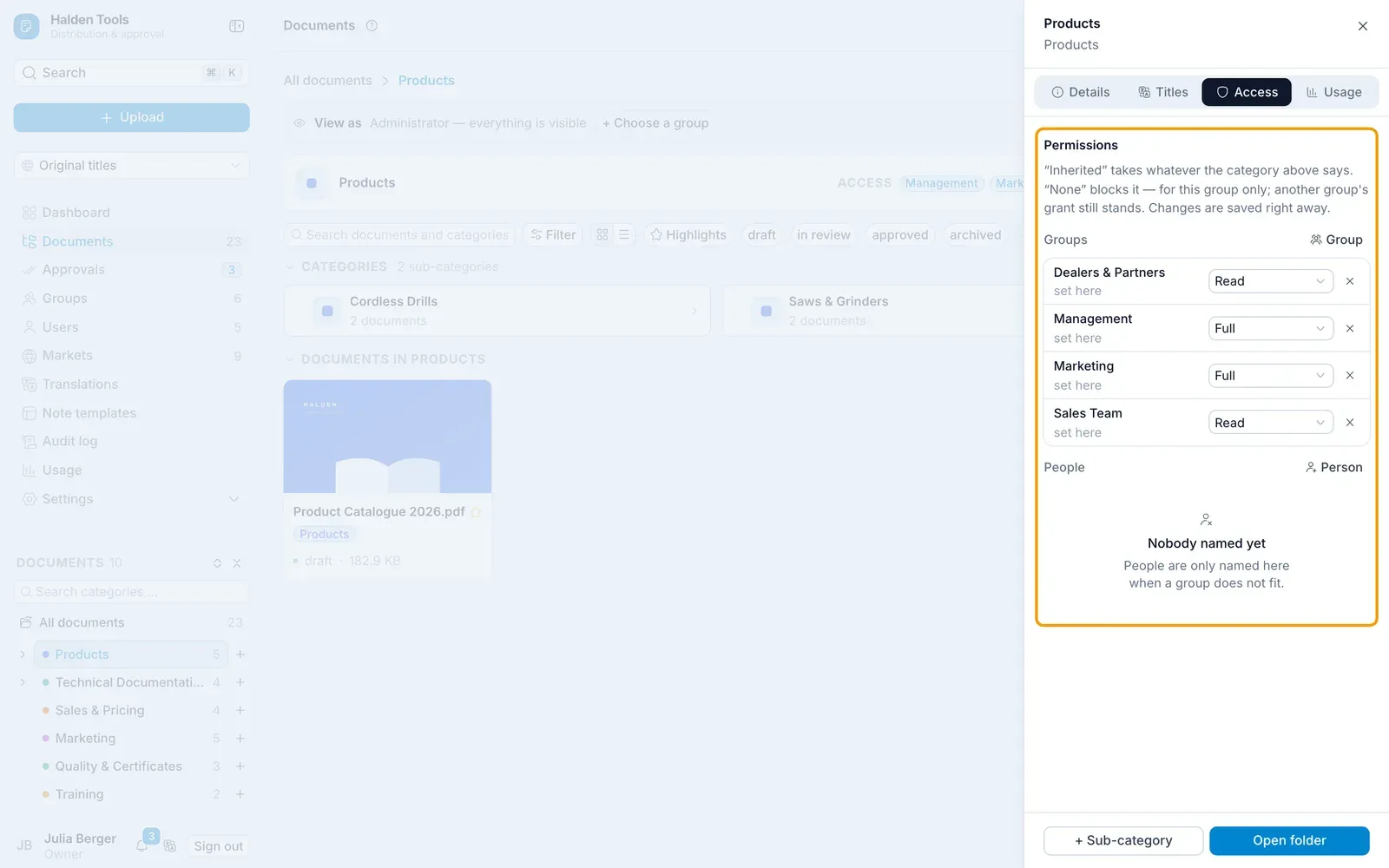
Each row shows where a permission comes from: set here, inherited from … or blocked here.
You can see all of a group's permissions at a glance under Groups and permissions.
Removing a category
- Click Remove category in the category panel.
- The dialog shows everything below it, and for each document what will happen: removed or kept elsewhere (if it is also in another category).
- Confirm with Remove permanently.