 DDM Help
Working offline
At the customer's, on the train, in the basement: whatever you keep offline opens without a connection, too.
Keeping a document offline
- Open the document.
- Click Keep offline – on a tablet or smartphone, Offline at the bottom. The app reports Saved for offline use, and the button now says Kept offline. A tick next to the title shows it, too.
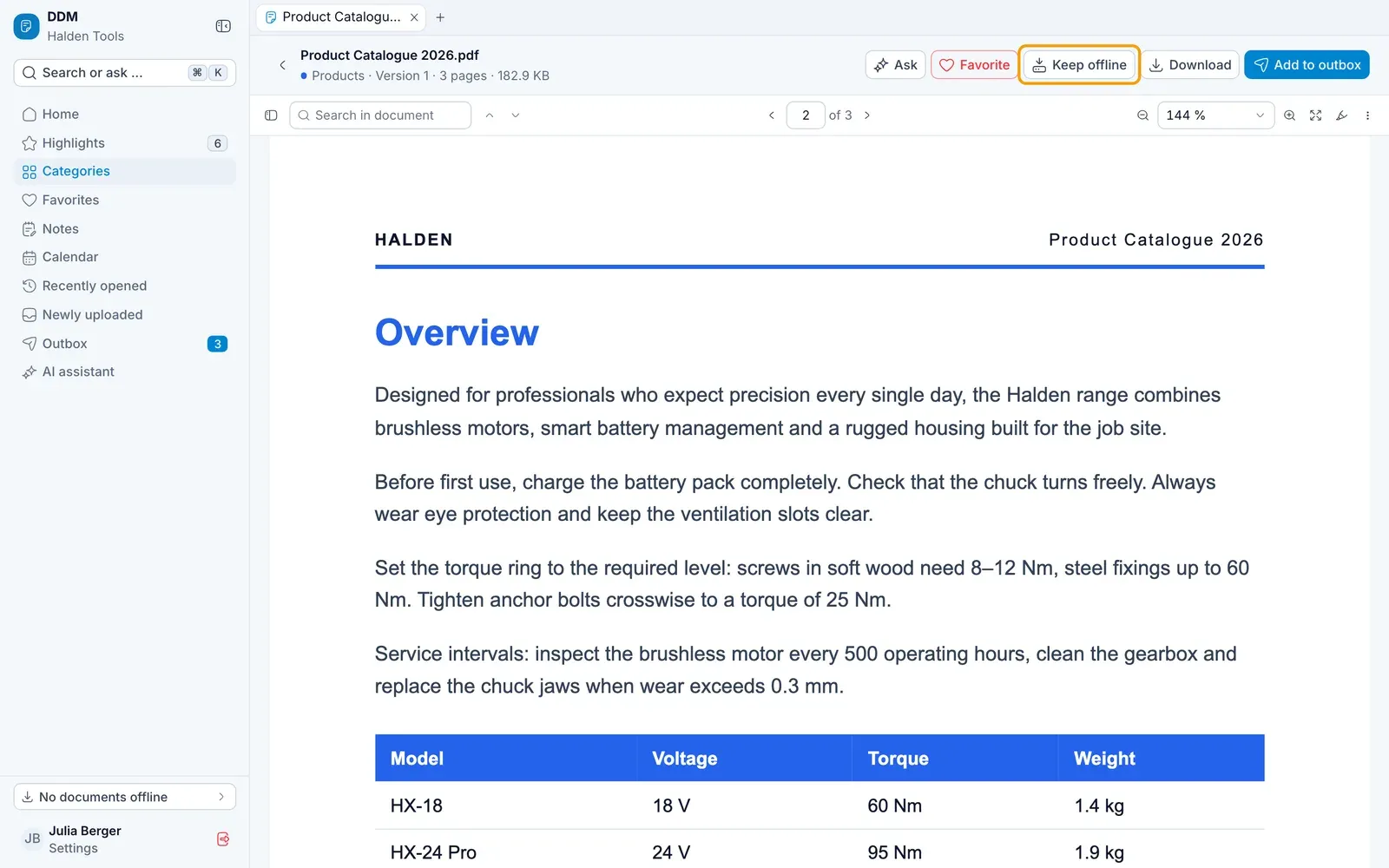
Clicking Kept offline removes the copy again. In lists, you will find Keep offline behind a card's ⋯ on a tablet or smartphone.
Documents that can only be read in the app can be kept offline too – for reading in the app.
Everything offline
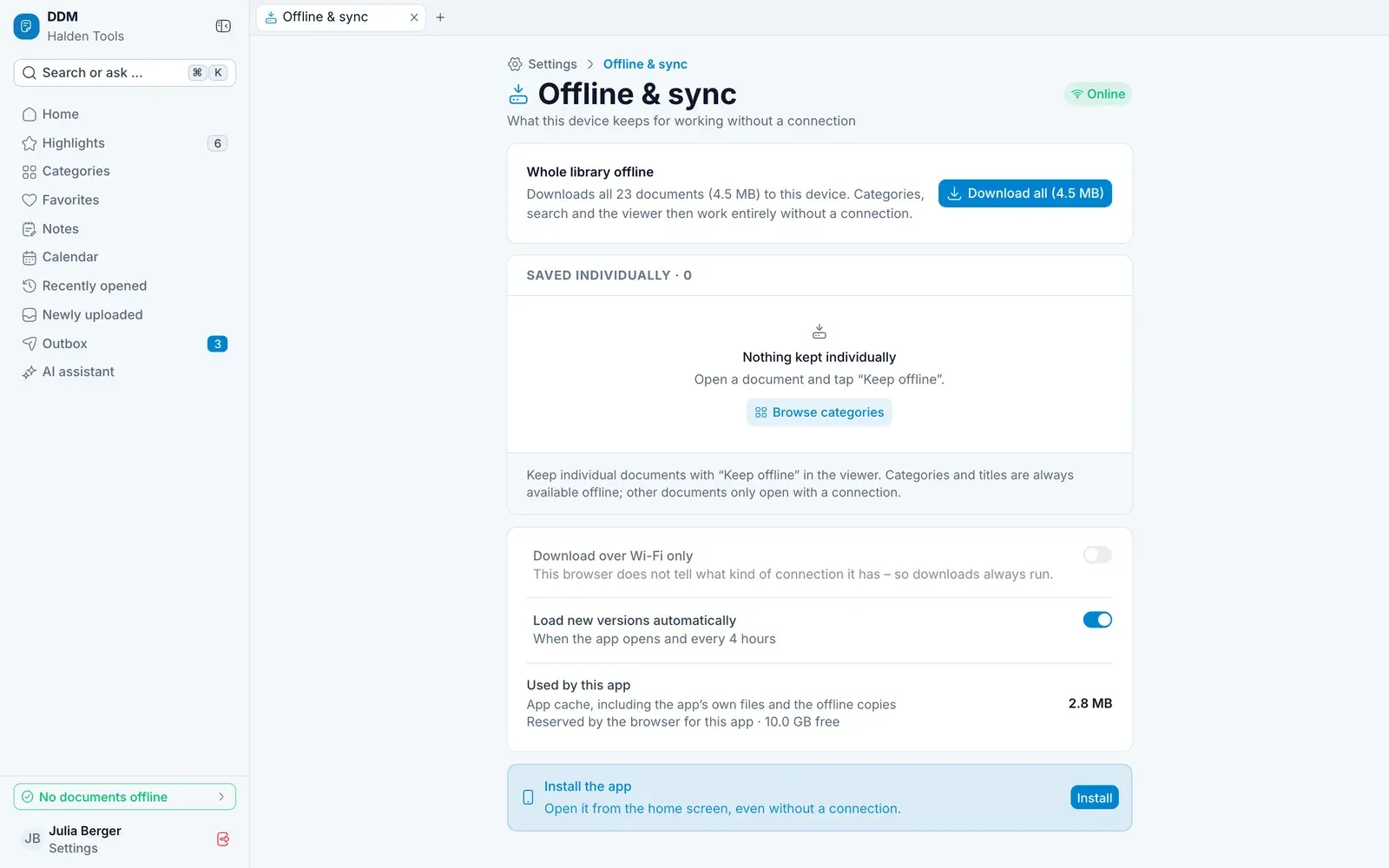
Under Settings › Offline & sync – or via … documents offline at the bottom of the navigation on a computer, via the cloud icon at the top on a tablet or smartphone, or via More › … documents offline on a smartphone:
- Whole library offline – Download all (…) downloads all documents you are allowed to see; the button shows how much space that takes. Once they are on your device, it says On this device, and Remove from device deletes them again.
- Download over Wi-Fi only – saves your mobile data. If your browser does not tell what kind of connection it has, the switch cannot be used and the app always downloads.
- Load new versions automatically – when the app opens, every 4 hours and whenever it refreshes.
- SAVED INDIVIDUALLY – the list of documents you keep with Keep offline, each with Remove.
- Used by this app – how much space the app and its offline copies take, and how much is free.
Always up to date
The app fetches what is new on its own: every ten minutes while it is open, and when you come back to it after a while. On a tablet or smartphone you can also pull a list down from its top and let go – it then refreshes at once.
What works without a connection
| Without a connection | |
|---|---|
| Categories and titles of all documents | ✓ |
| Opening documents kept offline | ✓ |
| Writing notes, changing favorites and appointments | ✓ – synchronised later |
| Opening other documents | – |
| Sending to customers | – |
| AI assistant | – |
When the app is offline, a notice appears at the top, and on a tablet or smartphone the cloud icon in the header says Offline.