DDM Help
Searching
The command palette
Press ⌘Ctrl K (Windows: ⌃Ctrl K) or click Search or ask …. On a tablet, tap the magnifying glass at the top. On a smartphone, the Search tab at the bottom takes you straight to the full search.
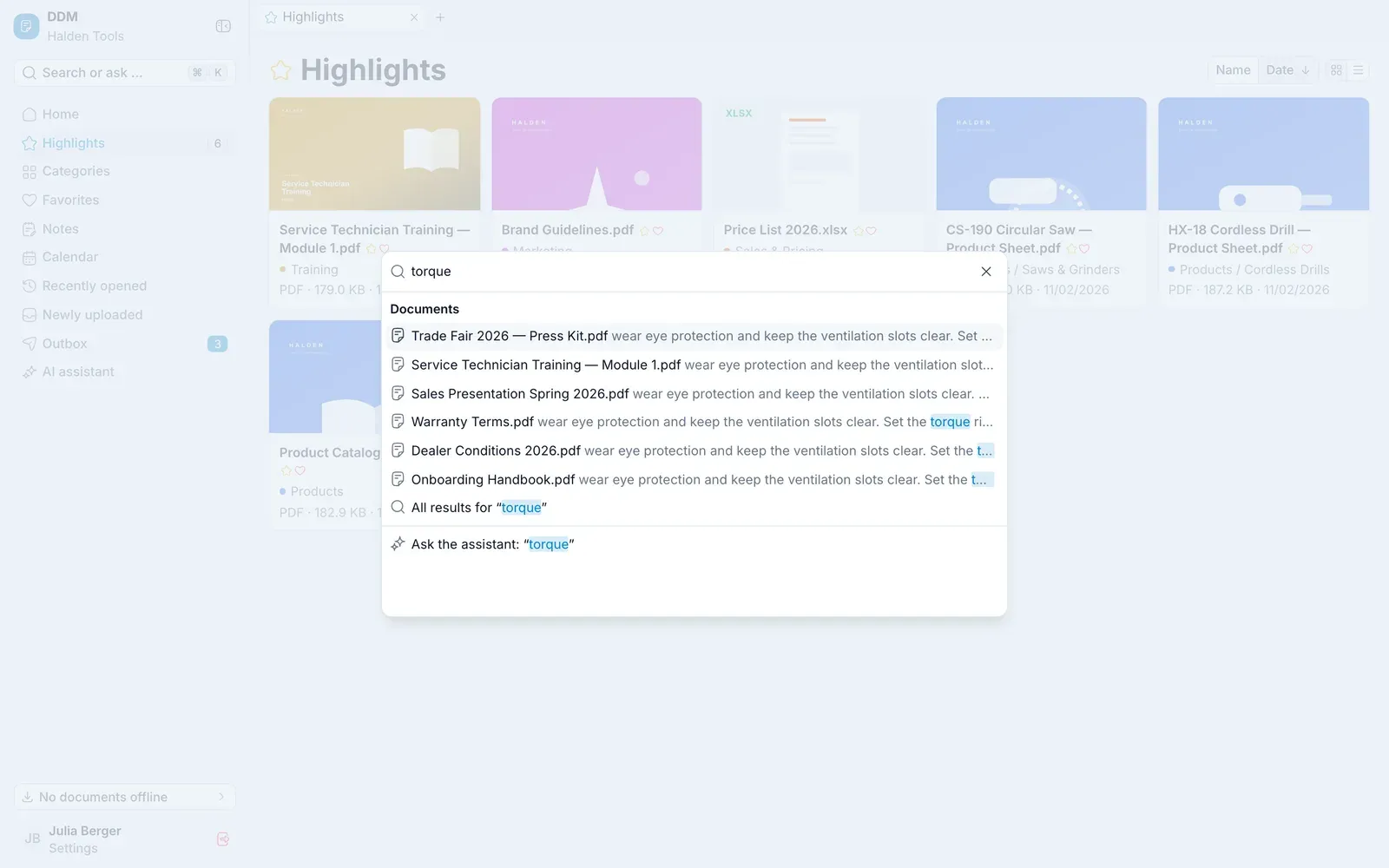
Start typing. The palette shows straight away:
- Documents – matching titles and tags; All results for "…" opens the full search,
- Notes – your own notes,
- Go to – every area of the app,
- Categories and Favorite folders,
- Ask the assistant: "…" – your input as a question to the AI assistant.
The full search
The search looks not only through titles but also through the text in the documents. Open it via All results for "…" in the command palette, the search field on Home or, on a smartphone, the Search tab. Enter at least two characters. On a tablet or smartphone, the arrow in front of the search field takes you back.
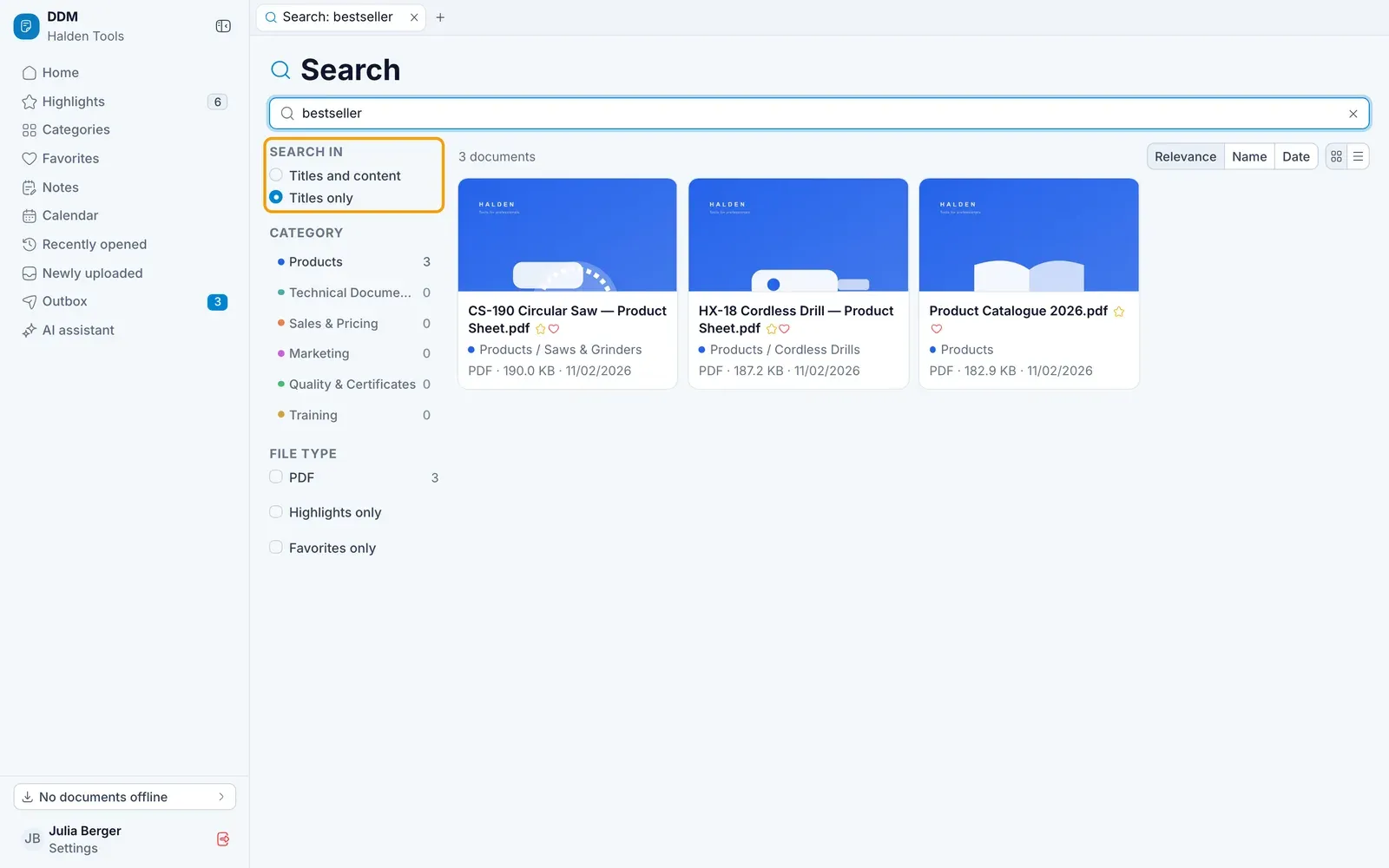
The tags your organisation has given a document count as part of its title: Titles only finds a document by them too – "Price list", say, for a file called PL_2026_v3.pdf.
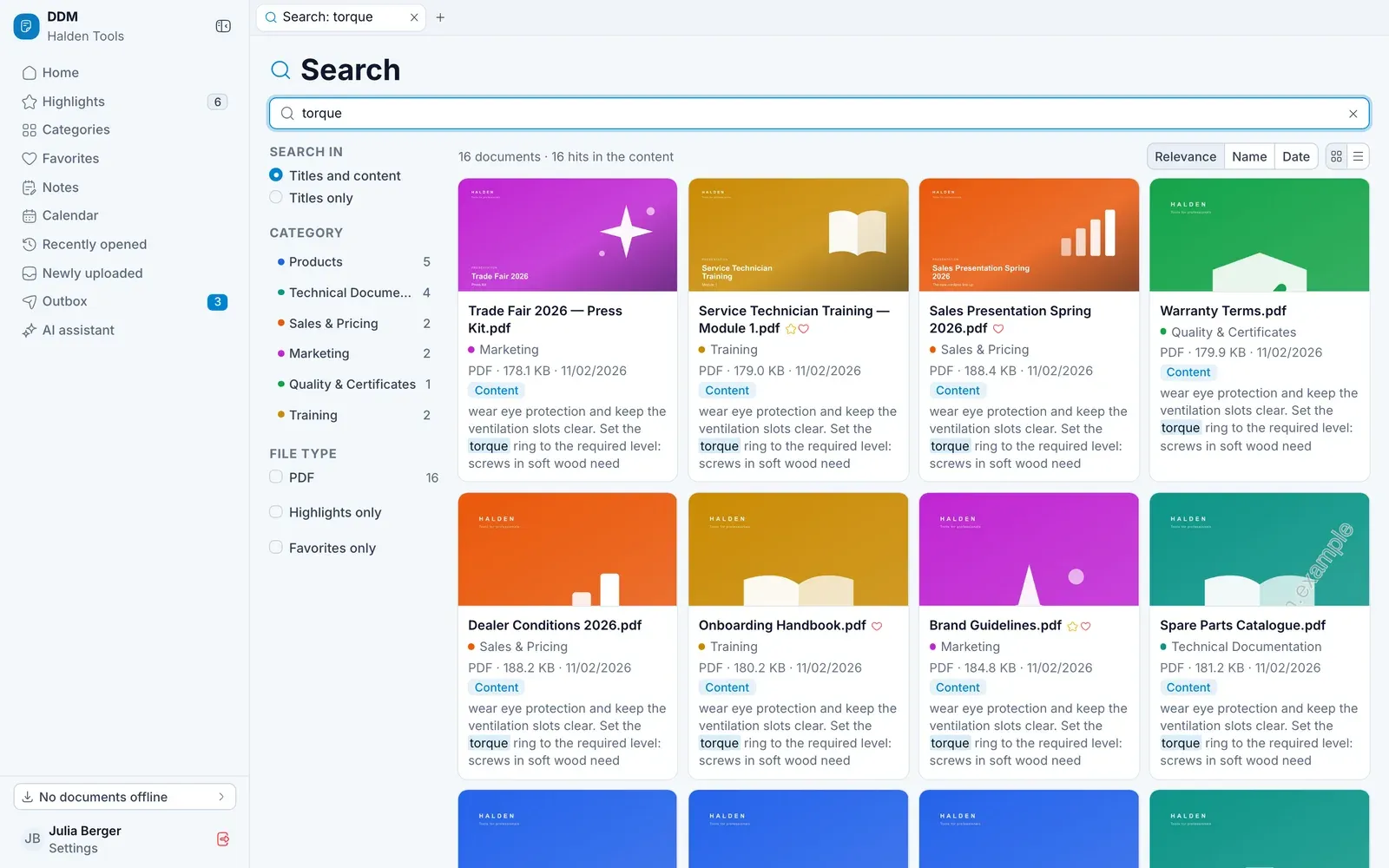
You can narrow it down with:
- Titles and content or Titles only,
- Category,
- File type,
- Highlights only,
- Favorites only – only documents you have in your own favorites.
On a tablet or smartphone, these filters are a row of buttons above the results: All categories, All file types, In content or Titles only, Highlights and Favorites. If nothing is found with the filters set, Clear filters resets them.
The search also finds your favorite folders by name: matching folders appear above the documents, a sub-folder with the folder it is in. Tap one to open it. While you filter by category, file type or highlights, the folders are hidden – those filters apply to documents only.
The results show the place in the text. If you open a document from the results, the search words are highlighted in it.