 DDM Help
Users
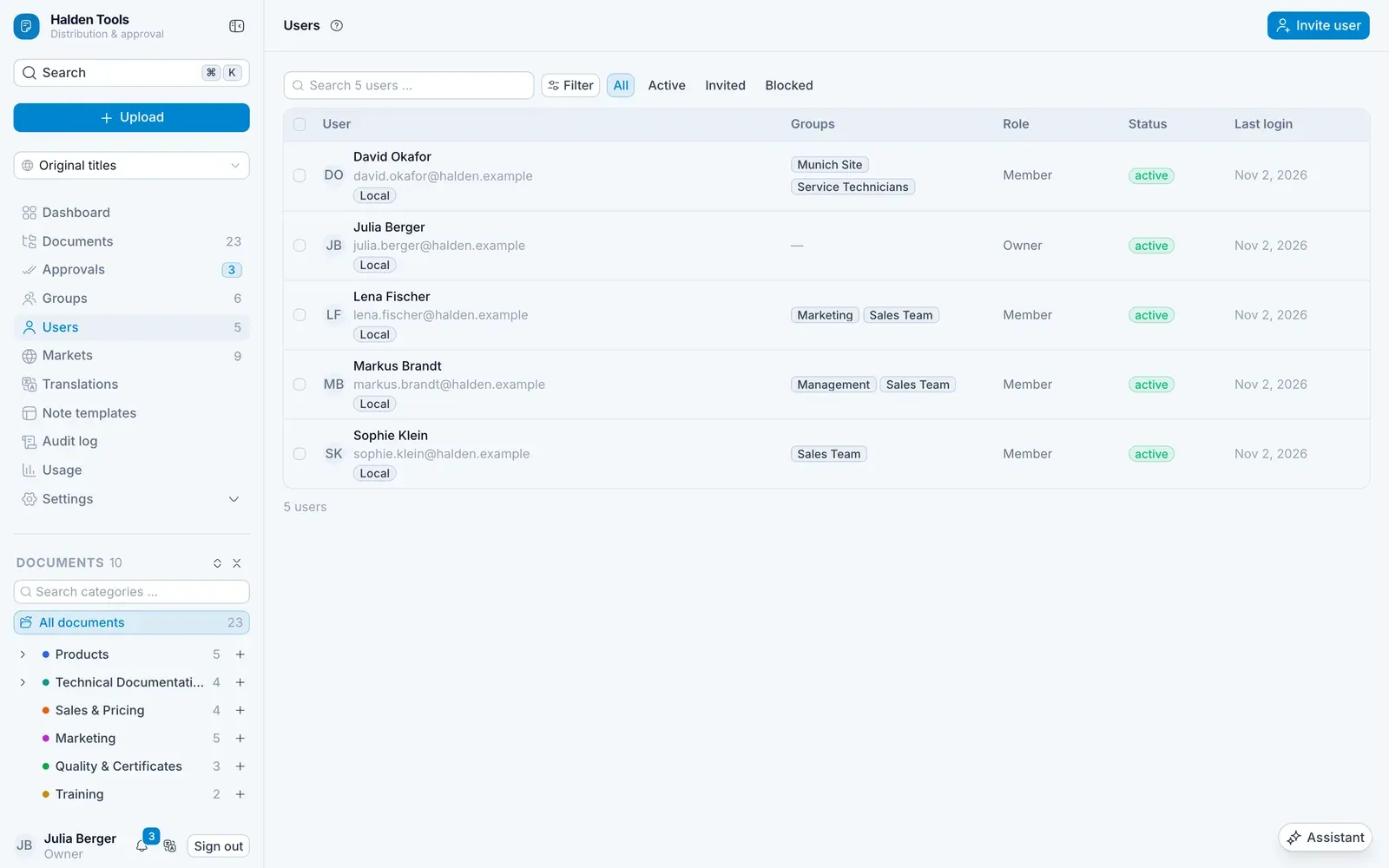
Under Users you see everyone in your organisation, with their groups, role, status and last sign-in. Administrators may make changes here. On a phone, the list shows only the person and their status – groups, role and last sign-in are in the panel a tap opens.
Inviting someone
Invite
Click Invite user.
Address and role
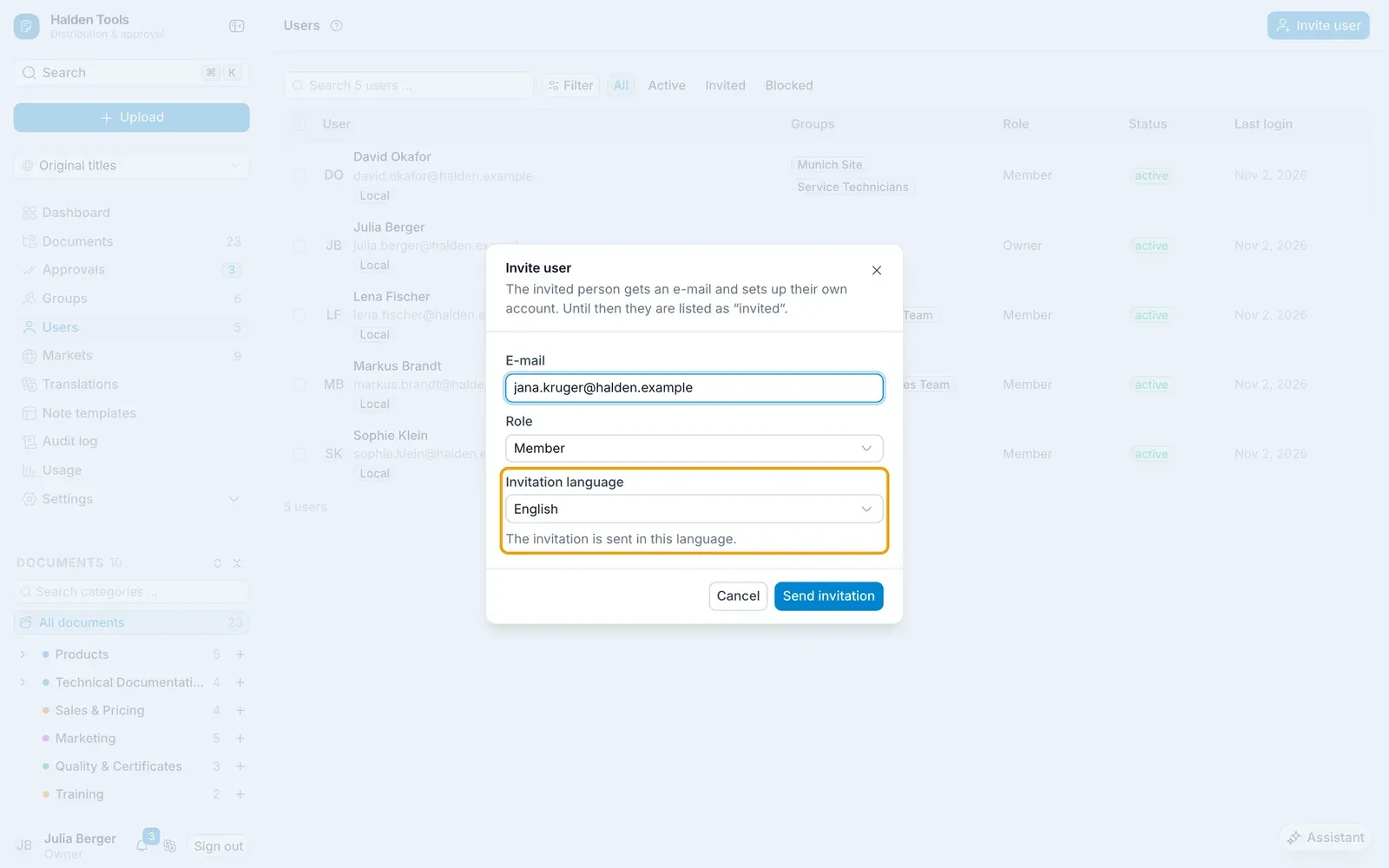
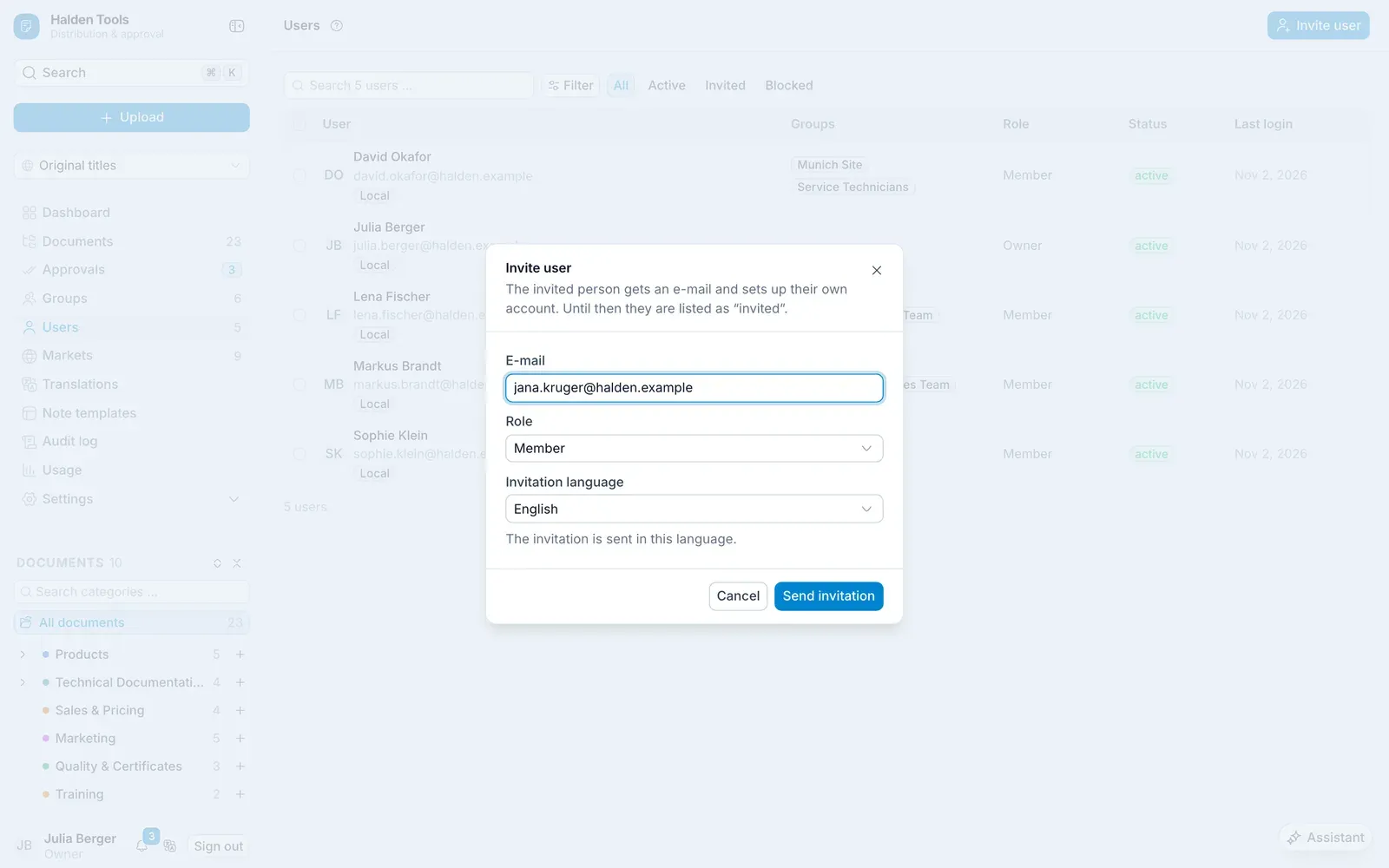
Enter the E-mail and choose the Role – usually Member. Under Invitation language, choose the language the invitation is sent in; it starts on the fallback language.
Send
Click Send invitation. The person receives an e-mail with a link to the apps – as an administrator also with the CMS's address – and sets up their account themselves – see Accepting an invitation.
Assign groups
So that the person sees documents, add them to groups: in the user panel on the Groups tab under Assign group, or in the group under Member.
User panel
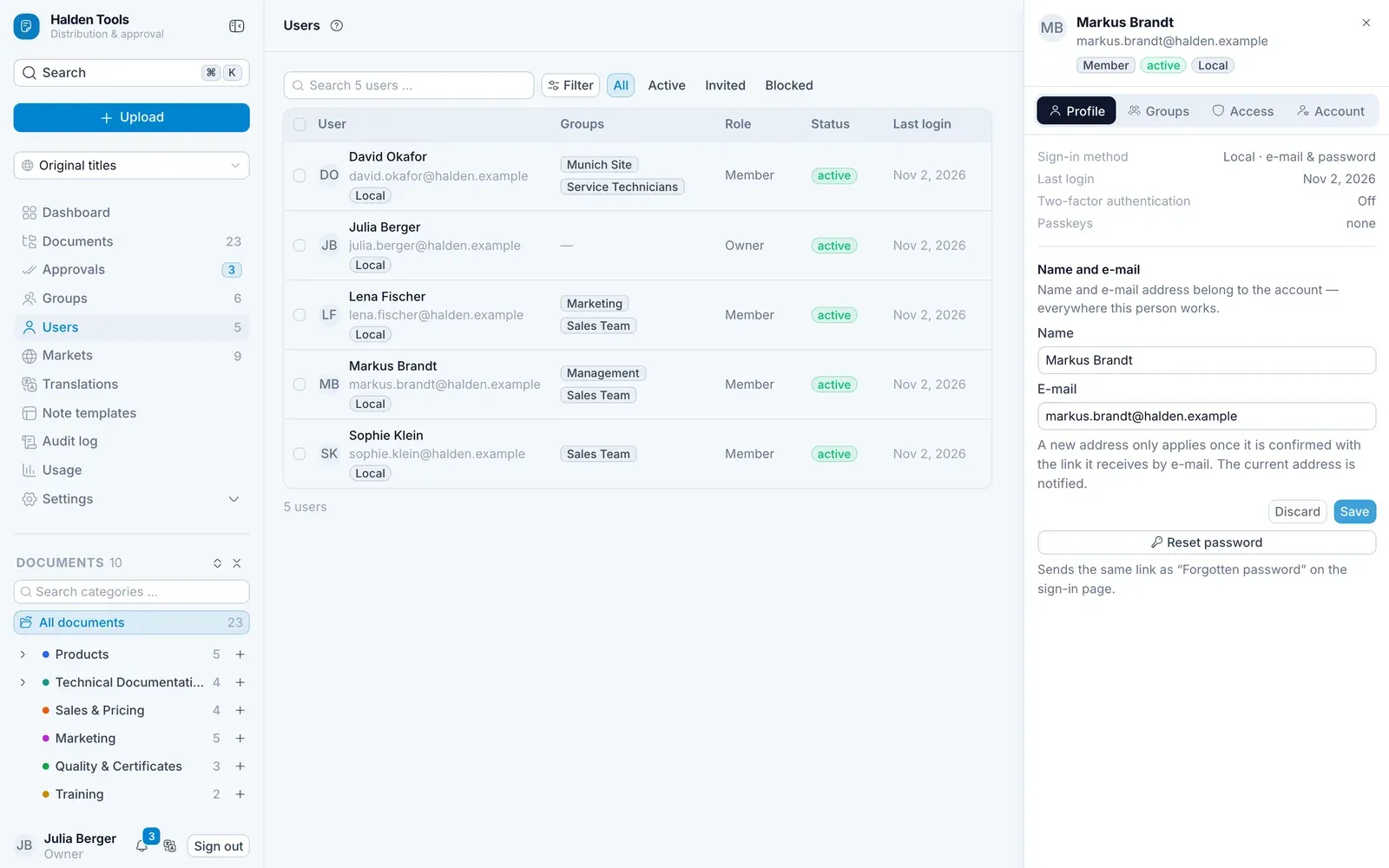
Clicking a person opens their panel. At the top are their name, e-mail, role, status and how they sign in; below that, four tabs:
- Profile – sign-in method and last login, change Name and e-mail, Reset password (sends a link by e-mail) and — for a lost device — Reset two-factor authentication and Remove passkeys
- Groups – Change role (Owner, Administrator or Member), AI spending (a personal limit for the assistant) and the Group memberships with Assign group
- Access – what the person sees in Documents, see below (administrators only)
- Account – the status and the Danger zone with Block / Unblock and Remove from organisation
The open tab is part of the address – a link or a reload opens the same tab. Another person opens on Profile again.
What someone may see
The Access tab shows the whole category tree as it applies to this person:
- At the top, how many documents they see, and how many categories they reach with Full, to Read or with No access.
- Every category carries its level – Full, Read or No access – and below it where that comes from: the group that grants it (a click opens the group), personally for a right given to this person alone, inherited from … for a right that comes from a category above, or no grant.
- Use the search and the All, Full, Read and None buttons to find categories, for instance everything the person cannot see.
If a person gets different levels through several groups, the highest applies. Owners and administrators always see everything – for them it only says Every category. If the person is in no group, To “Groups” takes you straight to assigning one.
Blocking or removing someone
Both are in the Danger zone on the Account tab:
- Block – the person can no longer sign in until you click Unblock. Nothing else changes.
- Remove from organisation – takes the person out of your organisation. DDM asks first (Remove … from the organisation?); confirm with Remove permanently. The account itself remains, but loses all access to this organisation and its groups.
Many at once
Tick several people. In the bar at the bottom you can Assign or Remove a group, set the status to Blocked or Active, or Delete the people from the organisation – the same as Remove from organisation, for all of them at once.