 DDM Help
Uploading documents
Anyone with the Full permission in at least one category may upload. Any file is allowed – PDFs, Office files, images, videos. How large a file may be depends on your plan – from 100 MB on Free up to 1 GB (see Plans); the limit is shown in the dialog. Once your plan's storage is full, further uploads are refused.
Uploading one or more files
Start the upload
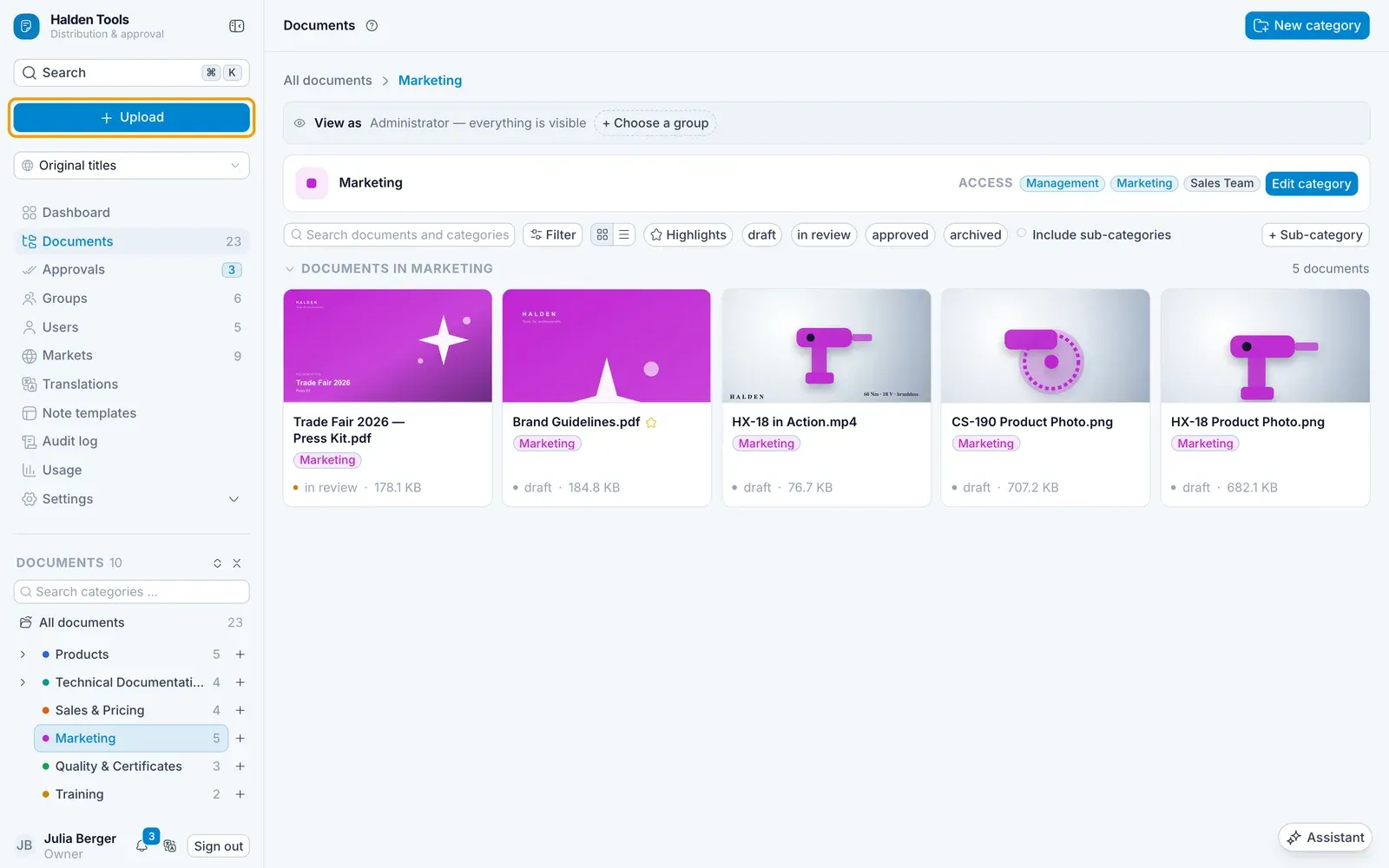
Click Upload at the top left. If you are currently in a category, it is already selected in the next step.
Choose files
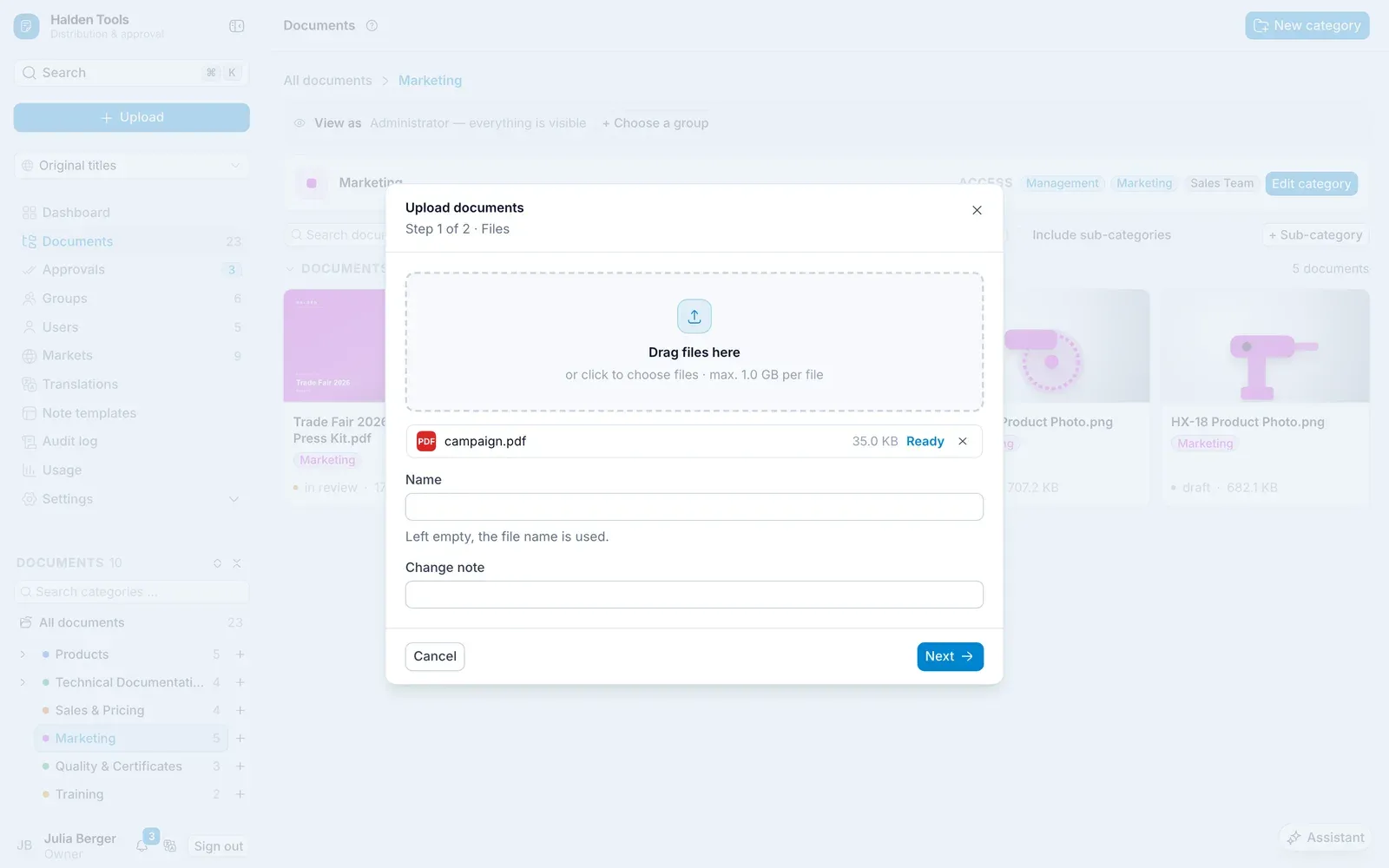
Drag the files into the Drag files here area, or click into it to select them.
Each file gets a Name – if you leave it empty, the file name is used. Under Change note you can record what is new; it applies to all files in this upload. Click Next.
Choose categories
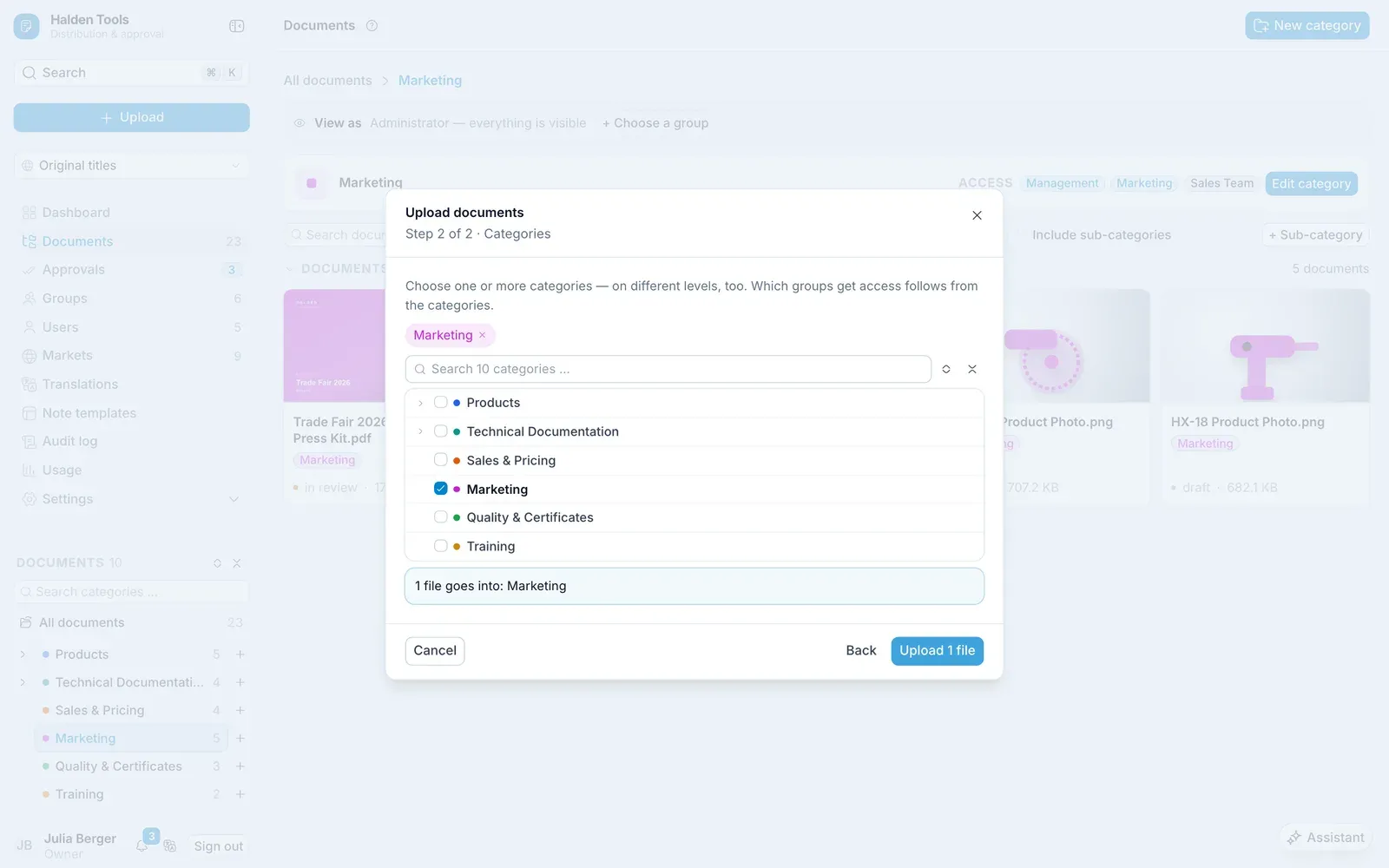
Choose one or more categories, at different levels if you like. Who may see the document follows from the categories – you do not need to set anything else for that.
Upload
Click Upload. The progress is shown; Cancel upload stops it, and Retry the failed ones repeats individual failures.
What happens to identical files
DDM recognises whether it already knows a file:
| You upload … | Result |
|---|---|
| exactly the same file again | is skipped (Unchanged) |
| a changed file with the same name into the same category | becomes a New version of the document |
| the same file into a different category | becomes a document of its own |
Administrators set how many old versions DDM keeps under Settings › Versioning – at most what your plan allows.
Uploading a whole folder
Drag a folder from Explorer or Finder into Documents. DDM then asks:
- With folder structure – sub-folders become sub-categories.
- Files only – all files end up in the category you dragged the folder onto.
After uploading
New documents have the status your organisation sets for uploads – often Draft. Whether they may be shared – sent, opened in other apps, downloaded – is also set by your organisation; by default they may. You change it per document on the Access tab with Sharing allowed, see Sharing.
For cards and lists, DDM makes a thumbnail of pictures, PDFs, Office files and films – for a film, a still about a second in. It does so for films up to 1 GB and for other files up to 64 MB. A larger file shows its file type's icon.