 DDM Help
Groups and permissions
Permissions belong to Groups: a group – such as "Sales South" or "Dealers Austria" – is given permissions on categories, and anyone in the group has those permissions. Administrators may change groups.
Creating a group
Open Groups
Click Groups in the navigation and then New group at the top right. If there are no groups yet, Create the first group in the empty list does the same.
Details
Enter a Name and, if you like, describe the group under Description.
Create
Click Create. The new group opens straight away, ready for members.
Renaming a group
Choose the group from the list. Its name is at the top, in a field: click into it, type the new name and click elsewhere (or press ↵). The name is saved as soon as you leave the field – Renamed to … confirms it. Members and permissions stay as they are.
Members
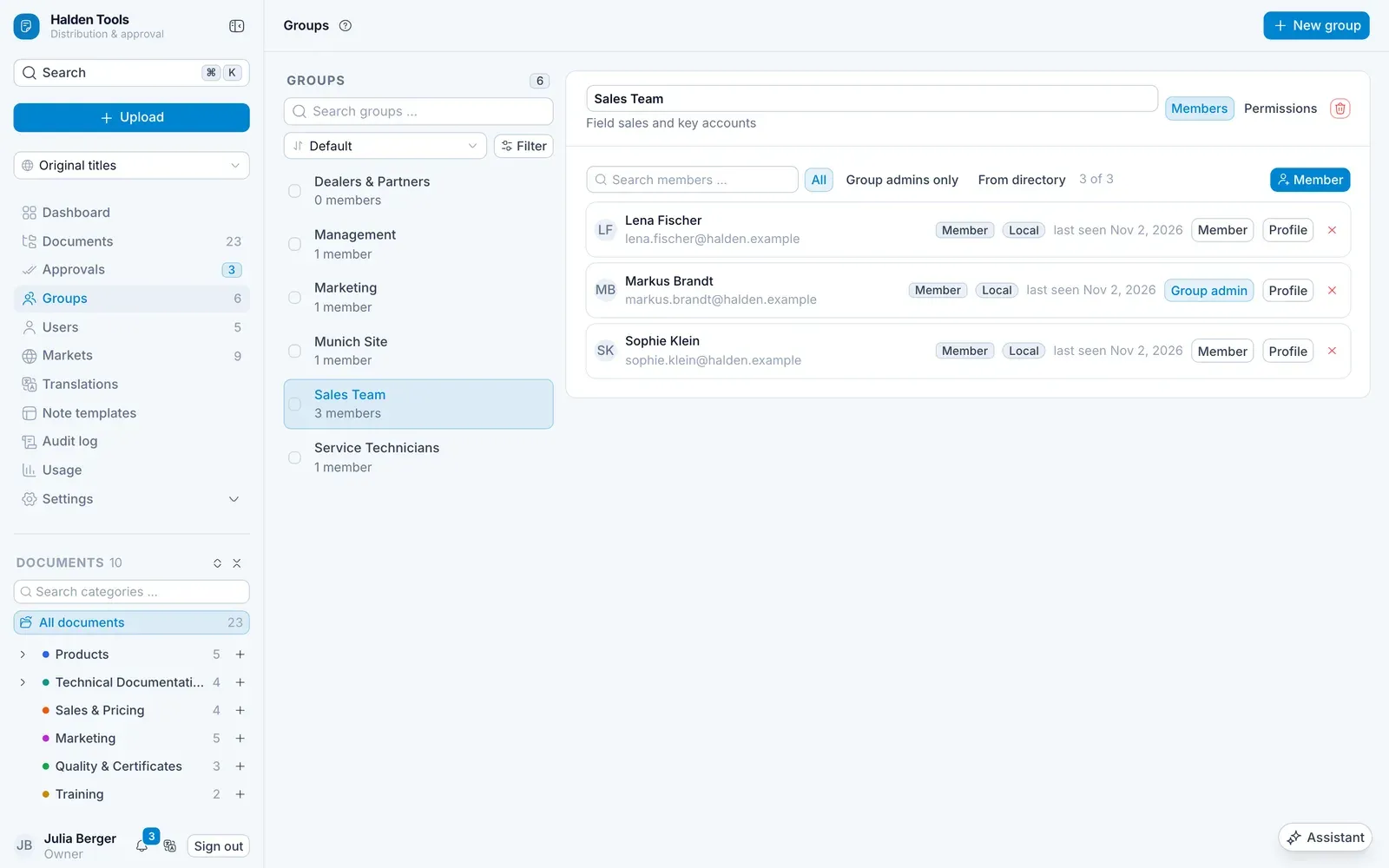
Choose the group from the list. In the Members tab:
- Member – search for people and add them.
- Group admin / Member – group admins may approve documents when a workflow names the group as approver.
- Remove from group
Where a group comes from is shown by the list's filter with Origin: Manual, LDAP, External source, or Migrated from the old system for groups that came along in the move from the previous DDM.
A group's permissions
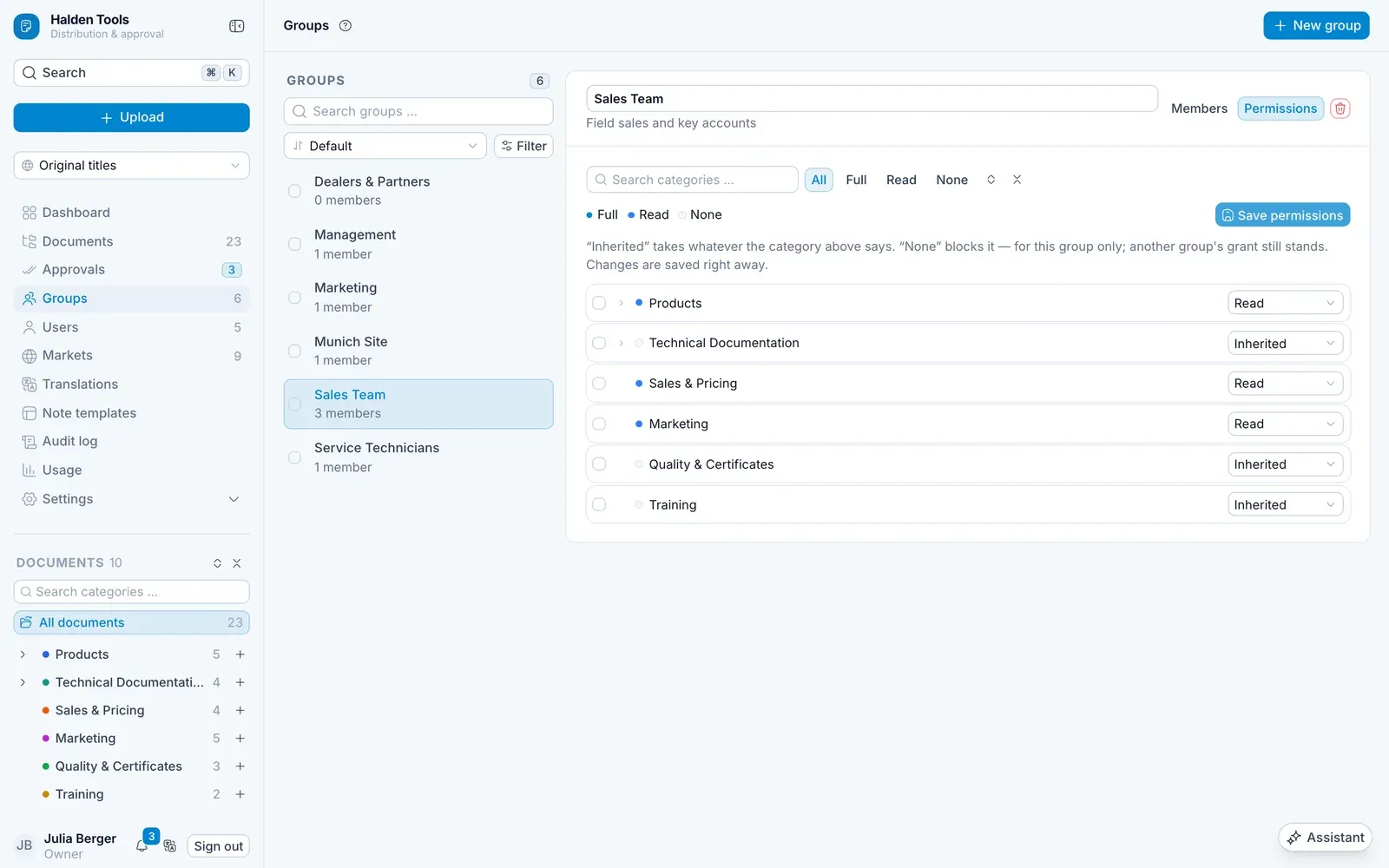
The Permissions tab shows the whole category tree from the group's point of view. For each category you set:
| Level | Meaning |
|---|---|
| Full | see, upload, change, create sub-categories |
| Read | see and open in the app |
| None | locked – even if a parent category says otherwise |
| Inherited | same as the parent category |
Then click Save permissions.
How what someone sees comes about
- A person is a member of one or more groups.
- Each group has permissions on categories; sub-categories inherit them unless something else is set there.
- A document is visible if one of its categories is visible – unless the document's Access tab makes an exception.
What a person sees in the end is shown in the user panel on the Access tab – category by category, with the group that grants it. View as … shows what the document store looks like for someone.
Removing a group
Choose the group and click the bin beside its name (Remove group). The dialog says how many members are affected; confirm with Remove permanently. The members lose the group's permissions; their accounts remain.