 DDM Help
Notes
Notes are what you write yourself in the app: meeting notes, visit reports, checklists, collections of links. Only you can see your notes – until you send one to a customer.
Creating a note
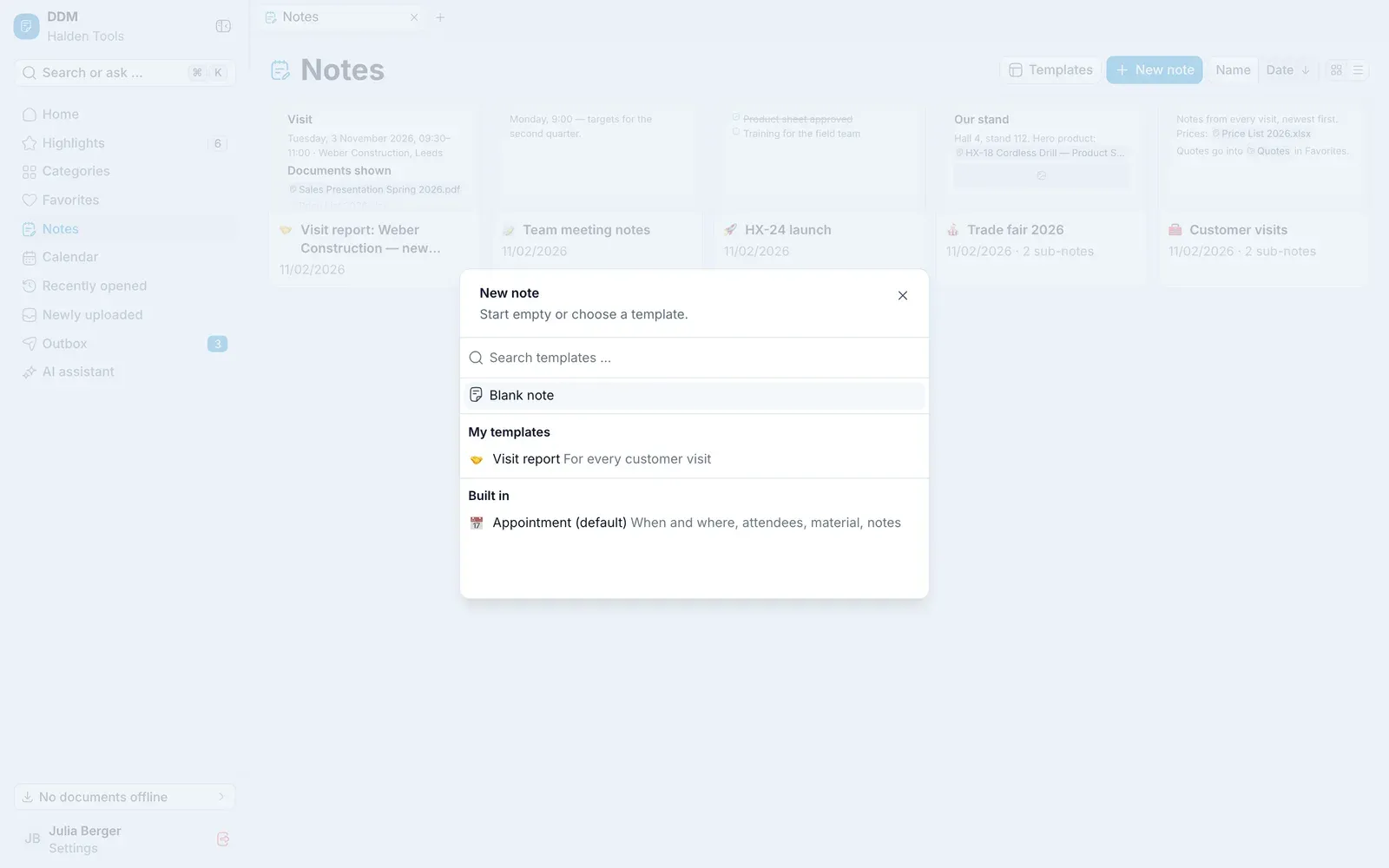
New note
Open Notes and click New note. On a smartphone, you will find Notes under More.
Empty or from a template
Choose Blank note or a template – Built in, My templates or Organisation templates.
Write
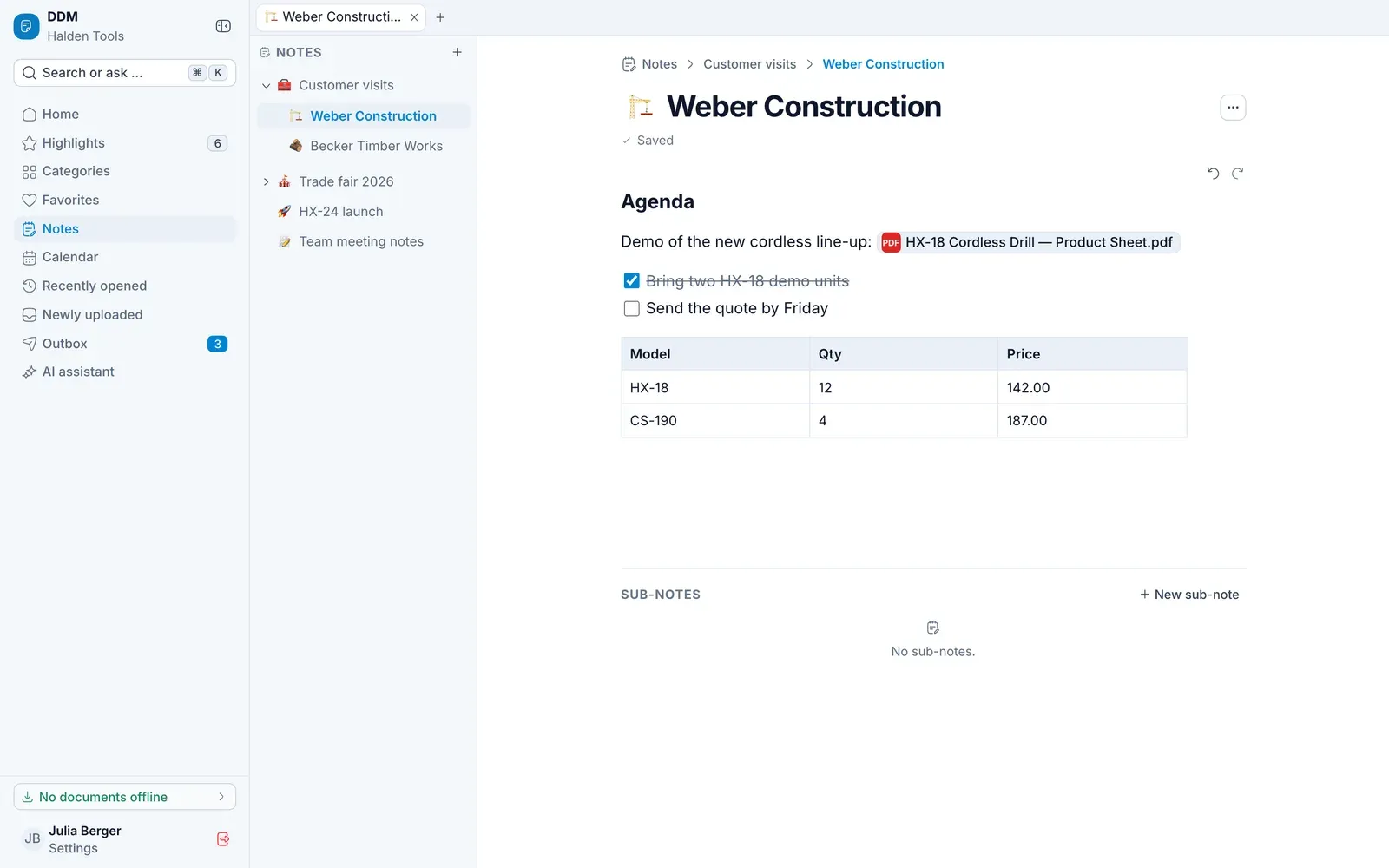
Enter a Title and start writing. The note saves itself – it says Saved at the top.
Writing in the editor
/opens the blocks: headings, lists, Task list, quote, table, image, divider, Document as a card, Category, Favorite folder, Sub-note.@refers to a document, a category or a favorites folder. Clicking it opens it – on a computer, a document or category opens beside the note, so you can keep writing (see Writing beside a document).- On a touchscreen, a toolbar stays at the top while you write, so you do not need
/and@: Undo, Redo, Heading 2, List, Numbered list, Task list, Bold, Table, Document, a link and Add block for everything else. - Undo and Redo sit above the text on the right on a computer – or use ⌘Ctrl Z and ⌘Ctrl ⇧ Z.
- If the AI writing aid is switched on, select some text and choose under AI, for example, Spelling & grammar, Shorter, Summarise or Translate. With ⌘Ctrl J it carries on writing. Take on suggestions with Accept or throw them away with Discard.
Organising notes
Notes shows your notes the way Categories shows its files: as cards with the note's first lines, or as a list – switch at the top right, and sort by Name or Date. A note's sub-notes appear the same way at the bottom of the note.
Notes can have sub-notes. In the All notes tree beside an open note, drag one note onto another to place it underneath. In the Edit note menu you will also find New sub-note, Move …, Save as template, Add to outbox, Add to favorites (or Put in folders … once it is one), Open document beside … and Delete.
If a note – or one of its sub-notes – is in Favorites, Delete names the folders it disappears from.
Writing beside a document
On a computer, you can write a note beside a document: right-click the document's tab and choose New tab beside to open a new tab next to it, where you choose New note or one of your notes. How that works, and what else two tabs side by side can do, is under Two tabs side by side.
Beside another tab, the note tree makes room for the note – the breadcrumbs and sub-notes lead on.
Your own templates
Under Notes › Templates you create your own templates with New template – or you save a finished note via Edit note › Save as template. The bar with Save stays at the top while you write the template. If Save cannot be clicked, it says why next to it: Name required or Saving needs a connection. Templates for the whole organisation are created by administrators in the CMS, see Note templates.
The quickest way to write a visit report for an appointment is from the calendar – see Calendar and appointments.